Android
Prerequisites
Before integrating GooglePGS, note that while GooglePGS works with any Player Network login channel, it is recommended (but not required) to configure Google login (INTLGoogle channel) first, as the cross-device sync feature is designed for the Google ecosystem. For the INTLGoogle setup, follow the Google Android login guide.
Additionally, ensure the following PGS-specific prerequisites are met:
- A Web client ID (server client ID) from the Google Cloud Console → APIs & Services → Credentials. This will be used as
GOOGLEPGS_SERVER_PROJECT_ID. - Google Play Games Services enabled for your app in the Google Play Console under Play Games Services → Setup and management.
- The
INTLGooglePGSplugin added to your project.
For detailed step-by-step instructions on obtaining the Web Client ID and enabling Google Play Games Services, see the Google Android login guide.
Google Play Games Services Integration
Google Play Games Services (GooglePGS) enables PGS sign-in, cross-device login state synchronization, and access to PGS features such as achievements. It is recommended for games that need to sync login state between Android devices and Google Play Games on PC, or that want to use PGS achievements.
Integrating GooglePGS requires the INTLGooglePGS plugin. While GooglePGS works with any login channel, it is typically used alongside INTLGoogle — the cross-device sync feature is designed for the Google ecosystem, where both the Android device and Google Play Games on PC share the same Google account.
Step 1: Configure the SDK for GooglePGS
-
Add the following configuration in the INTLConfig.ini file:
INTLConfig.ini[Android LifeCycle]
LIFECYCLE = GooglePGS
[GooglePGS]
GOOGLEPGS_SERVER_PROJECT_ID = {INTL_GOOGLEPGS_SERVER_PROJECT_ID}
GOOGLEPGS_ENABLE_PGS = 1
GOOGLEPGS_ENABLE_SYNC = 0
GOOGLEPGS_AUTO_ACTIVATE = 1
GOOGLEPGS_LOGIN_WITH_PGS_ON_MOBILE = 0- Replace
{INTL_GOOGLEPGS_SERVER_PROJECT_ID}with the Web client ID.
This is the client ID of the web application in the Credentials section of the API OAuth configuration process, also referred to as the server client ID in the API OAuth 2.5 configuration process. GOOGLEPGS_ENABLE_PGScontrols whether the client-side PGS flow is enabled, including PGS initialization, login, and the welcome bubble. SetGOOGLEPGS_ENABLE_PGS = 1to enable.
- Replace
Starting from V1.31, GOOGLEPGS_ENABLE_PGS only controls the client-side PGS flow. The backend sync behavior is now controlled separately by GOOGLEPGS_ENABLE_SYNC.
GOOGLEPGS_ENABLE_SYNCcontrols whether the SDK syncs the player's OpenID with their PGS Player ID on the Player Network backend. This binding enables cross-device auto-login via PGS — when a player logs in on Device A, Device B can automatically find the associated OpenID through the PGS Player ID. SetGOOGLEPGS_ENABLE_SYNC = 1to enable. Default is0(disabled).
If your game does not need cross-device login recovery via PGS, you can leave GOOGLEPGS_ENABLE_SYNC = 0. This is the recommended setting for games that do not have an independent PGS channel configured in the Player Network Console.
-
GOOGLEPGS_AUTO_ACTIVATEcontrols whether the SDK automatically triggers PGS initialization (non-force) after a successful login. Default is1(enabled — same as pre-V1.32 behavior). Set to0if the game wants to control PGS initialization timing manually — for example, to avoid PGS prompts during a new-user tutorial. When disabled, the game must callActivatePGSServiceat the appropriate time. -
GOOGLEPGS_LOGIN_WITH_PGS_ON_MOBILEcontrols whether PGS-based auto-login is allowed on mobile devices. The default value is0, meaning PGS auto-login only works on Google Play Games on PC. Set to1to also enable PGS auto-login on Android mobile devices.
- Define
manifestPlaceholdersin the gradle file, replacing{INTL_GOOGLEPGS_APPID}with the Google Play Games Services App ID.
- Unity
- Unreal Engine
android {
    defaultConfig {
      manifestPlaceholders = ["GOOGLEPGS_APPID":"{INTL_GOOGLEPGS_APPID}"]
    }
}
For Player Network SDK V1.17 and higher, edit INTLConfig_APL.xml.
For Player Network SDK V1.16.04 and earlier versions, please edit INTLCore_UPL.xml.
<buildGradleAdditions>
    <insert>
    <![CDATA[
    android{
        defaultConfig {
            manifestPlaceholders = ["GOOGLEPGS_APPID":"{INTL_GOOGLEPGS_APPID}"]
        }
    }]]>
    </insert>
</buildGradleAdditions>
[Optional] Step 2: Enable cross-device auto-login
After a player has logged in on an Android device (via any channel such as Google), you can sync the login state to Google Play Games on PC via GooglePGS. Both the Android device and Google Play Games on PC must be logged in to the same Google account.
This step requires GOOGLEPGS_ENABLE_SYNC = 1 in Step 1. Without it, the OpenID–PGS Player ID binding is never created, and cross-device auto-login will not work.
On Google Play Games on PC, the SDK automatically uses the PGS login flow when AutoLogin() is called — if no local auth result is found, the SDK attempts to recover the player's session via their PGS Player ID.
- Unity
- Unreal Engine
INTLAPI.AutoLogin();
UINTLSDKAPI::AutoLogin();
[Optional] Step 3: Manually trigger PGS login
After a successful login through another channel (e.g., Google), the SDK automatically triggers a non-force PGS sign-in in the background. In this automatic flow, the SDK initializes PGS and shows the PGS welcome popup. It then checks the player's PGS authentication state:
- If already authenticated: The SDK proceeds to request a server-side auth code for PGS identity binding.
- If not authenticated: The SDK silently skips PGS login without showing the sign-in UI to the player.
On the very first app launch on a device with a Google account, PGS v2 may display a login or profile creation prompt as part of its own platform onboarding. This is triggered by PGS initialization (PlayGamesSdk.initialize()), not by the SDK's signIn() call, and is outside the SDK's control. On subsequent launches, PGS either silently authenticates (if the player previously completed login) or remains unauthenticated without showing any UI. If there is no Google account on the device, this prompt does not appear even on the first launch.
If you need to explicitly trigger PGS login from the game side (for example, to let the player link their PGS identity), you can call the ActivatePGSService API. This API is Android only and accepts a forceSignIn parameter:
ActivatePGSService(true)— Force sign-in (default). If PGS is not authenticated, the SDK invokessignIn()which presents the Google PGS sign-in UI to the player.ActivatePGSService(false)— Non-force sign-in. Same behavior as the automatic flow: if PGS is not authenticated, the SDK silently skips without showing any UI.
When called, the SDK will:
- Run pre-checks: verify that
GOOGLEPGS_ENABLE_PGS = 1, the activity is valid, and Google Play Services is available. If any check fails, an error is returned through the auth result callback. - Initialize PGS and check if the player is already authenticated with PGS:
- If already authenticated: The SDK proceeds to request a server-side auth code for PGS identity binding.
- If not authenticated (force): The SDK invokes
signIn()which presents the Google PGS sign-in UI to the player. If the player completes login successfully, the SDK proceeds to request the auth code. If the player dismisses the UI or login fails, an error is returned through the auth result callback. - If not authenticated (non-force): The SDK silently skips PGS login without showing any UI, and returns an error through the auth result callback.
The PGS identity binding (OpenID ↔ PGS Player ID) is only sent to the Player Network backend when GOOGLEPGS_ENABLE_SYNC = 1. Without it, ActivatePGSService authenticates PGS but does not create the cross-device binding.
Starting from V1.32, if GOOGLEPGS_AUTO_ACTIVATE = 0, the SDK will not automatically initialize PGS after login. The game should call ActivatePGSService at the desired time:
ActivatePGSService(false)— triggers the same non-force flow as the automatic path (shows welcome bubble, silently skips if not authenticated).ActivatePGSService(true)— force sign-in, shows the PGS login UI if not authenticated.
- Unity
- Unreal Engine
// Non-force: same as automatic flow
INTLAPI.ActivatePGSService(false);

// Force: shows PGS sign-in UI if not authenticated
INTLAPI.ActivatePGSService(true);
// Non-force: same as automatic flow
UINTLSDKAPI::ActivatePGSService(false);

// Force: shows PGS sign-in UI if not authenticated
UINTLSDKAPI::ActivatePGSService(true);

Image: PGS welcome bubble displayed after successful PGS initialization
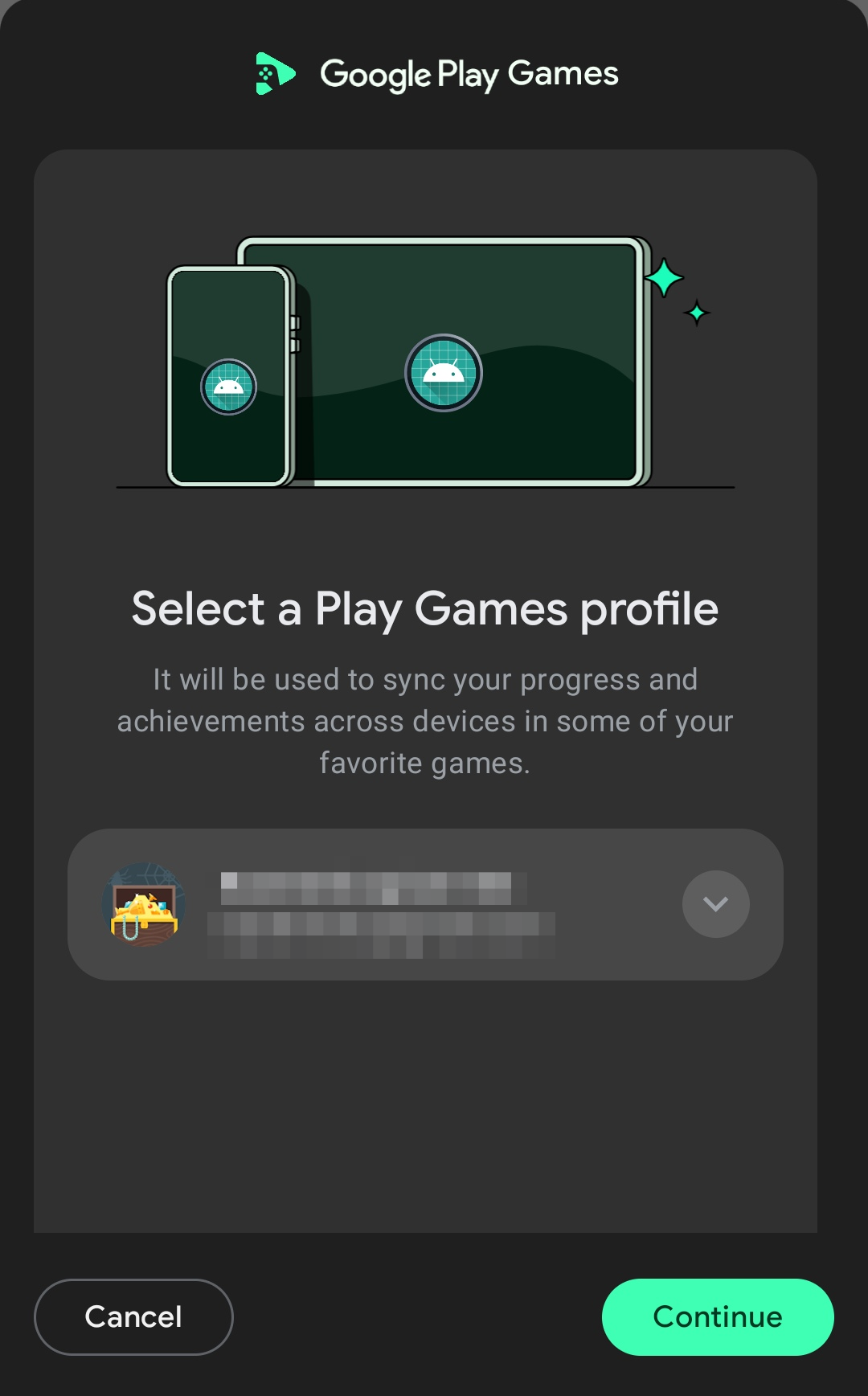
Image: PGS sign-in UI shown when the player is not yet authenticated
Acceptance testing
Verify the following scenarios after completing the PGS integration:
- PGS auto-initialization: After login, confirm the PGS welcome bubble appears (when
GOOGLEPGS_ENABLE_PGS = 1andGOOGLEPGS_AUTO_ACTIVATE = 1). - Cross-device sync: Log in on an Android device with
GOOGLEPGS_ENABLE_SYNC = 1, then launch the game on Google Play Games on PC with the same Google account — the player should be automatically logged in without re-entering credentials. - Manual PGS login: Call
ActivatePGSService(true)and confirm the PGS sign-in UI appears when the player is not yet authenticated.
GooglePGS Configuration Reference
| Configuration | Default value | Description |
|---|---|---|
GOOGLEPGS_SERVER_PROJECT_ID | — | Web client ID (server client ID) from Google Cloud Console OAuth credentials. Required. |
GOOGLEPGS_ENABLE_PGS | 0 | Enables the client-side PGS flow (initialization, login, welcome bubble). |
GOOGLEPGS_ENABLE_SYNC | 0 | Syncs the player's OpenID with their PGS Player ID on the Player Network backend for cross-device auto-login. |
GOOGLEPGS_AUTO_ACTIVATE | 1 | Controls whether the SDK automatically triggers PGS initialization after a successful login. Set to 0 to control timing manually. |
GOOGLEPGS_LOGIN_WITH_PGS_ON_MOBILE | 0 | Allows PGS-based auto-login on mobile devices (not just Google Play Games on PC). |
Google PGS Achievements
The Player Network SDK provides an Achievement module that integrates with Google Play Games Services achievement feature. This allows games to unlock achievements, increment progress, and display the native achievements UI.
Starting from V1.32.01, all achievement APIs use the immediate (server-confirmed) variant. The callback RetCode reflects the actual server result, and IncrementAchievement returns {"newly_unlocked": true/false} in ExtraJson. Error handling was also standardized: RetCode now uses standard INTL error codes (e.g., NEED_LOGIN, INVALID_ARGUMENT) instead of returning UNKNOWN with custom codes in ThirdCode. In versions earlier than V1.32.01, only UnlockAchievement, IncrementAchievement, and ShowAchievements were available, and UnlockAchievement and IncrementAchievement used fire-and-forget calls — the callback returned success immediately without confirming the operation completed on the server.
Prerequisites
- Complete the GooglePGS configuration above with
GOOGLEPGS_ENABLE_PGS = 1. - Configure achievements in the Google Play Console under Play Games Services > Setup and management > Achievements.
- PGS must be authenticated before calling any achievement API. If PGS is not authenticated, the API will return a
NEED_LOGINerror via callback. The SDK automatically authenticates PGS after a successful login whenGOOGLEPGS_ENABLE_PGS = 1, or you can manually trigger it viaActivatePGSService.
Register Achievement Callback
Register a callback to receive achievement operation results.
- Unity
- Unreal Engine
// Add achievement callback
INTLAPI.AddAchievementResultObserver(OnAchievementResult);

// Remove achievement callback
INTLAPI.RemoveAchievementResultObserver(OnAchievementResult);

// Handle achievement result
public void OnAchievementResult(INTLAchievementResult ret)
{
    Debug.Log($"Achievement MethodID: {ret.MethodId}, RetCode: {ret.RetCode}");
}
// Register achievement observer
FINTLAchievementEvent achievementObserver;
achievementObserver.AddUObject(this, &UMyClass::OnAchievementResult);
UINTLSDKAPI::SetAchievementResultObserver(achievementObserver);

// Remove achievement callback
UINTLSDKAPI::GetAchievementResultObserver().Clear();
void UMyClass::OnAchievementResult(FINTLAchievementResult ret)
{
    UE_LOG(LogTemp, Log, TEXT("Achievement MethodID: %d, RetCode: %d"), ret.MethodId, ret.RetCode);
}
Unlock Achievement
Unlock a standard (non-incremental) achievement by its ID. If the achievement is already unlocked, the call succeeds without changing its state.
The result is returned through the achievement callback with MethodId = 2701. No ExtraJson is returned.
- Unity
- Unreal Engine
INTLAPI.UnlockAchievement("GooglePGS", "achievement_id_here");
UINTLSDKAPI::UnlockAchievement(TEXT("GooglePGS"), TEXT("achievement_id_here"), TEXT("{}"));
Increment Achievement Progress
For incremental achievements, increment the progress by a specified number of steps. The numSteps parameter must be greater than 0. If the new total reaches or exceeds the achievement's required steps, the achievement is unlocked.
The result is returned through the achievement callback with MethodId = 2702. The ExtraJson field contains {"newly_unlocked": true/false}, indicating whether this call caused the achievement to be unlocked.
- Unity
- Unreal Engine
INTLAPI.IncrementAchievement("GooglePGS", "achievement_id_here", 1);
UINTLSDKAPI::IncrementAchievement(TEXT("GooglePGS"), TEXT("achievement_id_here"), 1, TEXT("{}"));
Show Achievements UI
Display the native Google Play Games achievements overlay. The overlay is shown as a separate activity on top of the game.
The result is returned through the achievement callback with MethodId = 2703. No ExtraJson is returned.
- Unity
- Unreal Engine
INTLAPI.ShowAchievementsUI("GooglePGS");
UINTLSDKAPI::ShowAchievementsUI(TEXT("GooglePGS"), TEXT("{}"));
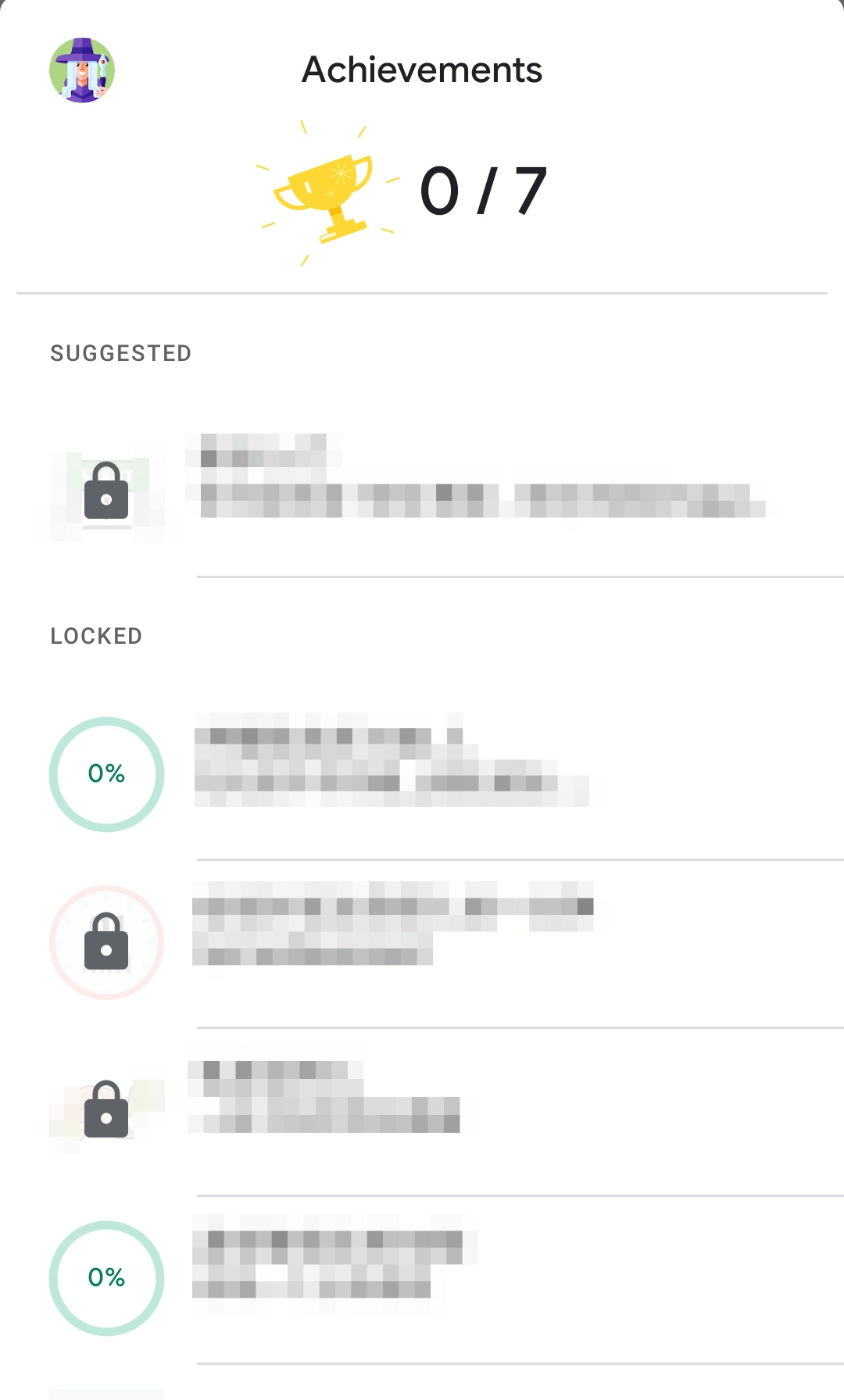
Image: Native Google Play Games achievements overlay displayed on top of the game
Query Achievement List
Available in V1.32.01 and above. Query all achievements for the current player, including their state (UNLOCKED, REVEALED, HIDDEN), type (STANDARD, INCREMENTAL), step progress, and name. Pass {"force_reload": true} in extraJson to bypass the local cache and force a fresh load from the server.
The result is returned through the achievement callback with MethodId = 2704. The ExtraJson field contains a JSON object with the following structure:
{
  "achievements": [
    {
      "id": "achievement_id",
      "state": "UNLOCKED",       // UNLOCKED | REVEALED | HIDDEN
      "type": "STANDARD",        // STANDARD | INCREMENTAL
      "current_steps": 5,        // Only for INCREMENTAL
      "total_steps": 10,         // Only for INCREMENTAL
      "last_updated_timestamp": 1234567890,
      "name": "Achievement Name"
    }
  ],
  "is_stale": false              // Whether the data came from cache
}
- Unity
- Unreal Engine
// Use cache (default)
INTLAPI.QueryAchievementList("GooglePGS");

// Force reload from server
INTLAPI.QueryAchievementList("GooglePGS", "{\"force_reload\": true}");
// Use cache (default)
UINTLSDKAPI::QueryAchievementList(TEXT("GooglePGS"), TEXT("{}"));

// Force reload from server
UINTLSDKAPI::QueryAchievementList(TEXT("GooglePGS"), TEXT("{\"force_reload\": true}"));
Set Achievement Steps
Available in V1.32.01 and above. Set an incremental achievement's completed steps to at least a target value. Unlike IncrementAchievement which adds steps, this API sets the progress directly — if the current steps are already equal to or greater than the target, the achievement remains unchanged. If the target reaches or exceeds the total steps, the achievement is unlocked.
The result is returned through the achievement callback with MethodId = 2705. The ExtraJson field contains {"newly_unlocked": true/false}, indicating whether this call caused the achievement to be unlocked.
- Unity
- Unreal Engine
INTLAPI.SetAchievementSteps("GooglePGS", "achievement_id_here", 5);
UINTLSDKAPI::SetAchievementSteps(TEXT("GooglePGS"), TEXT("achievement_id_here"), 5, TEXT("{}"));
Reveal Achievement
Available in V1.32.01 and above. Reveal a hidden achievement to the player. Once revealed, the achievement becomes visible in the achievements UI but remains unlocked until the player completes its requirements.
The result is returned through the achievement callback with MethodId = 2706.
- Unity
- Unreal Engine
INTLAPI.RevealAchievement("GooglePGS", "achievement_id_here");
UINTLSDKAPI::RevealAchievement(TEXT("GooglePGS"), TEXT("achievement_id_here"), TEXT("{}"));
Achievement API Reference
| API | Parameters | Description |
|---|---|---|
UnlockAchievement | channel, achievementId, extraJson (optional) | Unlock a standard achievement. |
IncrementAchievement | channel, achievementId, numSteps (Unity) / Progress (UE), extraJson (optional) | Increments progress of an incremental achievement. |
ShowAchievementsUI | channel, extraJson (optional) | Displays the native achievements UI overlay. |
QueryAchievementList | channel, extraJson (optional) | Queries all achievements and their current status. |
SetAchievementSteps | channel, achievementId, numSteps (Unity) / Progress (UE), extraJson (optional) | Sets an incremental achievement's steps to a target value. |
RevealAchievement | channel, achievementId, extraJson (optional) | Reveals a hidden achievement to the player. |
AddAchievementResultObserver (Unity) | callback | Registers a callback for achievement results. |
RemoveAchievementResultObserver (Unity) | callback | Removes a previously registered achievement callback. |
SetAchievementResultObserver (UE) | FINTLAchievementEvent& | Registers a delegate for achievement results. |
GetAchievementResultObserver (UE) | — | Returns the delegate object; call .Clear() to remove. |
Achievement Result Data
The INTLAchievementResult (Unity) / FINTLAchievementResult (UE) contains:
| Field | Type | Description |
|---|---|---|
MethodId | int | The method that triggered this result (2701=Unlock, 2702=Increment, 2703=ShowUI, 2704=QueryList, 2705=SetSteps, 2706=Reveal). |
RetCode | int | Result code. 0 indicates success. |
SubRetCode | int | Secondary result code (available since V1.28). |
RetMsg | string | Result message. |
ThirdCode | int | Raw Google Play Games Services status code. Only populated when RetCode is 9999 (THIRD), meaning the error originated from PGS. See GamesClientStatusCodes. |
ThirdMsg | string | Human-readable PGS status string when ThirdCode is set, or error detail message. |
ExtraJson | string | Additional result data (JSON format). See individual API sections for details. |
Platform | string | The achievement provider name, e.g., "GooglePGS". |
SeqId | string | Sequence ID for the request. |
Acceptance testing
Verify the following scenarios after completing the achievement integration:
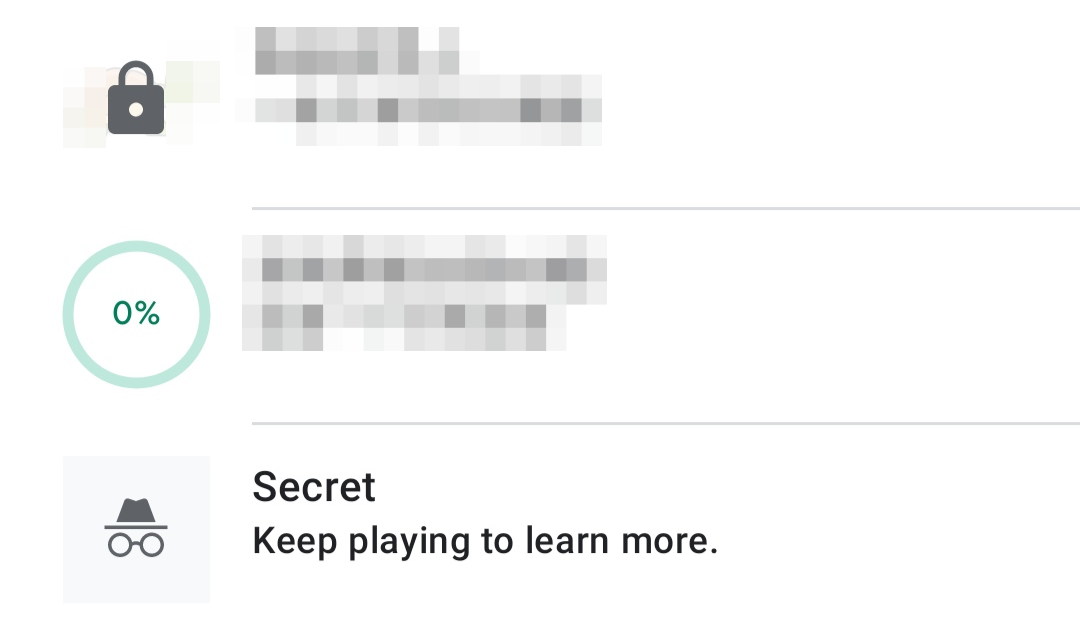
Image: PGS achievements UI showing (top to bottom) a standard locked achievement, an incremental locked achievement, and a hidden achievement
- Unlock achievement: Call
UnlockAchievementon a standard achievement and verify the callback returnsMethodId = 2701withRetCode = 0. Confirm the achievement is unlocked in the achievements UI. - Increment achievement: Call
IncrementAchievementon an incremental achievement and verify the callback returnsMethodId = 2702withRetCode = 0. Check thatExtraJsoncontains{"newly_unlocked": true/false}. - Show achievements UI: Call
ShowAchievementsUIand verify the callback returnsMethodId = 2703withRetCode = 0. Confirm the native Google Play Games achievements overlay is displayed. - Query achievement list: Call
QueryAchievementListand verify the achievement callback returnsMethodId = 2704withRetCode = 0. Check thatExtraJsoncontains anachievementsarray with valid state, type, and step data. - Set achievement steps: Call
SetAchievementStepson an incremental achievement and verify the callback returnsMethodId = 2705withRetCode = 0. Check thatExtraJsoncontains{"newly_unlocked": true/false}. - Reveal achievement: Call
RevealAchievementon a hidden achievement and verify the callback returnsMethodId = 2706withRetCode = 0. Confirm the achievement becomes visible in the achievements UI.
Troubleshooting
This section shares common issues identified during the integration and testing of Google Play Games Services, along with guidance on how to verify and resolve them.
PGS integration issues
-
Verify the PGS configuration and signing certificate
Confirm that Play Games Services is associated with the correct OAuth client. The associated OAuth client must contain:
- The package name of the application being tested
- The SHA-1 certificate fingerprint used to sign the application distributed through Google Play
If Google Play App Signing is enabled, verify the app signing certificate rather than only the development or upload certificate.
If the OAuth client uses a different package name or SHA-1 fingerprint, PGS backend requests may fail despite the UI indicating that they were successful. For example, the login toast may still appear and the achievement may still seem to unlock with the unlock toast showing; however, the achievement may eventually fail to synchronize correctly and may even revert to a locked state. This error might not be visible in the game or INTL SDK logs.
For more information, see Play Games Services credentials.
-
Verify that the account is a PGS testing user
Before the PGS configuration and achievements are published, confirm that the Google account used for testing has been added as an authorized PGS tester.
Also confirm that:
- The account used by Google Play Games is the account added to the tester list.
- The account has access to the applicable testing release.
- The installed build belongs to the expected package and PGS project.
- The correct account is selected if multiple Google accounts are present on the device.
Achievement issues
-
Wait and observe
Achievement updates may not appear immediately in the Google Play Games UI or across game sessions. After calling an achievement API, wait for the update to propagate, then refresh or restart the relevant session before concluding that the operation failed.
Avoid repeatedly submitting the same operation while waiting for the previous update to appear.
-
Verify the achievement ID
Confirm that the
achievement_idexactly matches the value in Google Play Console. Achievement IDs are case-sensitive and should always be copied directly from the console rather than entered manually.For example, an ID containing uppercase
Icharacters may be misread as containing lowercaselcharacters:Correct: CgkI_***********I****
Incorrect: Cgkl_***********l****Also check for:
- Leading or trailing whitespace
- Changed letter casing
- Letters confused with visually similar numbers
- An ID copied from a different PGS project or application
-
Check the achievement publishing status
Draft achievements can be used to test achievement operations, callbacks, progress updates, and unlock behavior. However, unlocking a draft achievement does not award XP.
Keep achievements in draft status during development so that their unlock state can be reset for repeated testing. Do not publish achievements solely to validate XP before the game and its PGS integration are ready for production.
When reporting a PGS issue, provide the complete relevant IDs (such as the achievement ID) as plain text in a private debugging channel, together with the application package name, build source, signing-certificate SHA-1 fingerprint, and tester status. Do not provide IDs only through screenshots.

