Custom Font
Given the perspective of multilingual or unified UI design, it is required to change the LEVEL INFINITE PASS font to the game font. This section introduces the setup method.
The replacement font resource needs to support Roman characters.
Font
- Unity
- Unreal Engine
Unity does not provide font resource files by default. Before opening the LI PASS interface, call the SetPriorityFont API to change the font.If not specifically specified, Unity Arial font is used by default.
Arial font used by Unity cannot display Thai correctly on iOS. See the relevant topic on Unity Issue Tracker for details.
If Thai needs to be displayed, it is recommended to use other specialized Thai font resources.For more details on configuration, please refer to Multilingual Font.
Unreal Engine Font Asset Overview
Unreal Engine font files are divided into font assets (Font) and font face assets (Font Face). For more information, see the official UE documentation.
Among them, font asset files are relatively small and are referenced by UMG Blueprints. For example, Lato.uasset in the image.
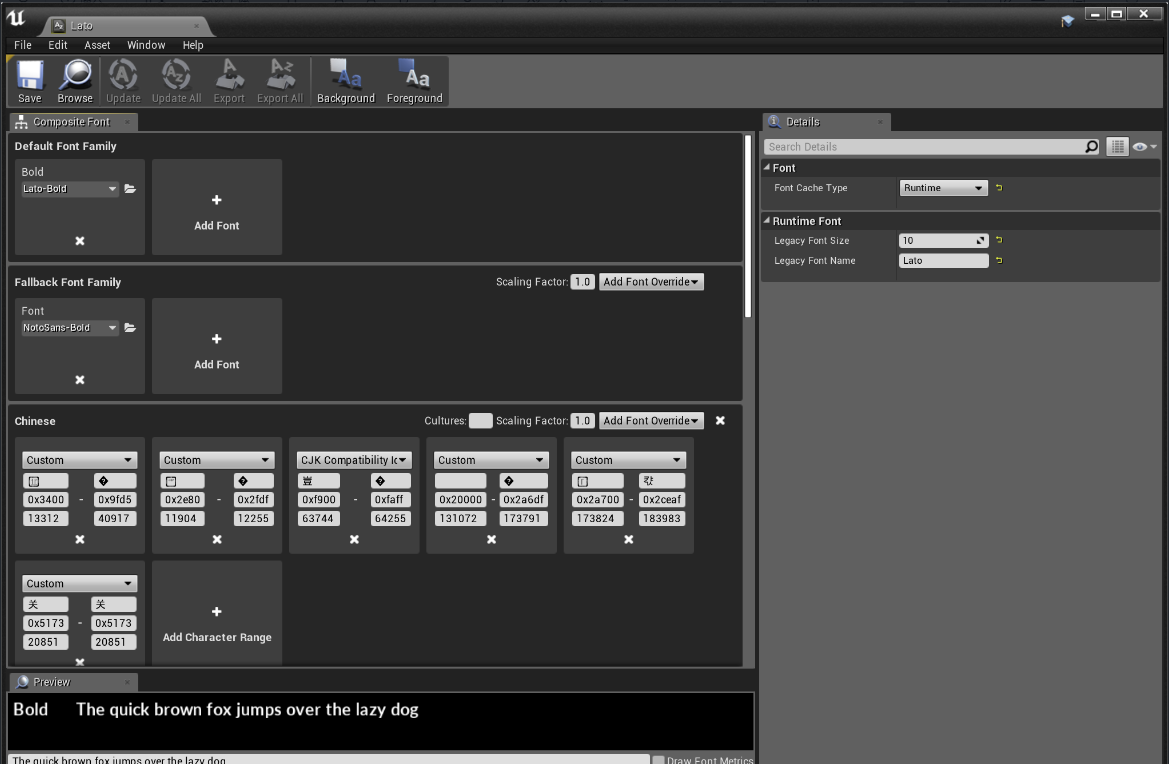
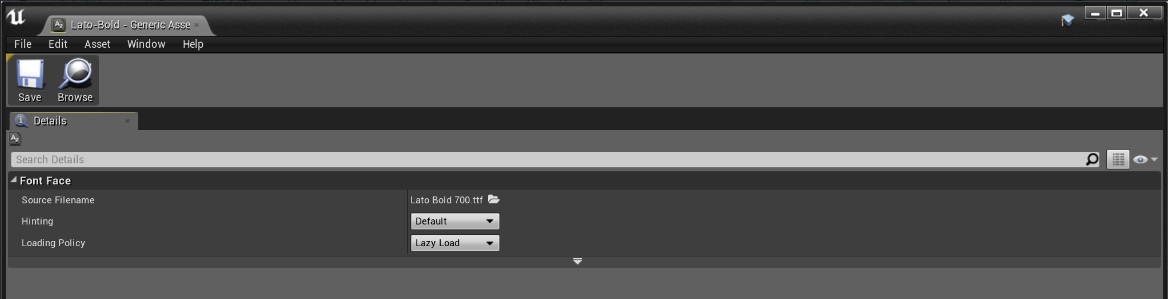
Font face asset files are relatively large, store font data, and are referenced by font assets. The same font face asset can be reused across multiple font assets. For example, in the image below, the font face asset Lato.uasset uses Lato-Bold.uasset.
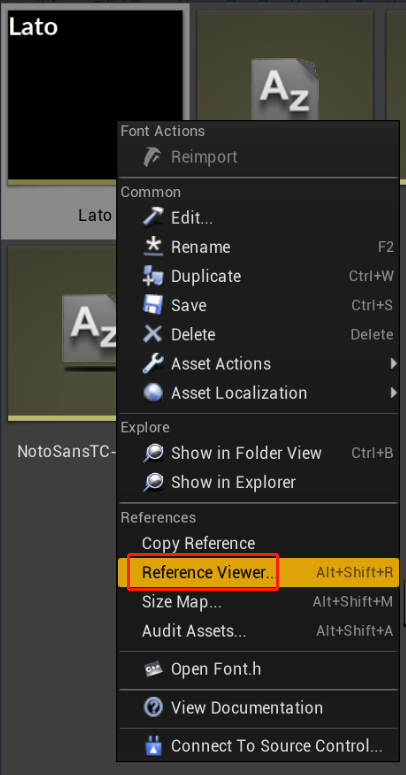
Font reference relationships can be viewed through the engine's reference viewer.
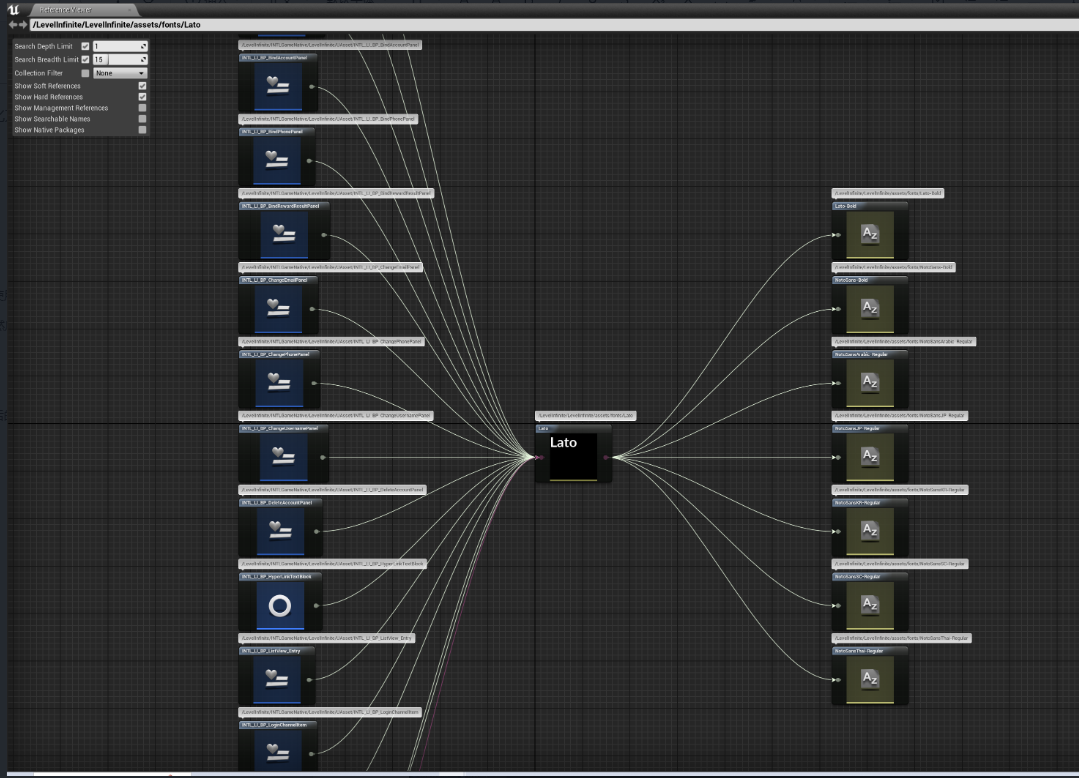
Method 1: Manually replace Unreal Engine fonts
Preparation
Prepare the font asset (font) to be replaced and place it in the project's font directory. Using the Stainless font asset as an example, open the editor and compile the Stainless.uasset file.
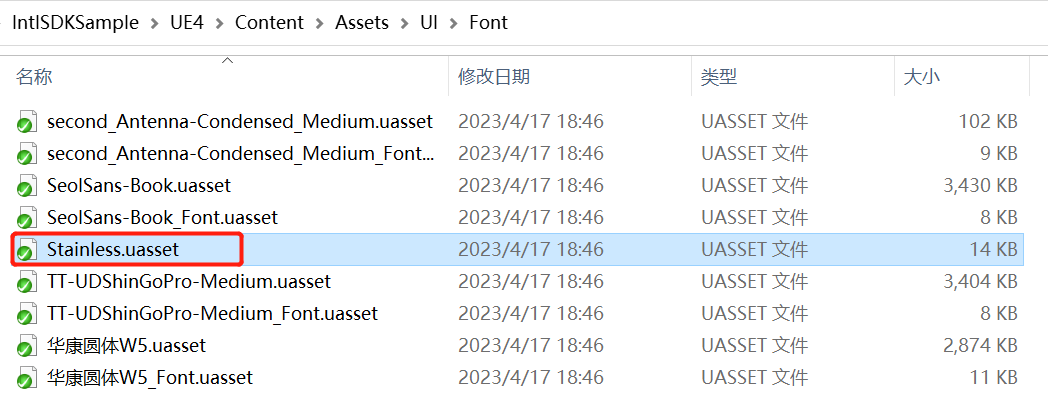
Back up the Stainless font asset file (Stainless.uasset), record the font storage location, and then delete the Stainless font asset file.
The backed-up font asset file will be used to replace the font.
If you manually back up and delete the font in the folder, the font asset references will not change. It is recommended not to force-delete font assets in the editor, as this will cause font references to change and may result in font replacement failure.
Modify the LI PASS font asset file
Find the Lato font asset file used by LI PASS in the editor.
-
In the editor, rename the Lato font asset to the name of the font to be replaced, and use the reference viewer to check the reference relationships.
For example: after renaming Lato to Stainless.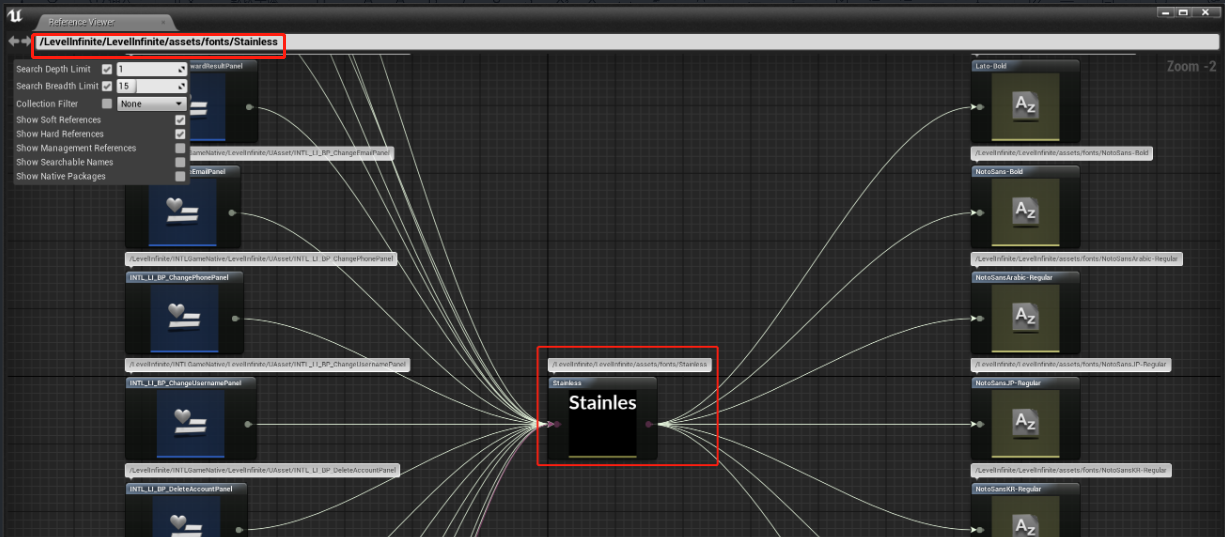
-
In the editor, move the renamed Lato font (which is now the Stainless font) to the original storage location of the font to be replaced. At this point, the editor will prompt you to copy or move it; choose Move.
For example: move the renamed Stainless font (originally Lato) to the original location of the deleted game font Stainless (that is, the location deleted and recorded in the previous step).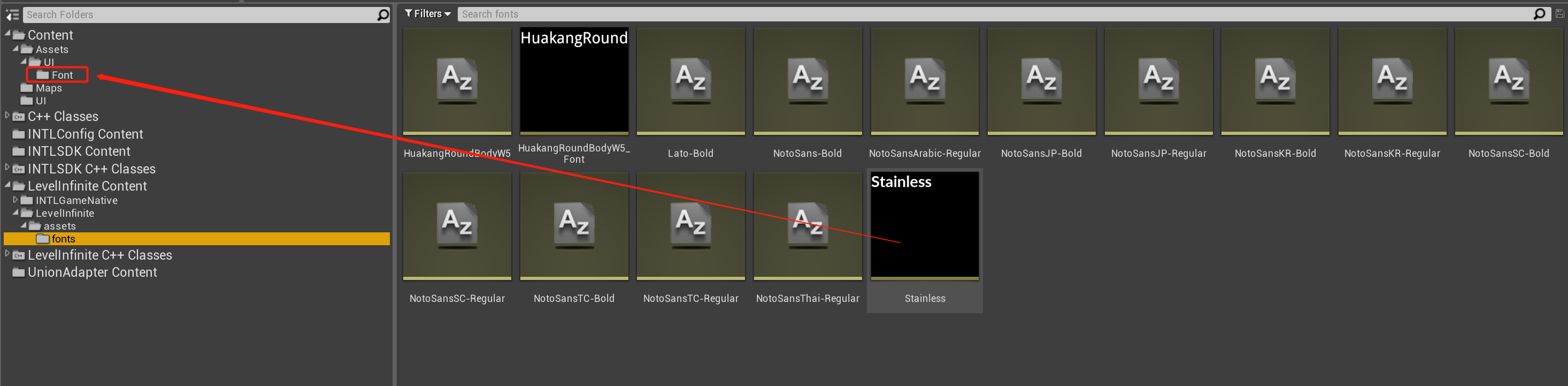
Use the Reference Viewer tool to inspect the reference relationships.
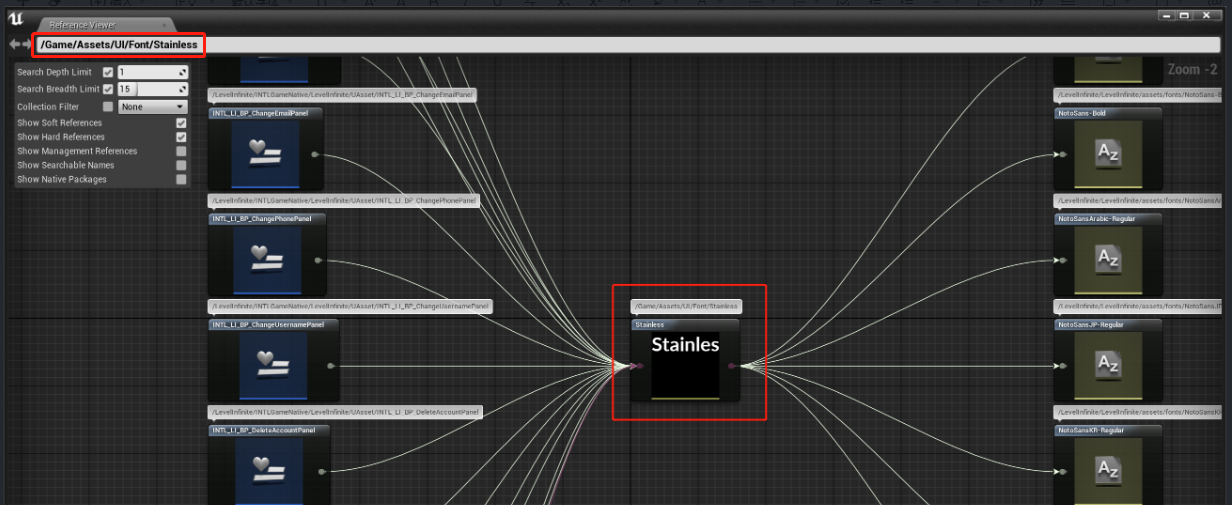
Rename and move the original Lato font so that the reference relationship of the LI PASS font changes to point to the original location of the Stainless font that needs to be replaced.
Replace the LI PASS font asset file
Close the editor, then in the folder use the previously backed-up font asset file (Stainless.uasset) to overwrite the existing LI PASS font asset (Stainless.uasset) file.
Overwriting the font asset file in the folder will not change the asset references. It is recommended to do this after closing the editor to avoid replacement failure caused by file references.
Check LI PASS font references
Open the editor and use the Reference Viewer tool to check that the font references in LI PASS UMG blueprints have changed to the expected new font asset file.
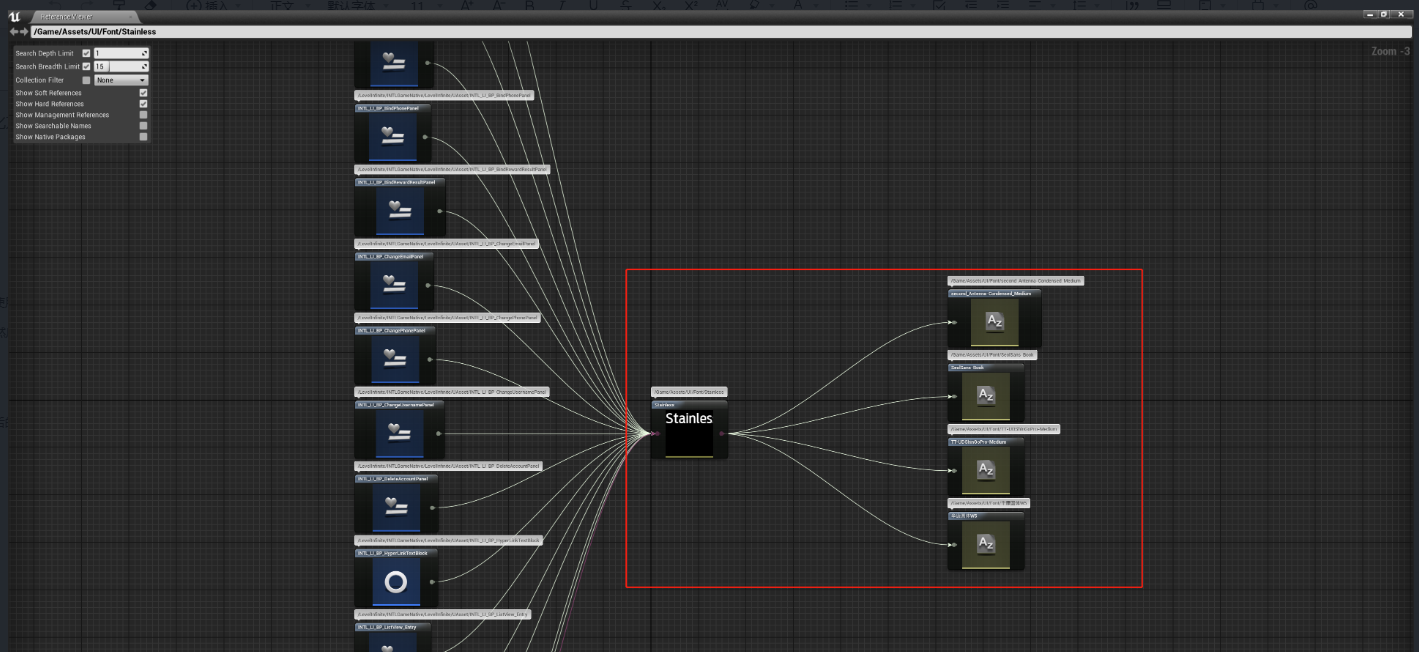
The font used by LI PASS has been completely replaced. You can view the changes to the UI text in the editor.
Method 2: Replace Unreal Engine fonts with a script
This requires a Python script. The script tool is in the INTLSample UE project.
Preparation
Prepare the font asset (font) to be replaced and place it in the project's font directory. Using the Stainless font asset as an example, open the editor and compile the Stainless.uasset file.
Modify the script configuration
-
Modify the configuration in the
Tools/Config.pyfile under the project directory:GAME_FONT_FILE_PATH: the path to the font asset file to be replaced.
ENGINE_PATH: the engine installation path. -
Modify the configuration in the
Tools/RenameLIFont.pyfile under the project directory:GAME_FONT_ASSET_PATH: the font asset path used by the game, for example: /Game/Assets/UI/Font/Stainless.Stainless
-
Close the editor and run the script command:
Run the command in the Tools working directory:
python .\LITools.py -t ReplaceLIFont -unreal 4.21The parameter following -unreal is the Unreal version used for game development.
The font used by LI PASS has been completely replaced. You can view the changes to the UI text in the editor.
Acceptance
Run the game in the editor or on a physical device to verify whether the font has changed as expected.
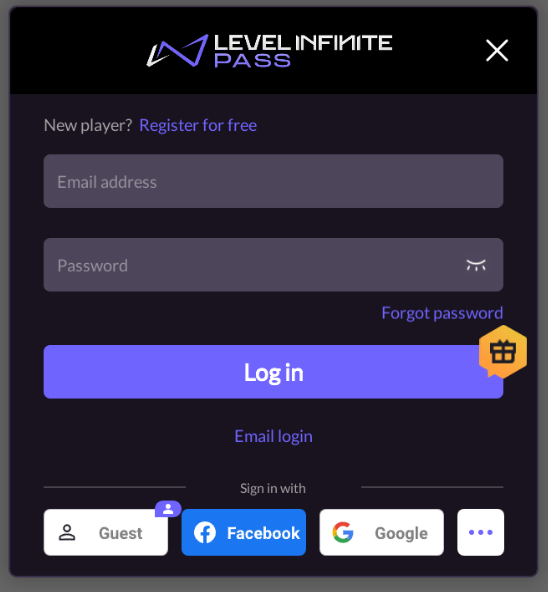
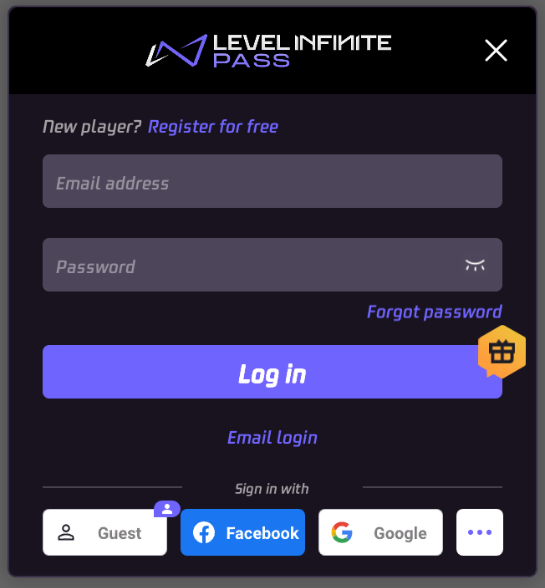
For example, the default font Lato has been updated to Tencent Sans.
Lato:
Tencent Sans:
Multilingual Fonts
- Unity
- Unreal Engine
To solve the problem of fonts not being displayed correctly in different character encodings, add default fonts to imported fonts in the FontName field.
FontNames Format: FontName1, FontName2, FontName3
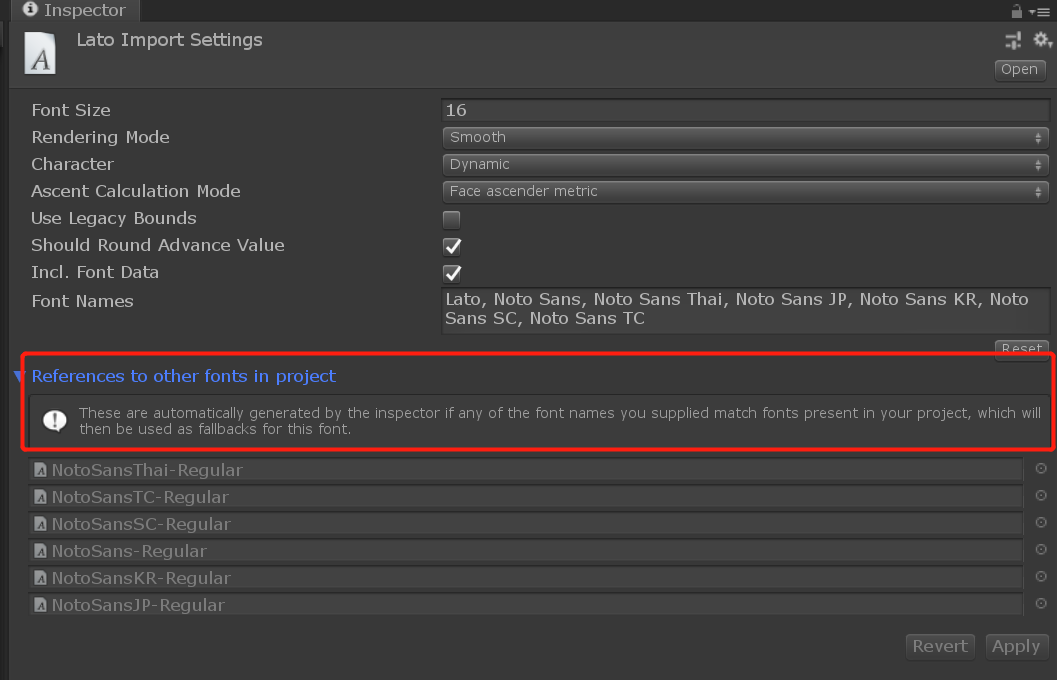
For more information, see Font assets.
When Unity tries to render text with a dynamic font but cannot find the font (because Include Font Data is not selected and the font is not installed on the user's computer) or the font does not contain the requested glyph (such as trying to render text in East Asian script using Latin fonts, or using bold/italic glyph text), it will try each font listed in the Font Names field. Checking whether it can find a font that matches the project font name (including font data) or whether the font installed on the user's computer has the requested glyph.If no listed backup fonts can be found or these fonts do not have the requested glyph, Unity will fall back to a hard-coded global fallback font list that includes various international fonts usually installed on the current runtime platform.
— Unity Documentation
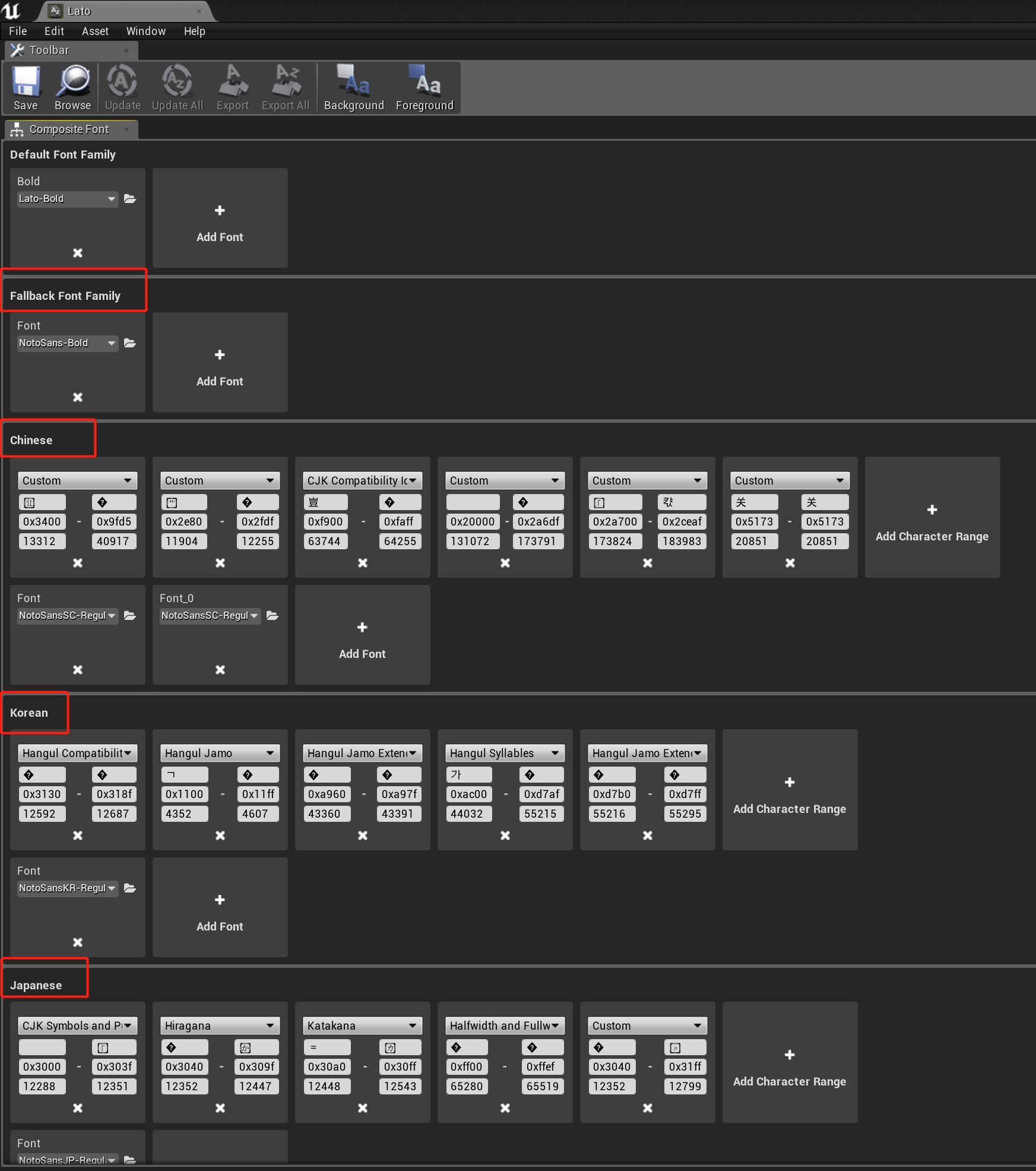
To solve the issue of fonts not displaying correctly across different character encodings, font assets need to be configured to include different font families for different character sets.
At present, both the default LI PASS font Lato and the subsequently provided NotoSans have the issue that a single font cannot be applied to all languages. Therefore, it is necessary to use fonts for different encodings together with the default font to ensure that each language can be displayed properly.
Configure a composite font, using Lato as the default font family, and additionally include font families for Simplified Chinese, Japanese, Korean, Traditional Chinese CJK, and Thai. Also configure NotoSans as a fallback font for displaying various other languages, such as Hindi, which is unsupported by most fonts.
Optimize Default Fonts
As the default LI PASS font assets involve multiple languages, if optimization is needed, unnecessary font asset files can be removed. See below:
| File Name | Description | Note |
|---|---|---|
| HuakangRoundBodyW5.uasset | Removed in LI PASS V1.14.00 | Can be deleted |
| HuakangRoundBodyW5_Font.uasset | Removed in LI PASS V1.14.00 | Can be deleted |
| Lato.uasset | LI PASS default font asset | Cannot be deleted |
| Lato-Bold.uasset | LI PASS default font style | Cannot be deleted |
| NotoSansArabic-Regular.uasset | Arabic font style used by LI PASS | Deletion is not recommended Can be deleted if Arabic is not supported |
| NotoSans-Bold.uasset | LI PASS default fallback font style | Cannot be deleted |
| NotoSansJP-Bold.uasset | Japanese font style, removed in LI PASS V1.14.00 | Can be deleted |
| NotoSansJP-Regular.uasset | Japanese font style used by LI PASS | Deletion is not recommended Can be deleted if Japanese is not supported |
| NotoSansKR-Bold.uasset | Korean font style, removed in LI PASS V1.14.00 | Can be deleted |
| NotoSansKR-Regular.uasset | Korean font style used by LI PASS | Deletion is not recommended Can be deleted if Korean is not supported |
| NotoSansSC-Bold.uasset | Chinese font style, removed in LI PASS V1.14.00 | Can be deleted |
| NotoSansSC-Regular.uasset | Chinese font style used by LI PASS | Deletion is not recommended Can be deleted if Chinese is not supported |
| NotoSansTC-Bold.uasset | Traditional Chinese font style, LI PASS V1.14.00 has been removed | Can be deleted |
| NotoSansTC-Regular.uasset | Traditional Chinese font style, LI PASS V1.14.00 has been removed | Can be deleted |
| NotoSansThai-Regular.uasset | Thai font style used by LI PASS | Deletion is not recommended Can be deleted if Thai is not supported |
Multilingual font acceptance
Run the game in the editor or on a physical device to verify whether the font has changed as expected.
If only one font is used in the game, you can directly switch between two languages to test the multilingual adaptation of the UI interface.
If the game is configured with different fonts for different languages, it is recommended to switch between languages that use different fonts for acceptance testing.
For example, English and Chinese use font A, while Thai uses font B.Acceptance testing can switch between English (font A) and Thai (font B) to confirm effect.
Below is an example of the same font adapted to both Chinese and English:
English:
Chinese: