Third-party Channel Configuration
For projects that have opted to not integrate LI PASS, the configuration of third-party channels can be completed independently. Follow the below procedures to configure third-party channel login for your project.
If LI PASS has been integrated, we recommend following the procedures from Configure LI PASS to configure third-party channels instead.
Quick start
To configure a third-party channel for the first time, follow this order:
- Create configurations: select a channel and fill in the information provided by that channel's management platform.
- Add sub-channels (optional): only Facebook, Google, Apple, VK, Discord, and WeChat support sub-channels.
- Publish configurations: on the Configuration To Be Published page, select the channels and publish them to the test environment or submit a production environment request.
Configurations take effect only after they are published. Test environment publishing requires no review and syncs the selected configurations directly; production environment publishing requires manual review and usually takes about 3 to 4 hours.
Create configurations
-
Log in to the Player Network Console, then select Configure Channels under Account Configurations in the left sidebar.
-
Under Configure Channels, click Start.
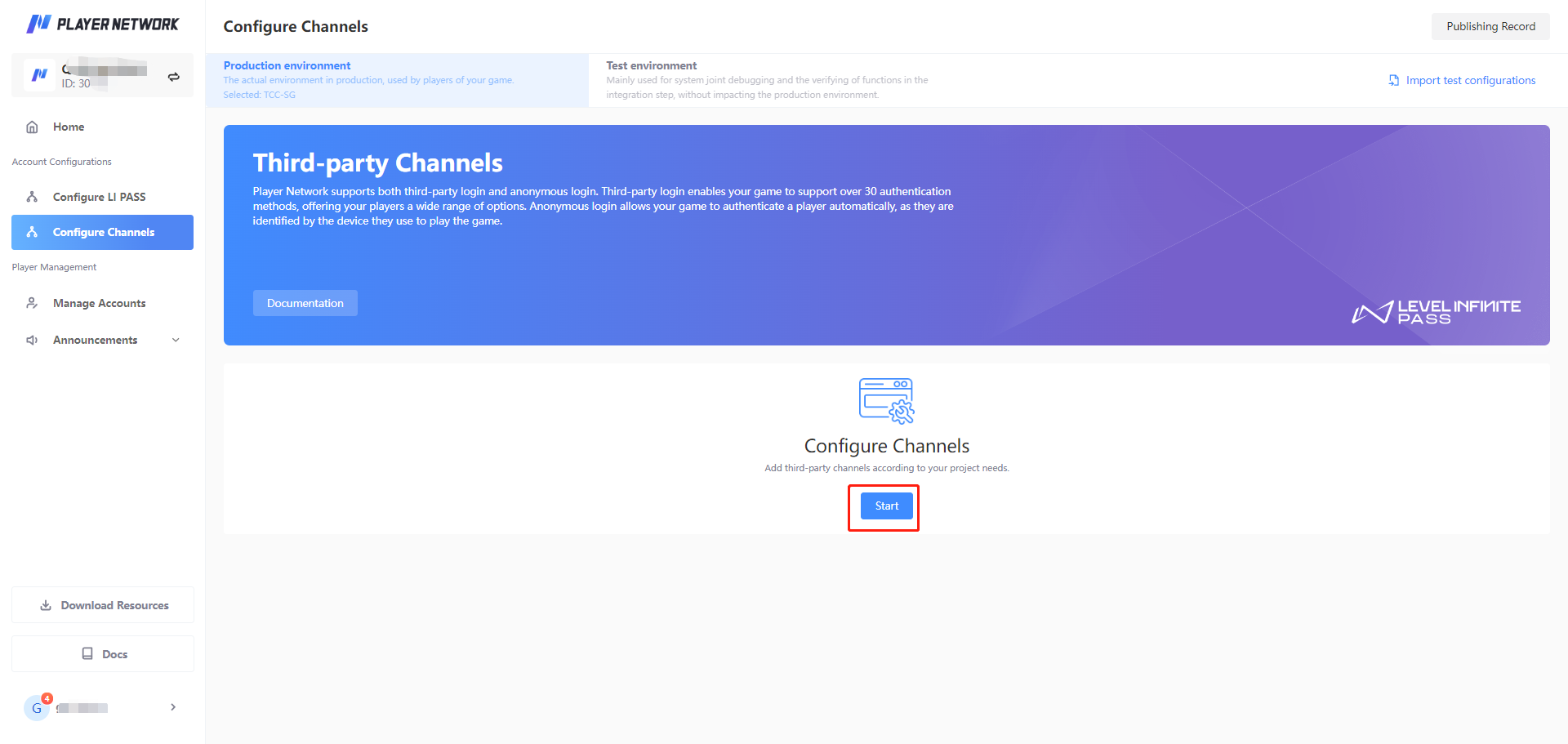
If you have already edited/released third-party channels through LI PASS configuration, this page will display the configured third-party channels. In this case, you can click Add Configuration to configure third-party channels.
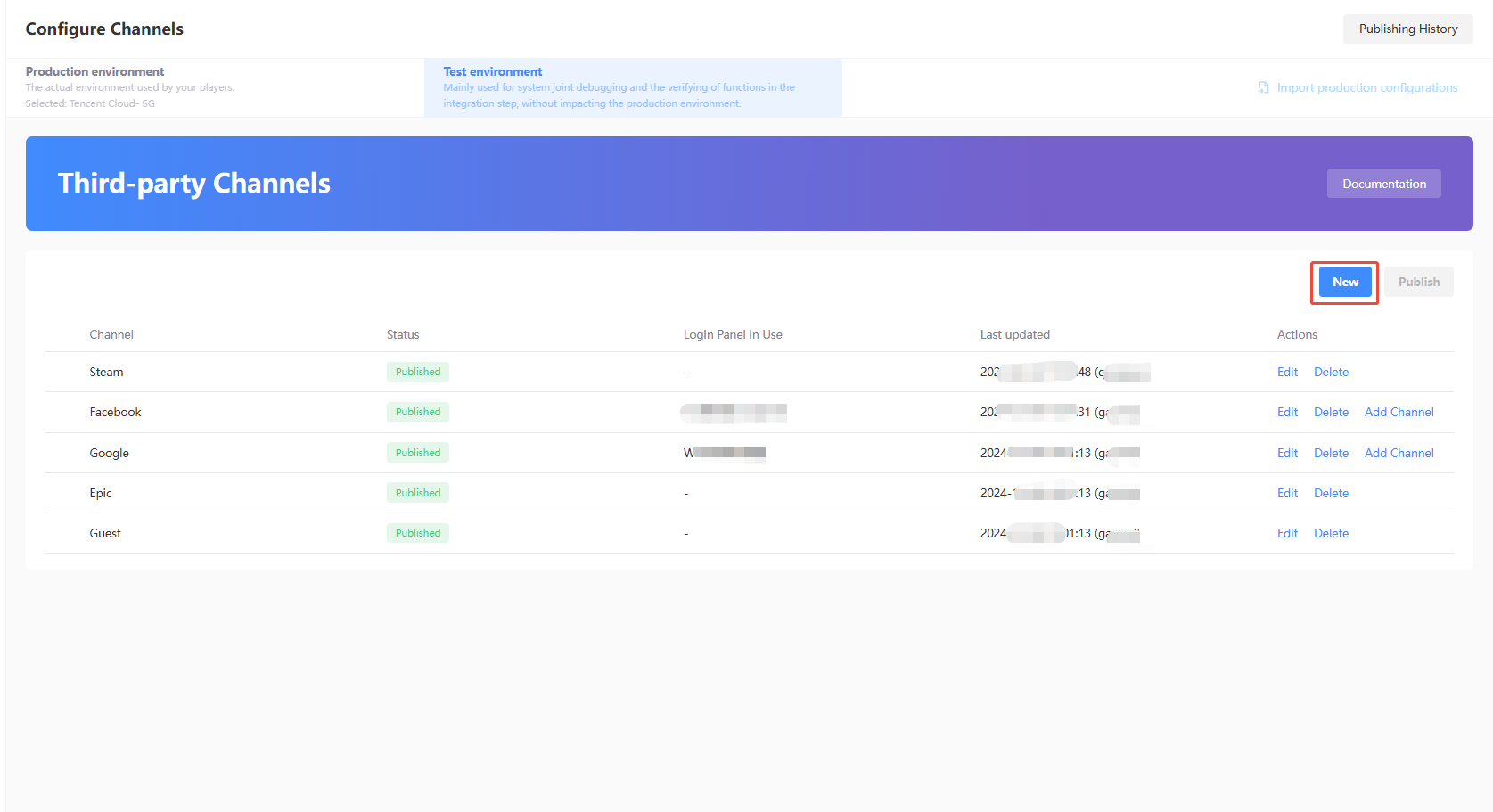
-
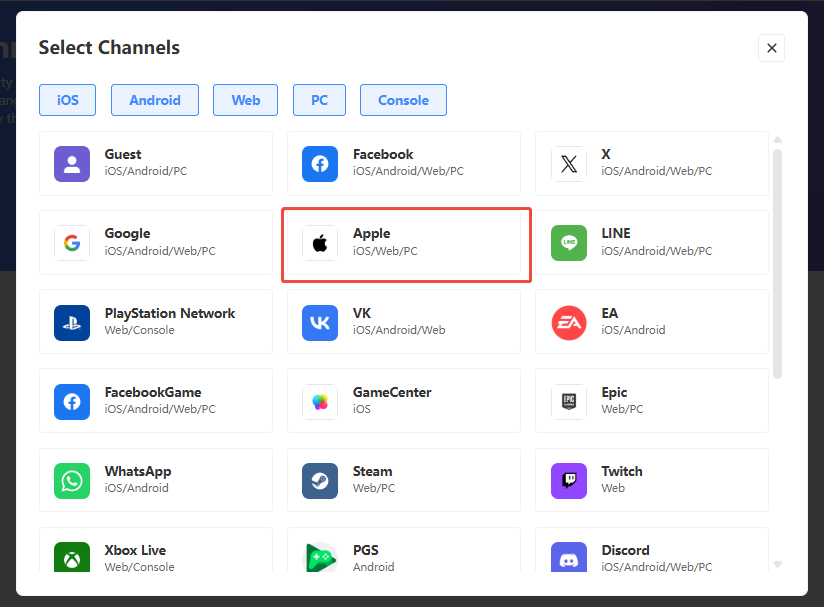
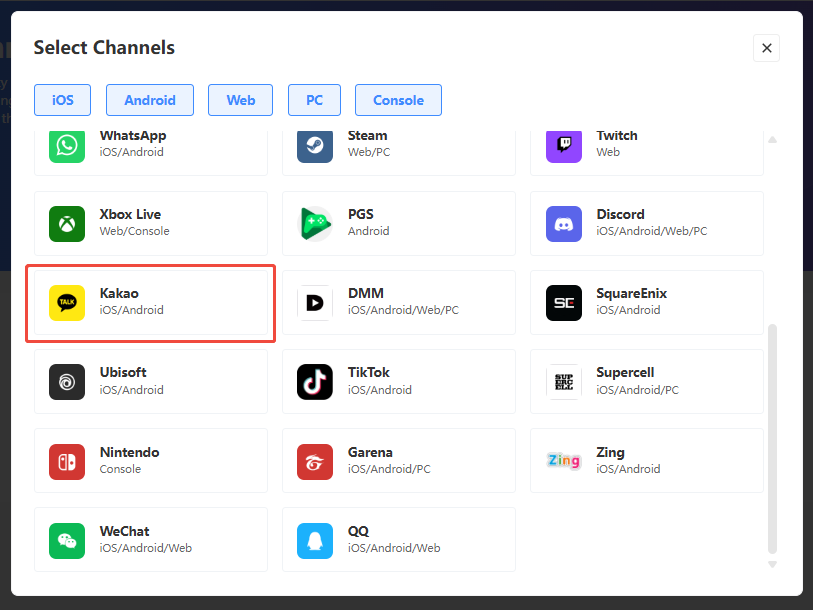
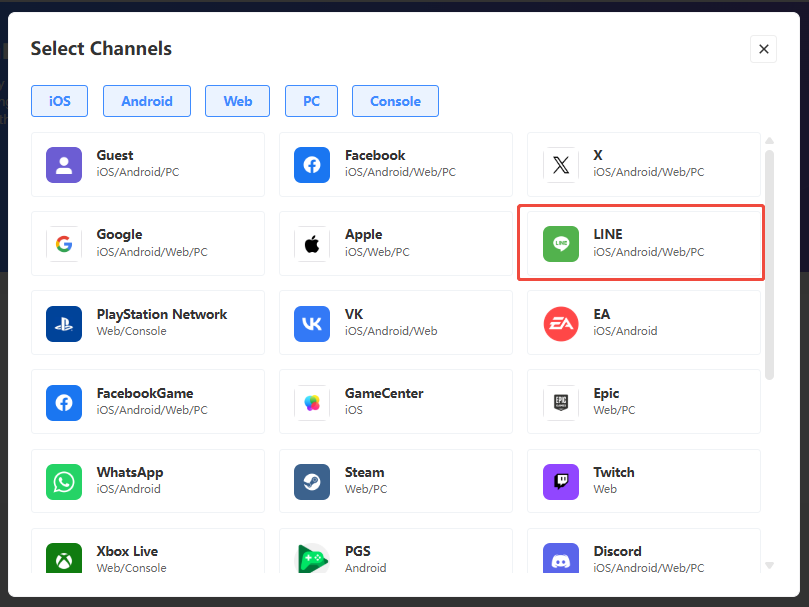
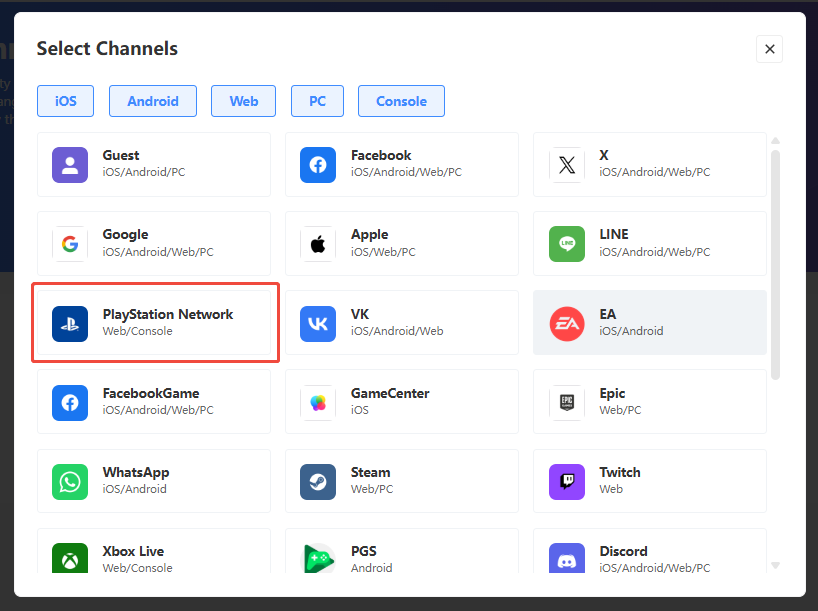
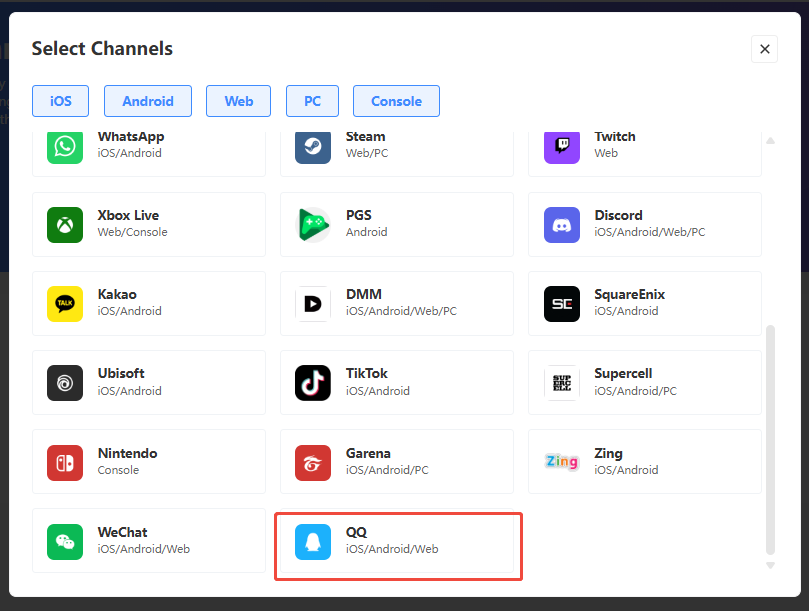
Select the channel to be newly created from the channel list.
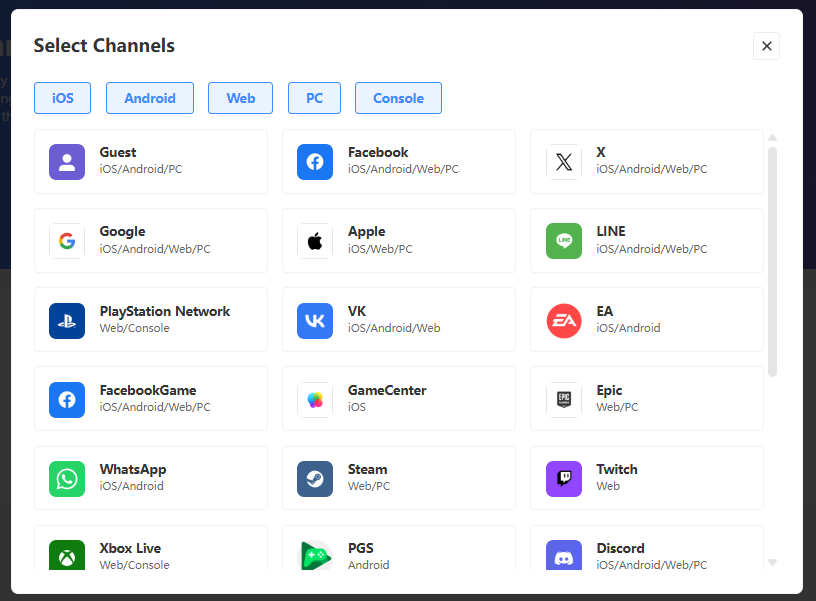
-
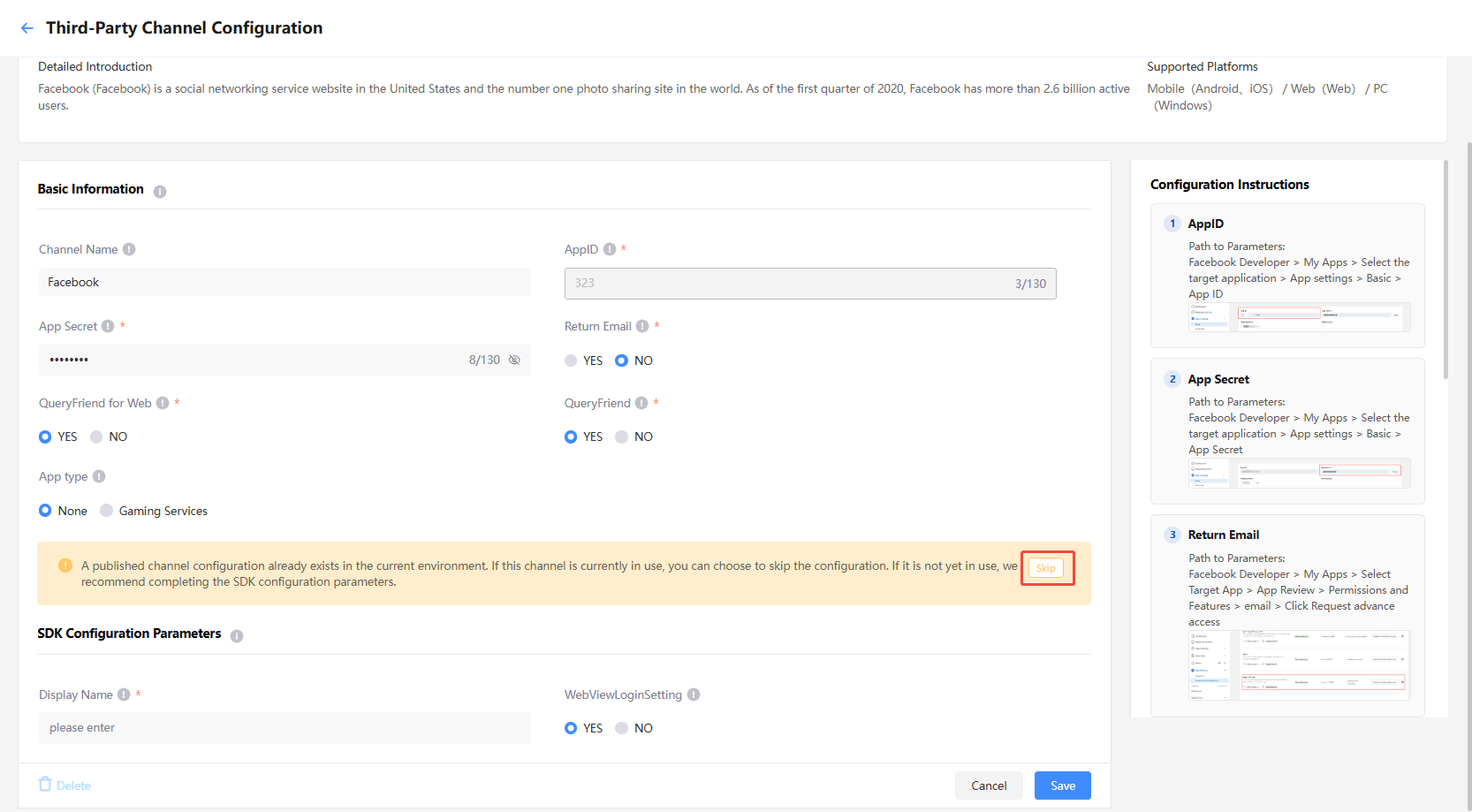
Complete the required fields using information that can be found from the management platform of the respective channel. For a list of the information required for each channel, see Channel information.
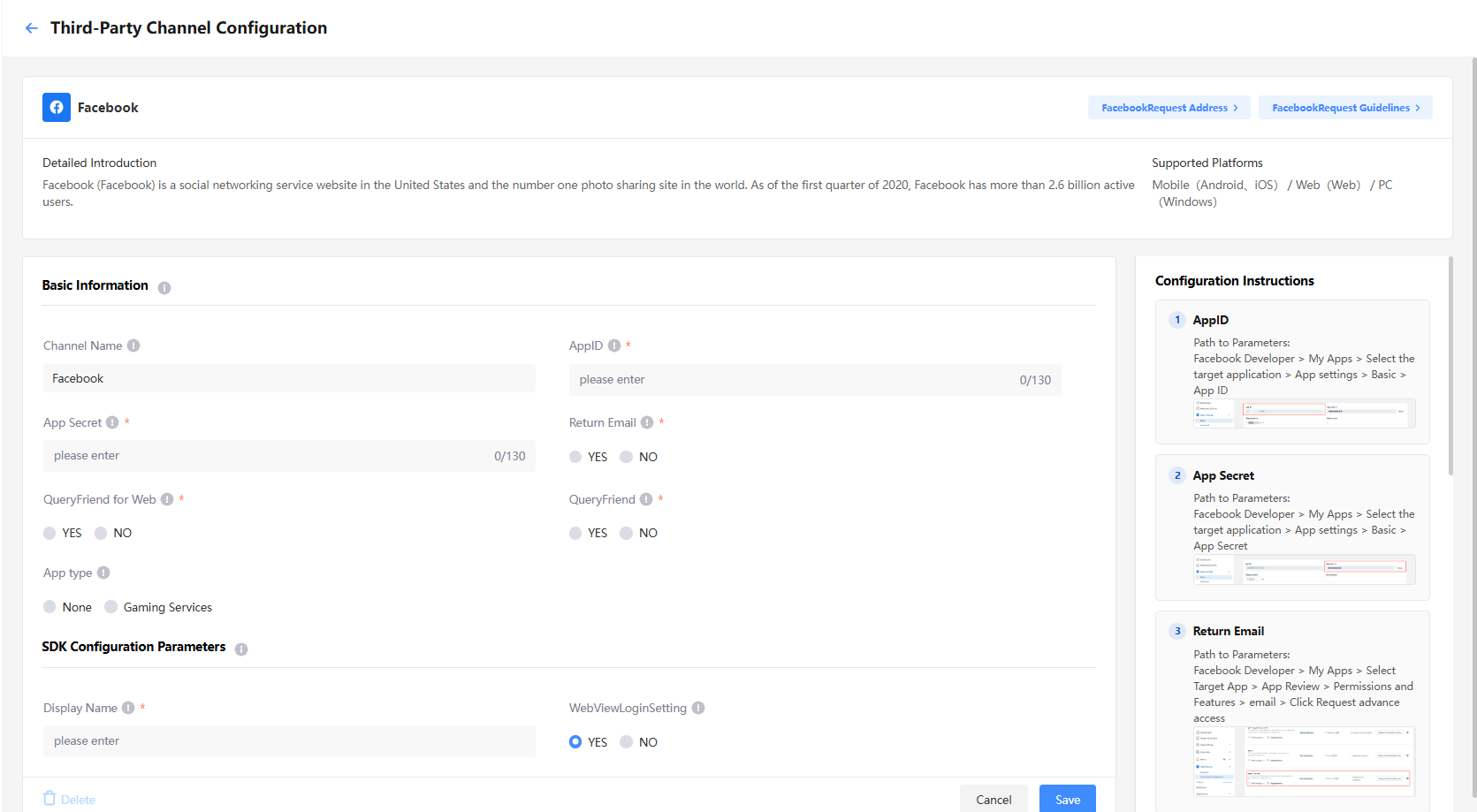
Basic Information: The content in this area will be sent to the backend system and used by the server during the OAuth authentication flow. Some duplicate parameters are provided for SDK integration scenarios.
SDK Configuration Parameters: The parameters in this area are used for SDK resource download. The configured parameters do not require secondary manual configuration; once configured, they will be automatically written into the SDK during resource download to take effect.
-
[Optional] If the current channel has been published and is in use, the page displays a Skip option, which allows you to skip configuring the SDK Configuration Parameters. Skipping configuration does not affect the use of the current channel.
-
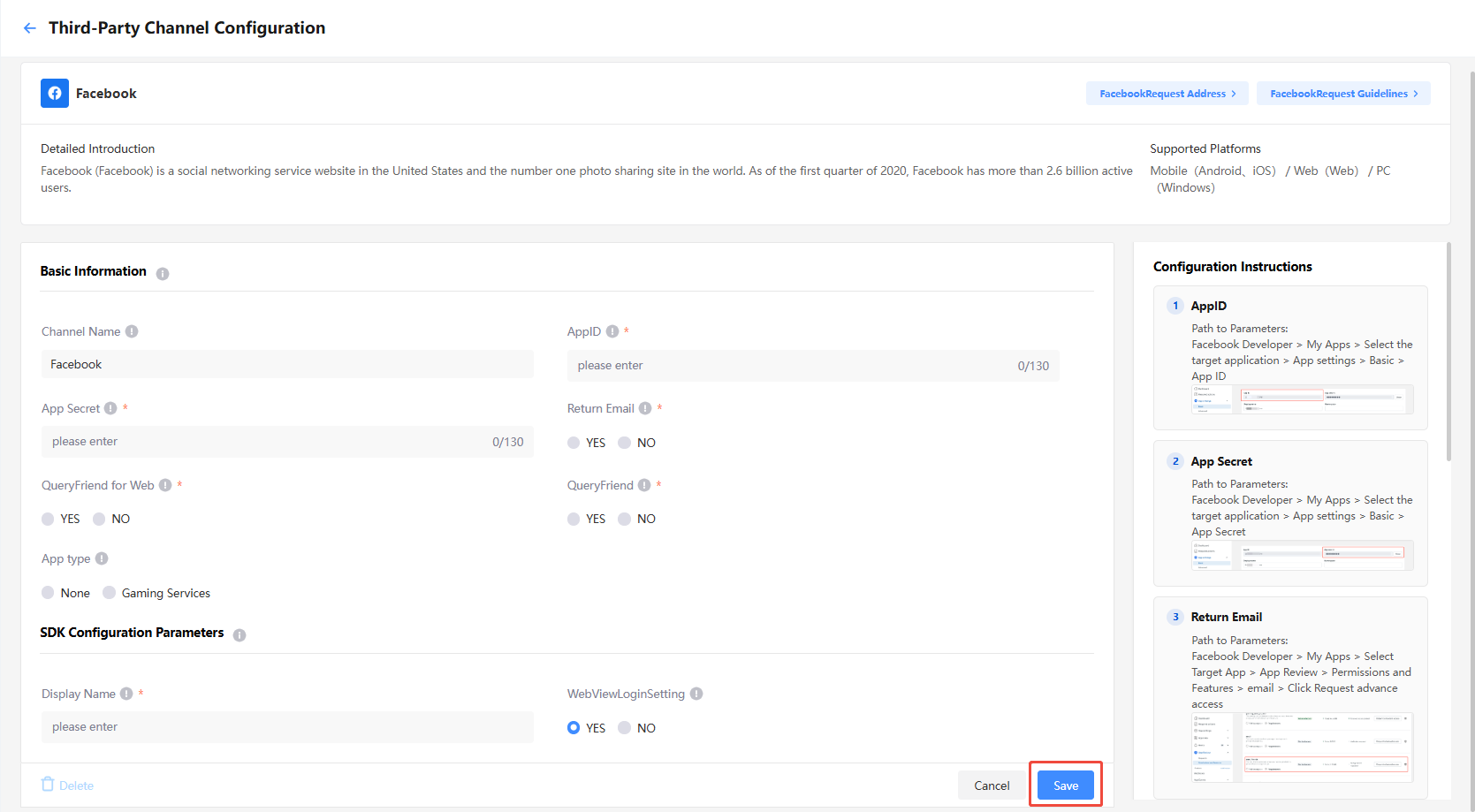
After completing the required fields, click Save.
Edit configurations
-
Log in to the Player Network Console, then select Configure Channels under Account Configurations in the left sidebar.
-
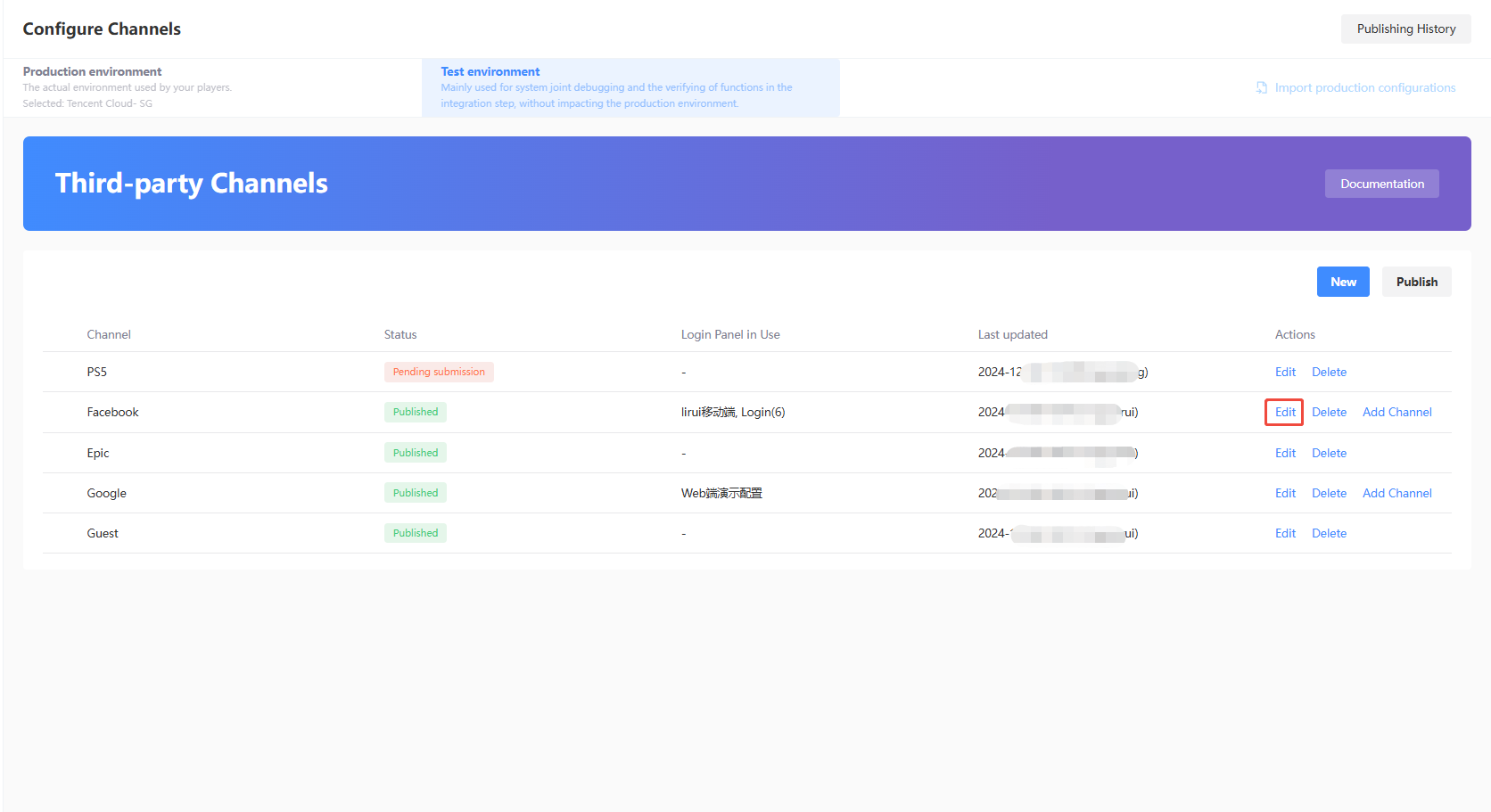
Select the channel to be edited and click Edit.
-
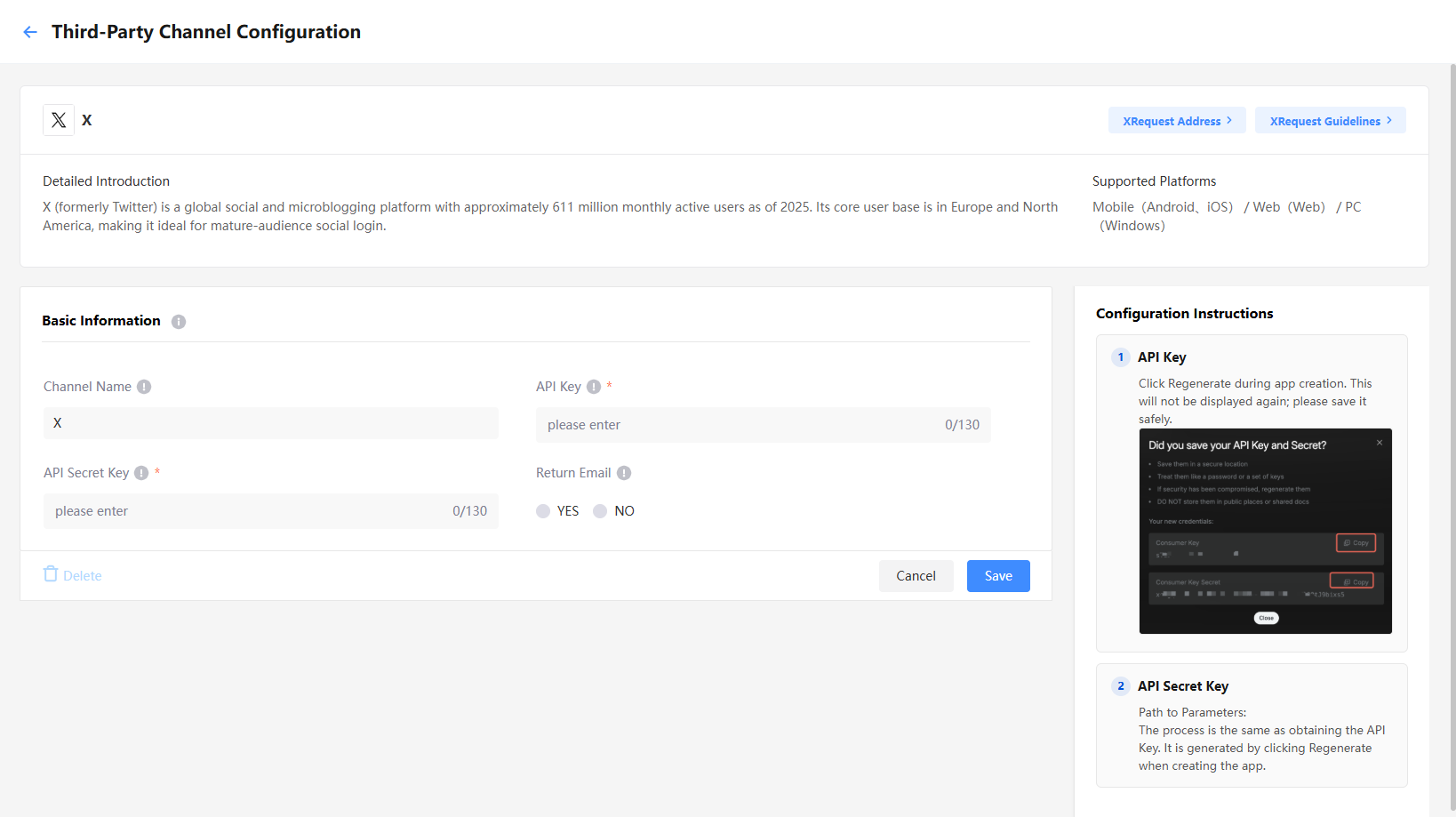
Modify the field content and click Save.
- App Key: APP ID from X.
- App Secret Key: API Key Secret from X.
- Return Email: Whether to return the player's login email.
Delete configurations
-
Log in to the Player Network Console, then select Configure Channels under Account Configurations in the left sidebar.
-
Select the third-party channel configuration to be deleted and click Delete.
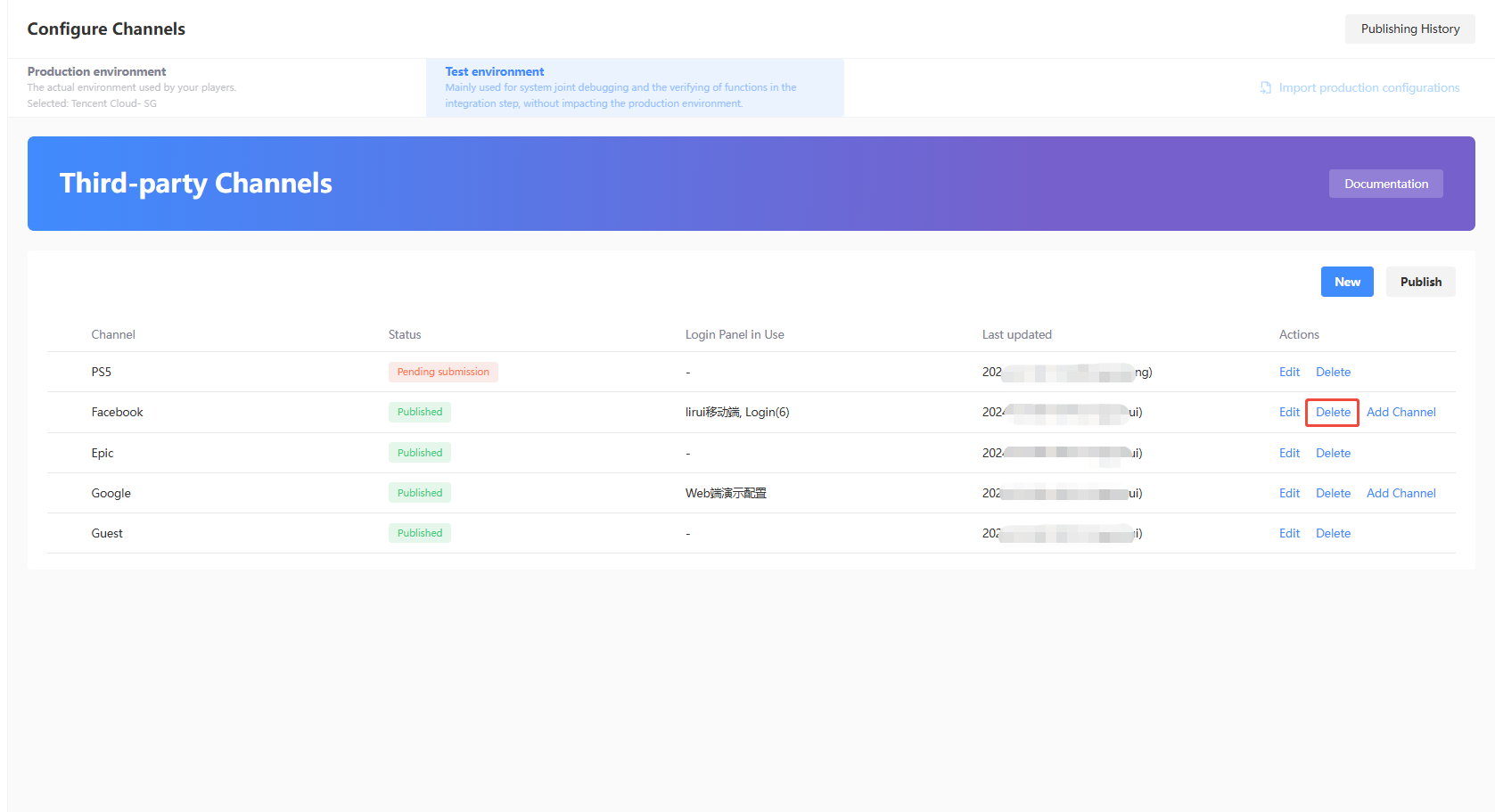
-
On the Configuration To Be Published page, verify the configurations to be deleted.
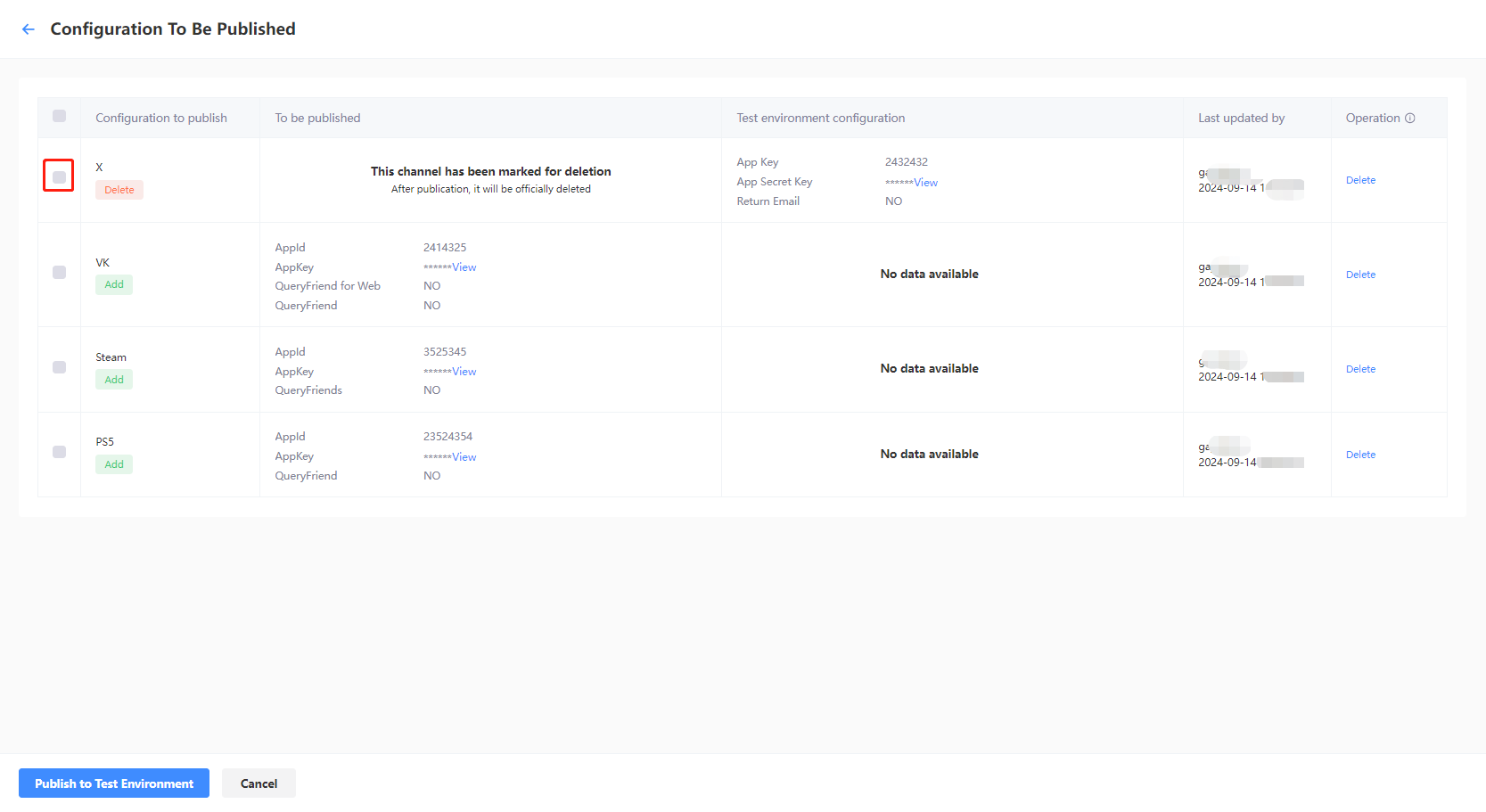
If the channel is already associated with a login configuration, deleting only the third-party channel configuration changes the published login configuration to To Be Published. To also remove the deleted channel from the login configuration, publish that login configuration again.
Add sub-channels
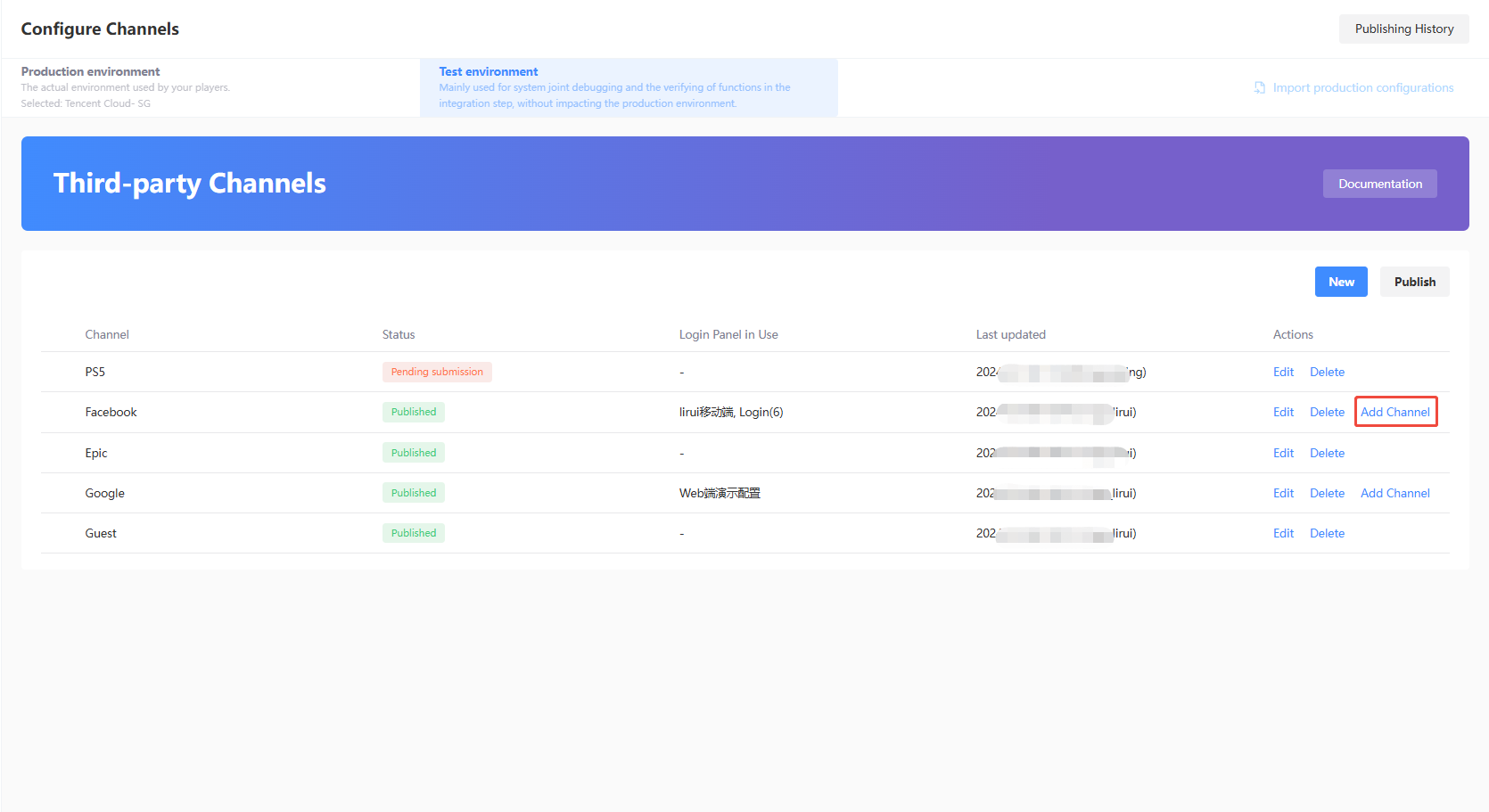
Certain third-party channels have support for sub-channel configurations, which can be used for apps that are released in different regions or publishing platforms. For supported third-party channels, a clickable Add Channel text button will be visible on the right.
Currently, the following 6 channels support adding sub-channels: Facebook, Google, Apple, VK, Discord, and WeChat.
-
Log in to the Player Network Console, then select Configure Channels under Account Configurations in the left sidebar.
-
Click Add Channel.
-
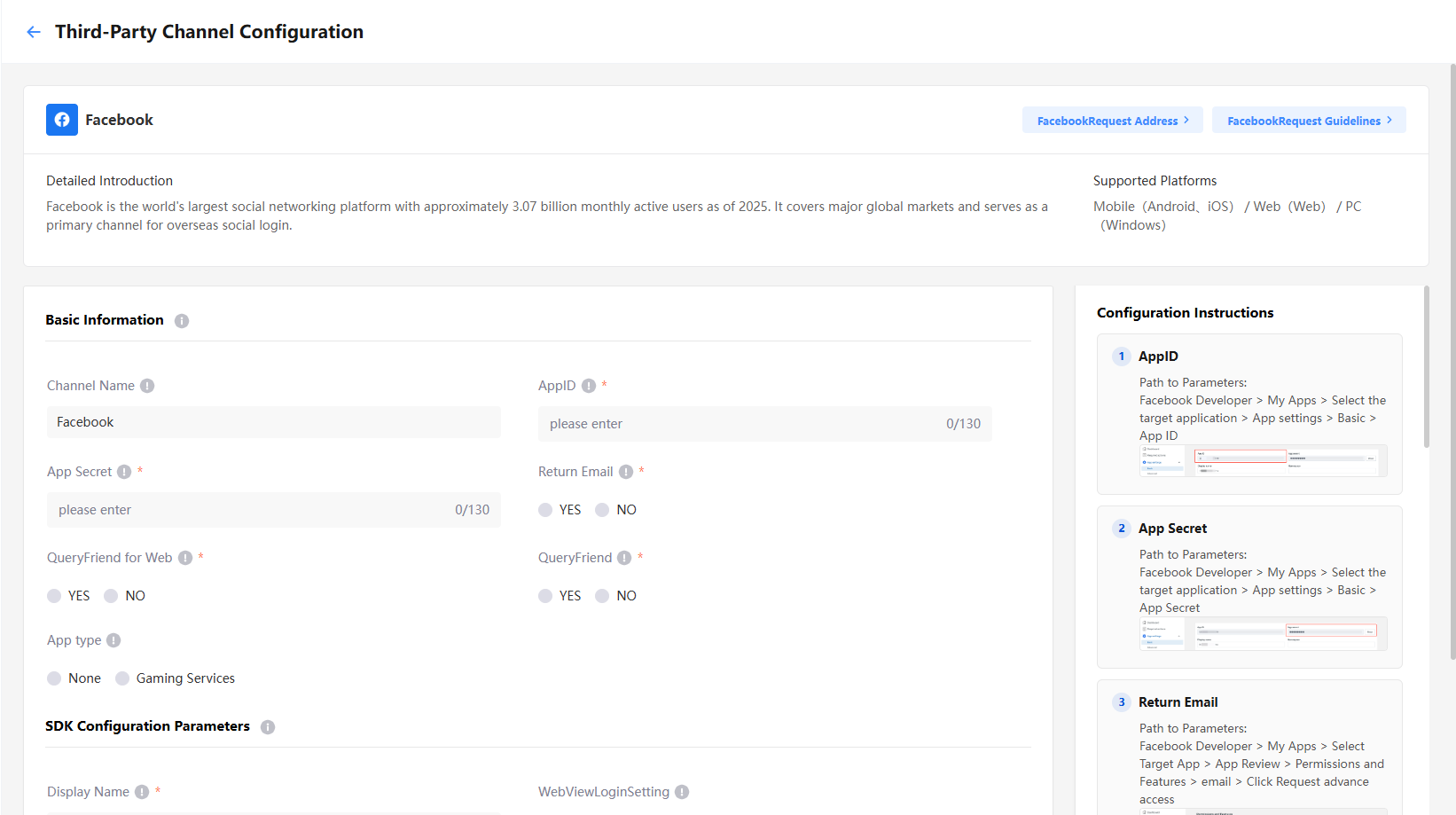
Complete the required fields, then click Save.
- AppID: App ID from Facebook.
- App Secret: App secret from Facebook.
- App Type: App type of your app, only None and Gaming Services are supported.
Publish configurations
On the Configuration To Be Published page, details about completed third-party configurations are displayed, and configurations that have yet to be published can be published.
-
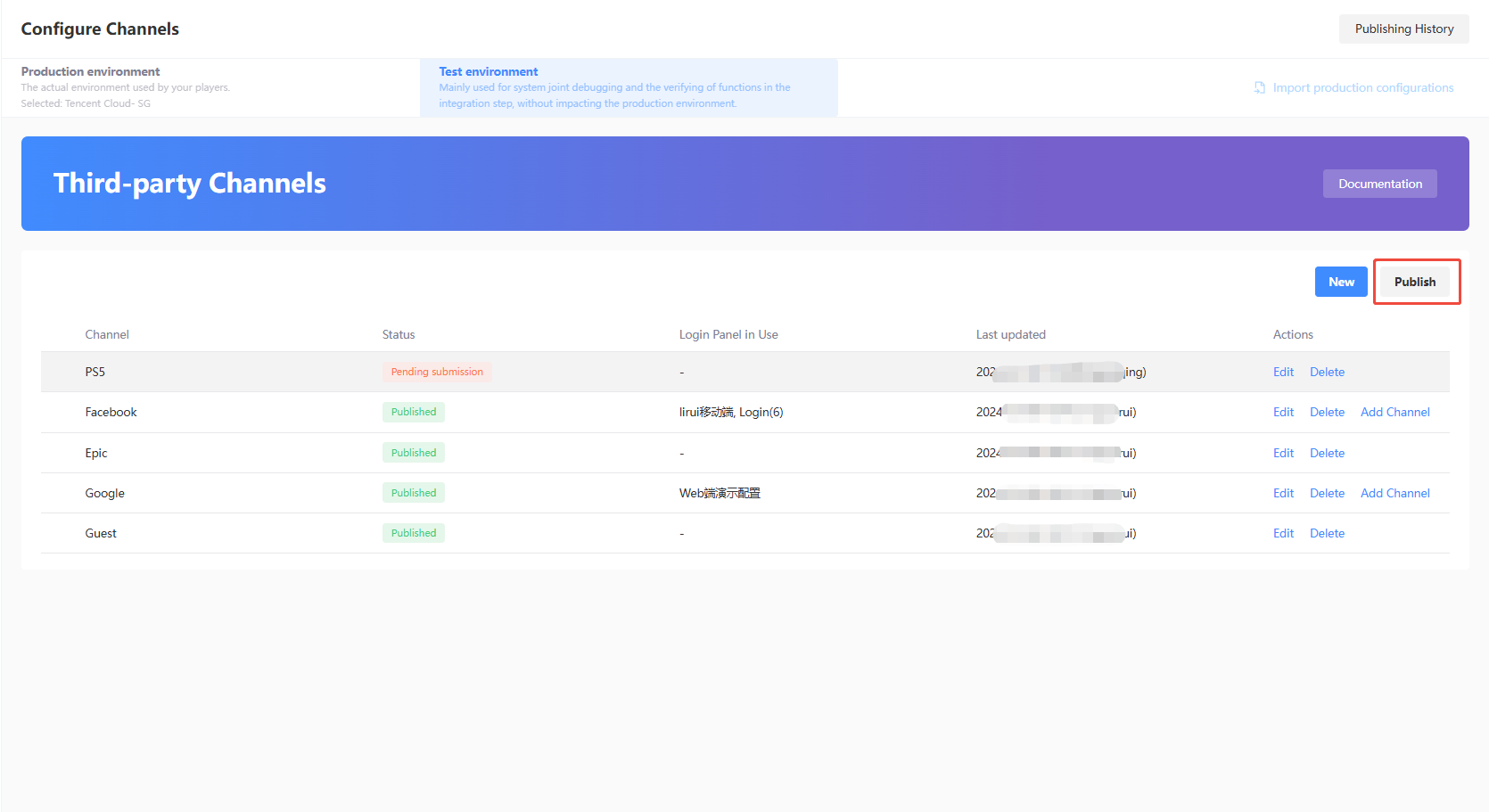
Log in to the Player Network Console, then select Configure Channels under Account Configurations in the left sidebar.
-
Click Publish.
-
On the Configuration To Be Published page, verify the configurations to be published.
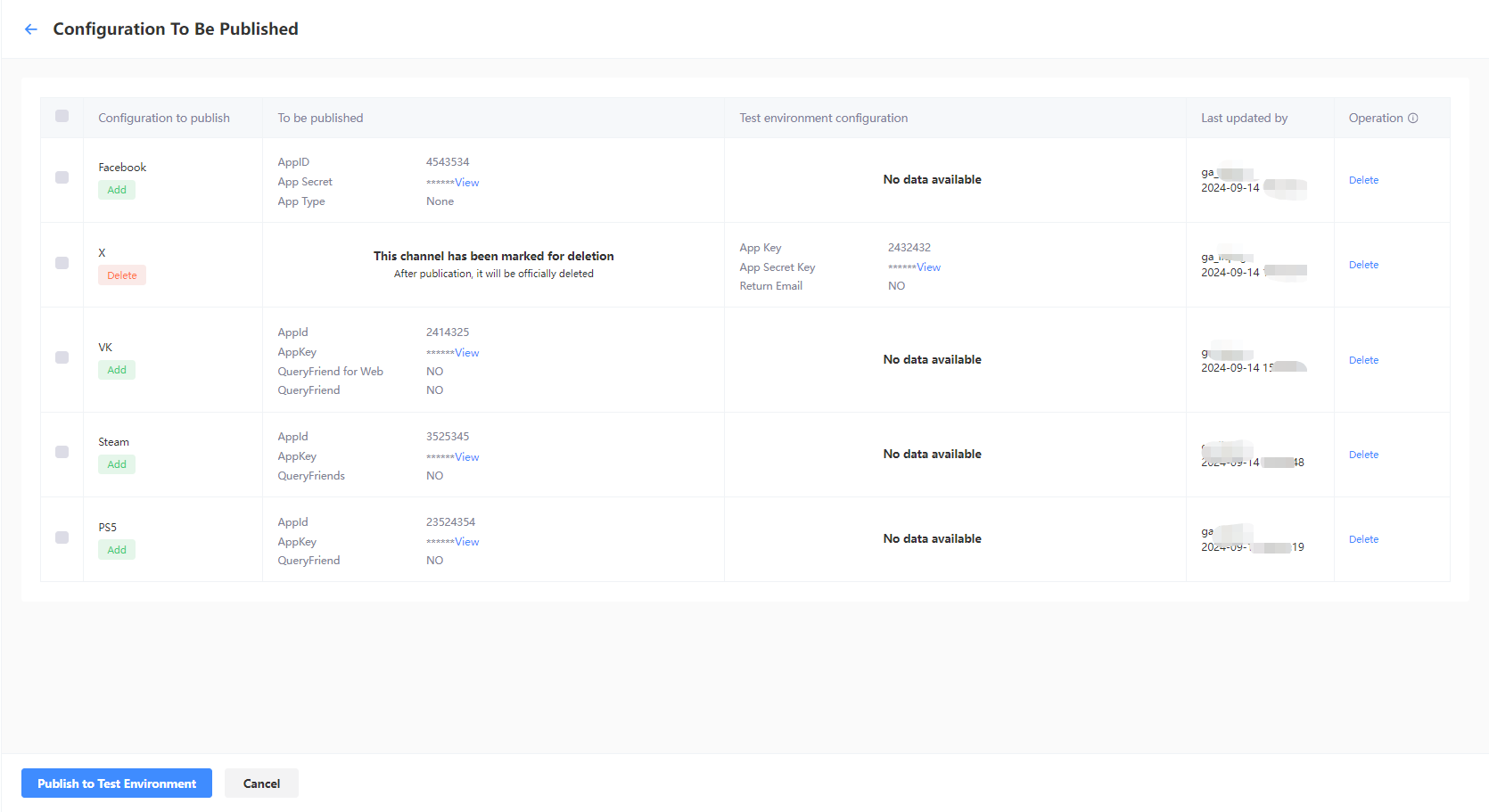
The parameters highlighted in red need special attention. They are the differences between the content to be released and the real-time configuration of the current environment.
- If all configurations are correct, select the channels to be published, then click the button located at the bottom left of the page.
- Test environment: Click Publish to Test Environment to publish the selected configurations to the test environment.
- Production environment: Click Submit Production Environment Application, and the selected configurations will be applied automatically to the production environment after being approved by a reviewer.
As manual review is required, the approval process for the production environment is likely to take between 3 to 4 hours. To expedite the approval, reach out to the Player Network representative.
On the Configuration To Be Published page, if configurations with the "To Be Published" or "In review" status are both present, a configuration will have to be approved or withdrawn first before new configurations can be submitted. Click Withdraw Release Application to withdraw the application.
Channel information
When creating third-party channel configurations, additional information obtained from the channel is required, which is indicated by an asterisk (*) symbol in Player Network Console.
To better manage and identify duplicate third-party channels, enter a Channel Name for your configuration.
Apple
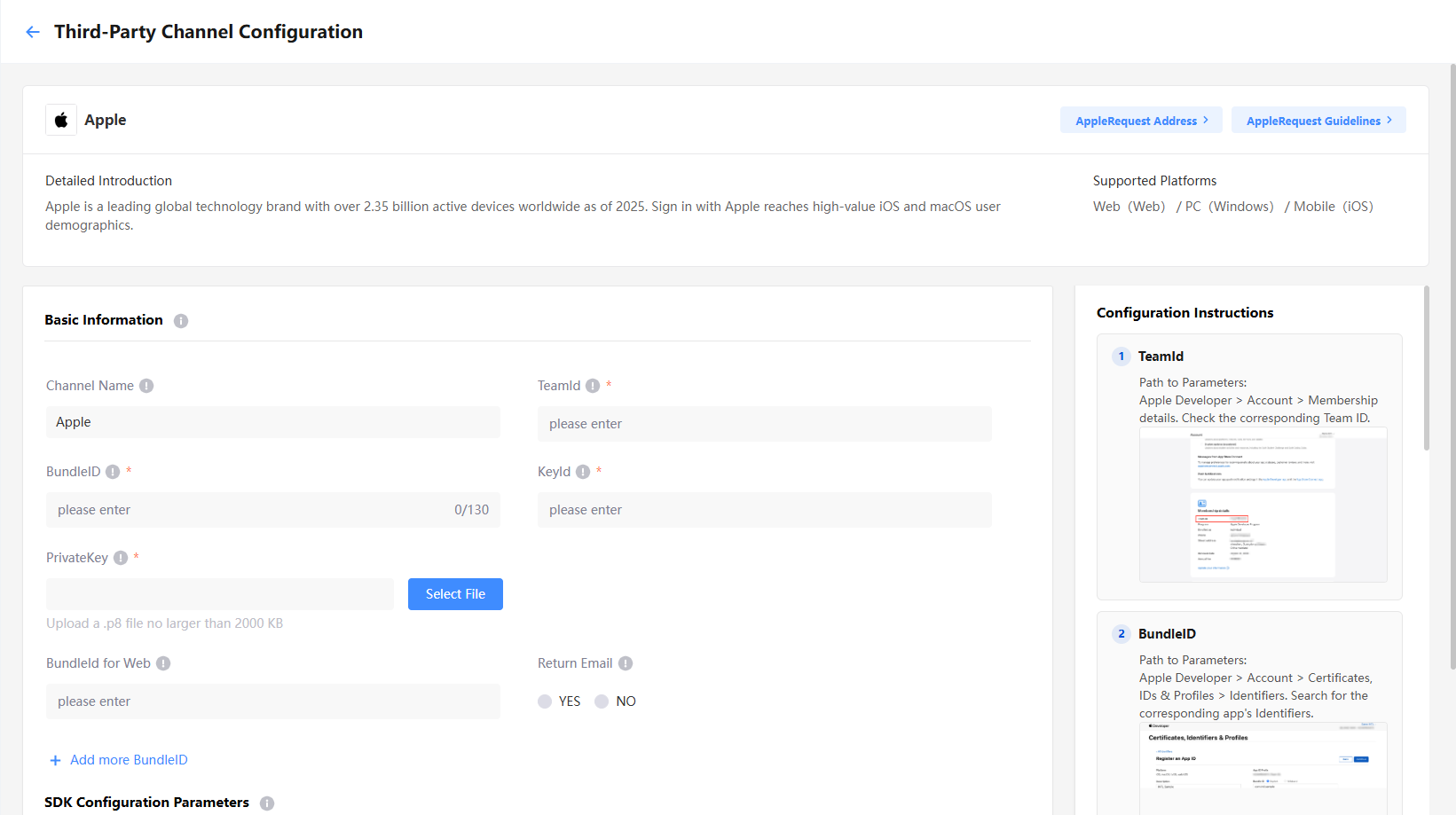
Basic Information:
- TeamId:
Team IDfrom Apple - BundleID:
Bundle IDfrom Apple - KeyId:
Key IDfrom Apple - PrivateKey: Upload the
.p8private key file from Apple - BundleID for Web:
Identifierfrom Apple
Click Add more BundleID for additional BundleIDs for use in various web scenarios - Return Email: Whether to return the player's login email
For more details, see Configuring Apple Login.
Discord
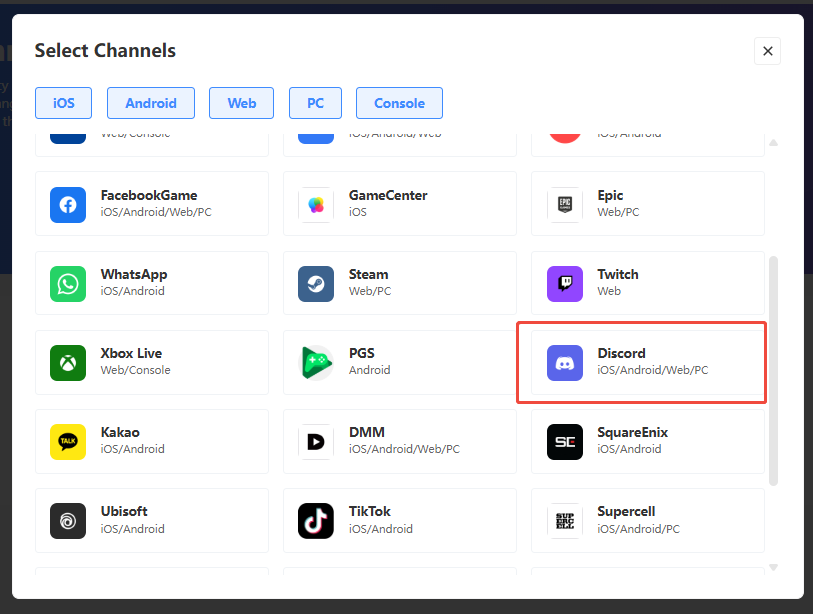
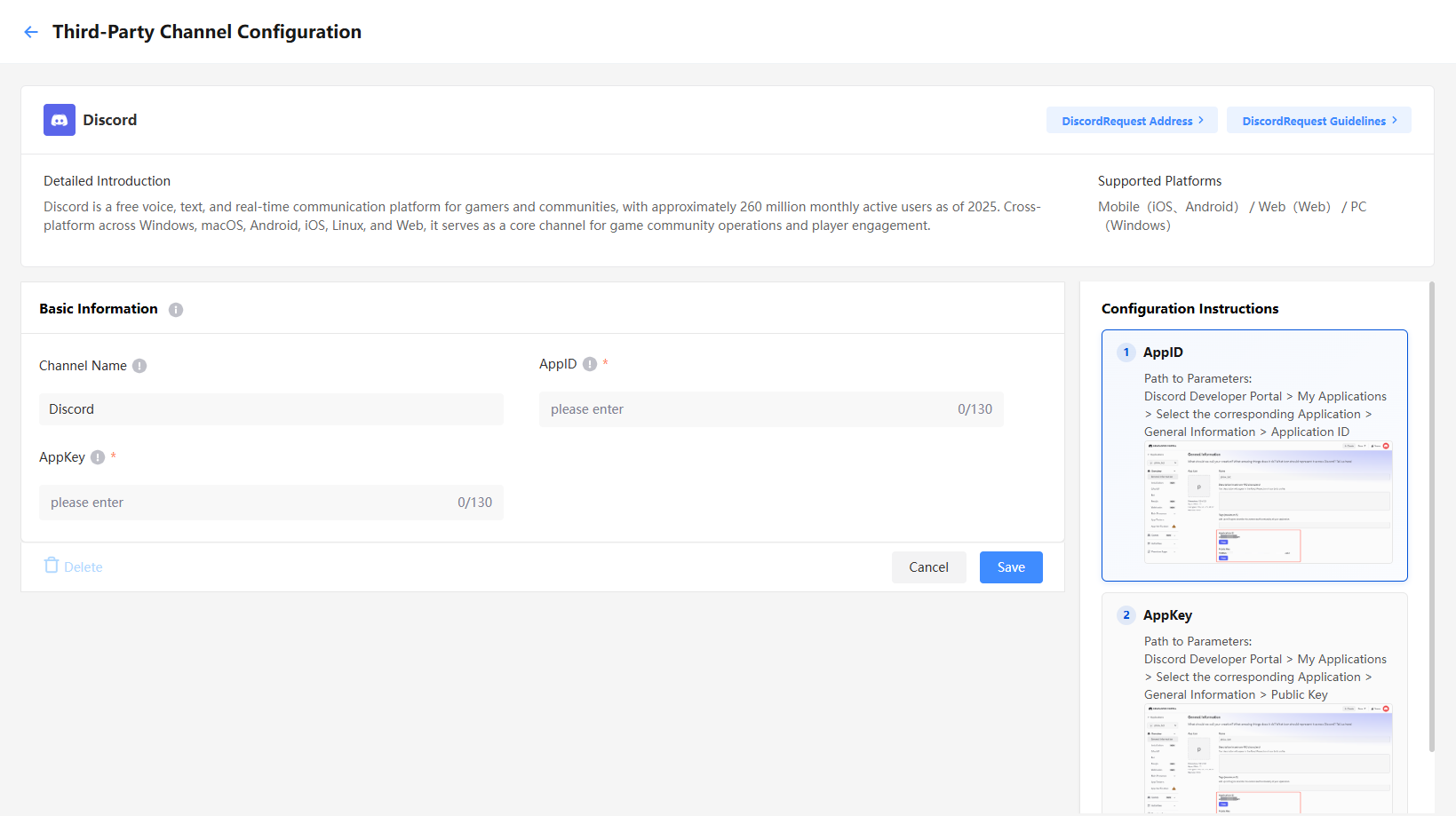
Basic Information:
- AppID:
APPLICATION IDfrom Discord - AppKey:
CLIENT SECRETfrom Discord
For more details, see Configuring Discord Login.
DMM
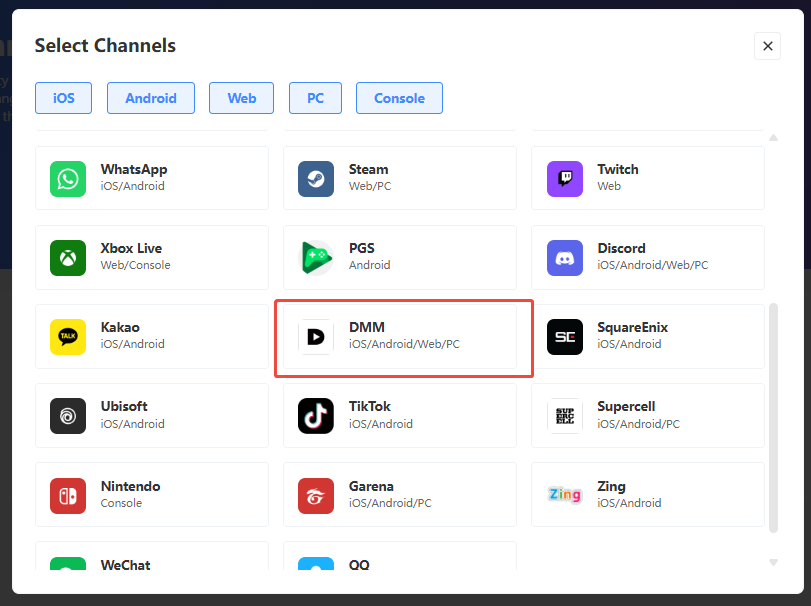
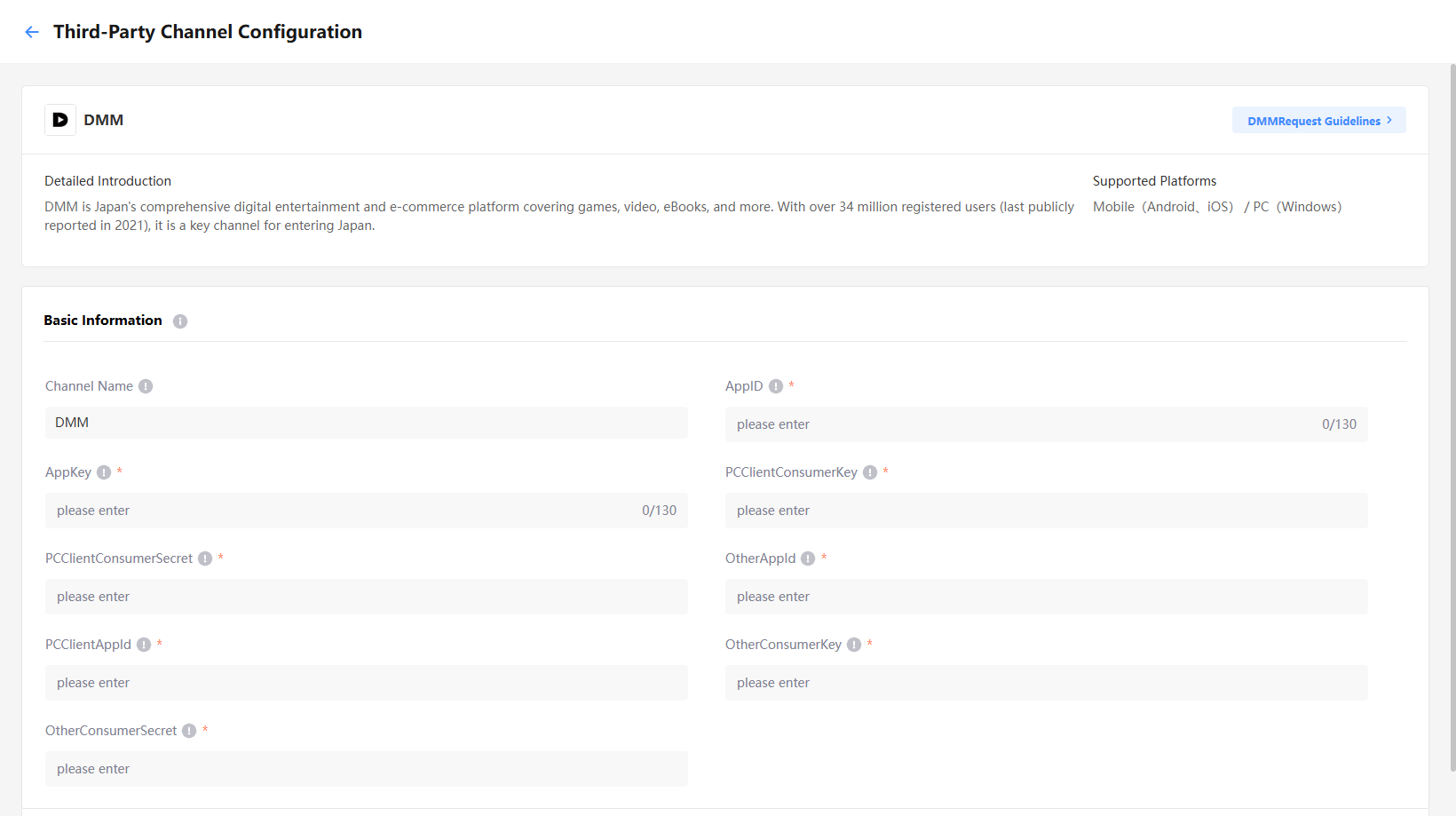
Basic Information:
- AppID:
AppIDfrom DMM - AppKey:
AppKeyfrom DMM - PCClientConsumerkey:
PCClientConsumerkeyfrom DMM - PCClientConsumerSecret:
PCClientConsumerSecretfrom DMM - OtherAppld:
OtherAppldfrom DMM - PCClientAppld:
PCClientAppldfrom DMM - OtherConsumerkey:
DMM Consumer Keyfrom DMM - OtherConsumerSecret:
DMM Consumer Secretfrom DMM
EA
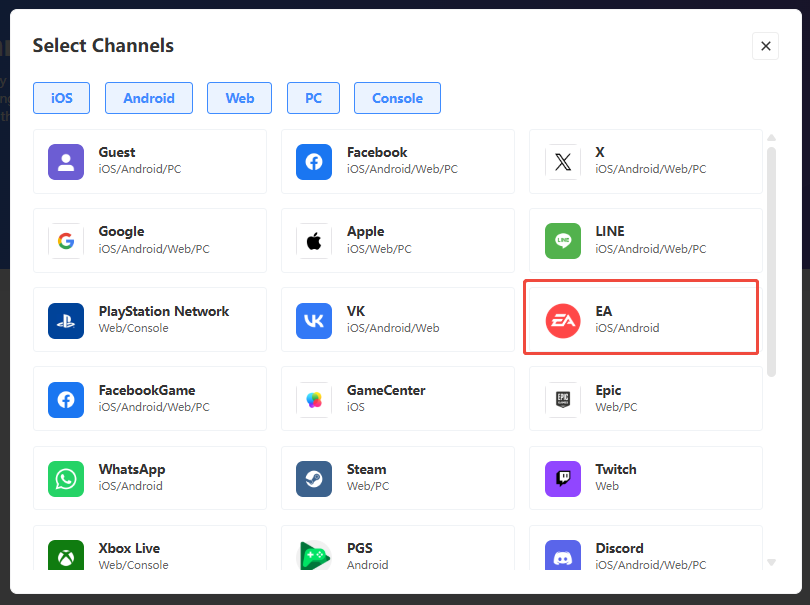
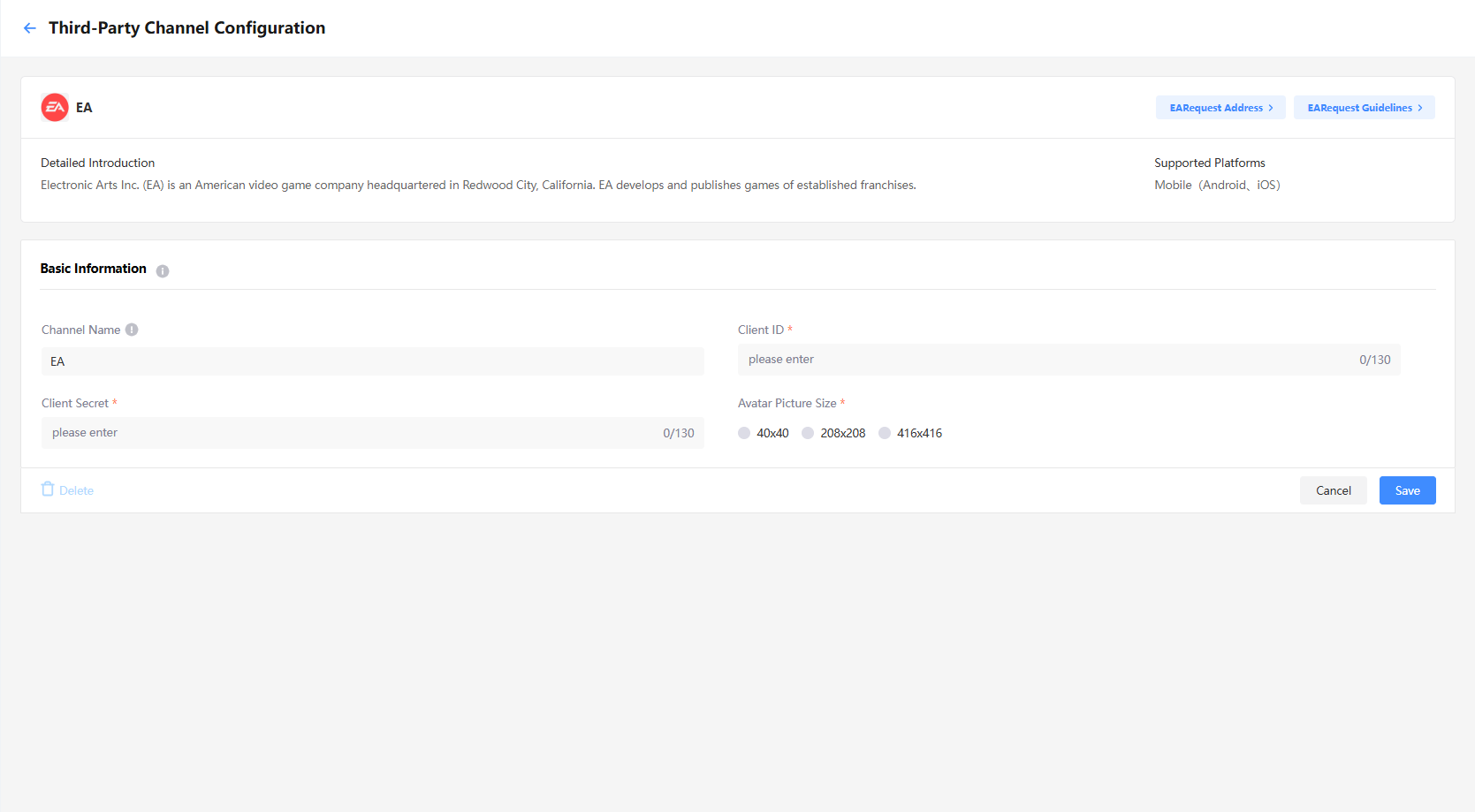
Basic Information:
- Client ID:
app_idfrom EA - Client Secret:
Client Secretfrom EA - Avatar Picture Size: Select size of the image
Epic
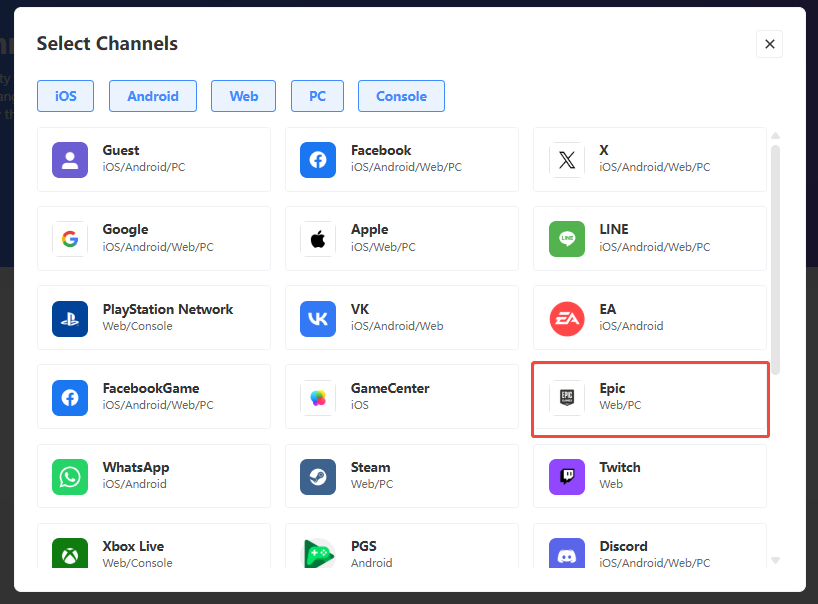
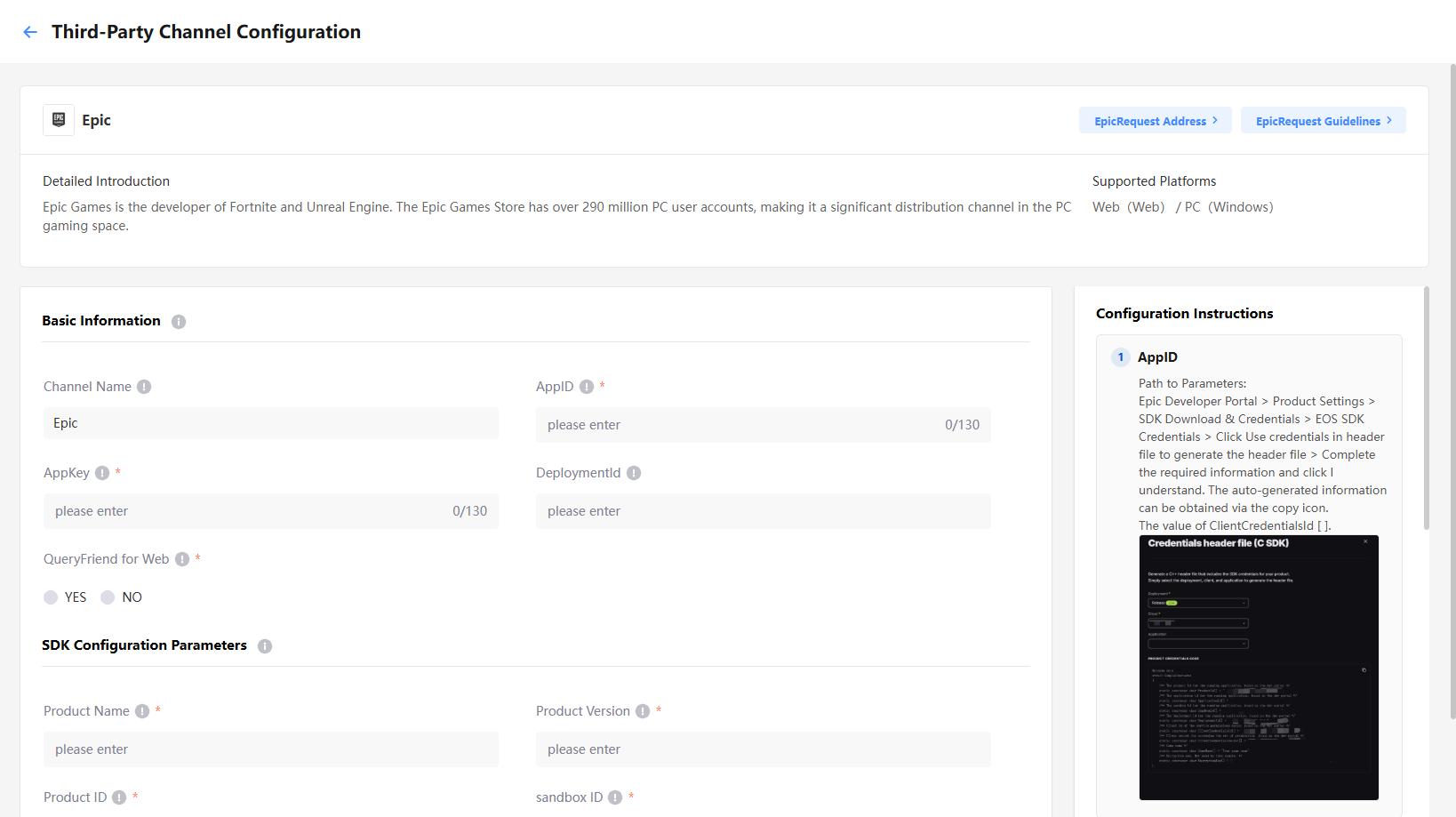
Basic Information:
- AppID:
Client IDfrom Epic - AppKey:
Client Secretfrom Epic - DeploymentId:
Deployment IDfrom Epic, required to initialize the SDK and is configured to access product session data - QueryFriend for Web: For Web, whether to obtain the player's Epic friend list
SDK Configuration Parameters:
- Product Name:
Product Namefrom Epic - Product Version:
Product Versionfrom Epic - Product ID:
Product IDfrom Epic - sandbox ID:
Sandbox IDfrom Epic
For more details, see Configuring Epic Login.
Facebook
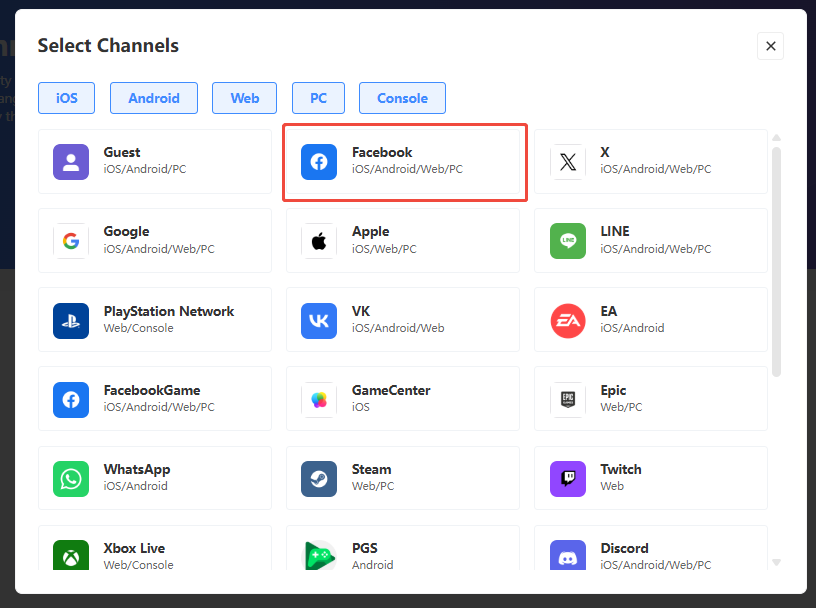
Basic Information:
- AppID:
App IDfrom Facebook - App Secret:
App secretfrom Facebook - Return Email: Whether to return the player's login email
- QueryFriend for Web: For Web, whether to obtain the player's Facebook friend list
- QueryFriend: Whether to obtain the player's Facebook friend list
- App type: App type of your app, can only select between None and Gaming Services
SDK Configuration Parameters:
- Display Name: The display name of the app on the Facebook channel
- WebViewLoginSetting: Controls whether to use WebView login
- Client token:
Client Tokenfrom Facebook
For more details, see Configuring Facebook Login.
FacebookGame
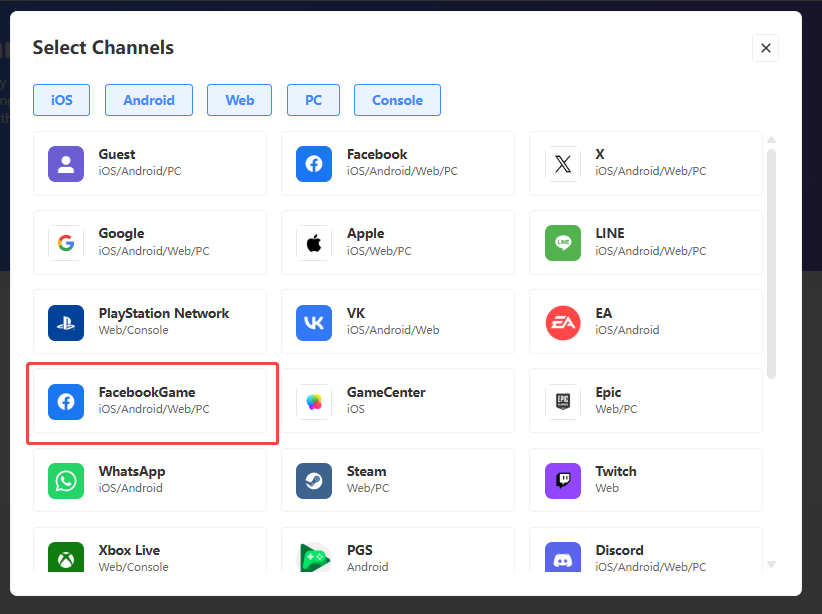
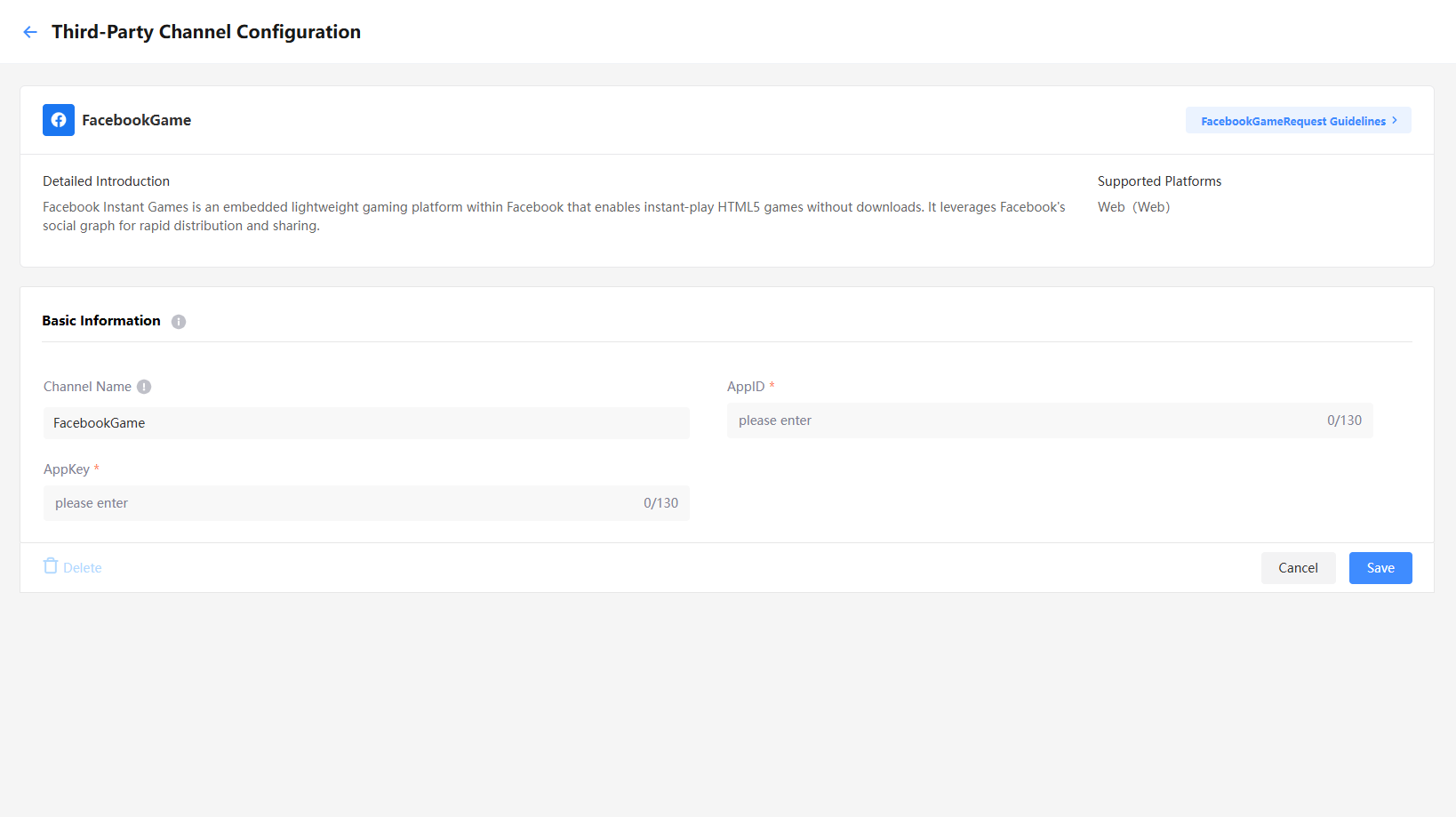
Basic Information:
- AppID:
AppIDfrom FacebookGame - AppKey:
AppKeyfrom FacebookGame
Garena
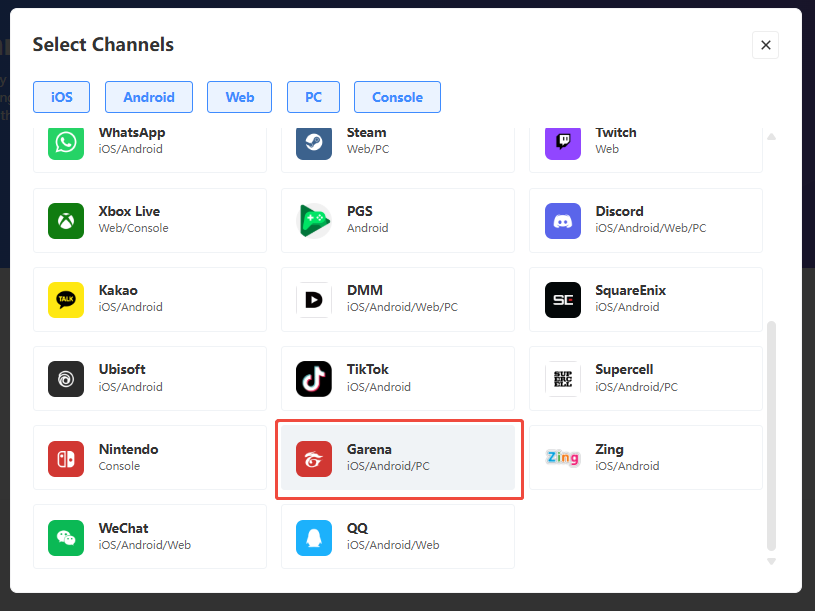
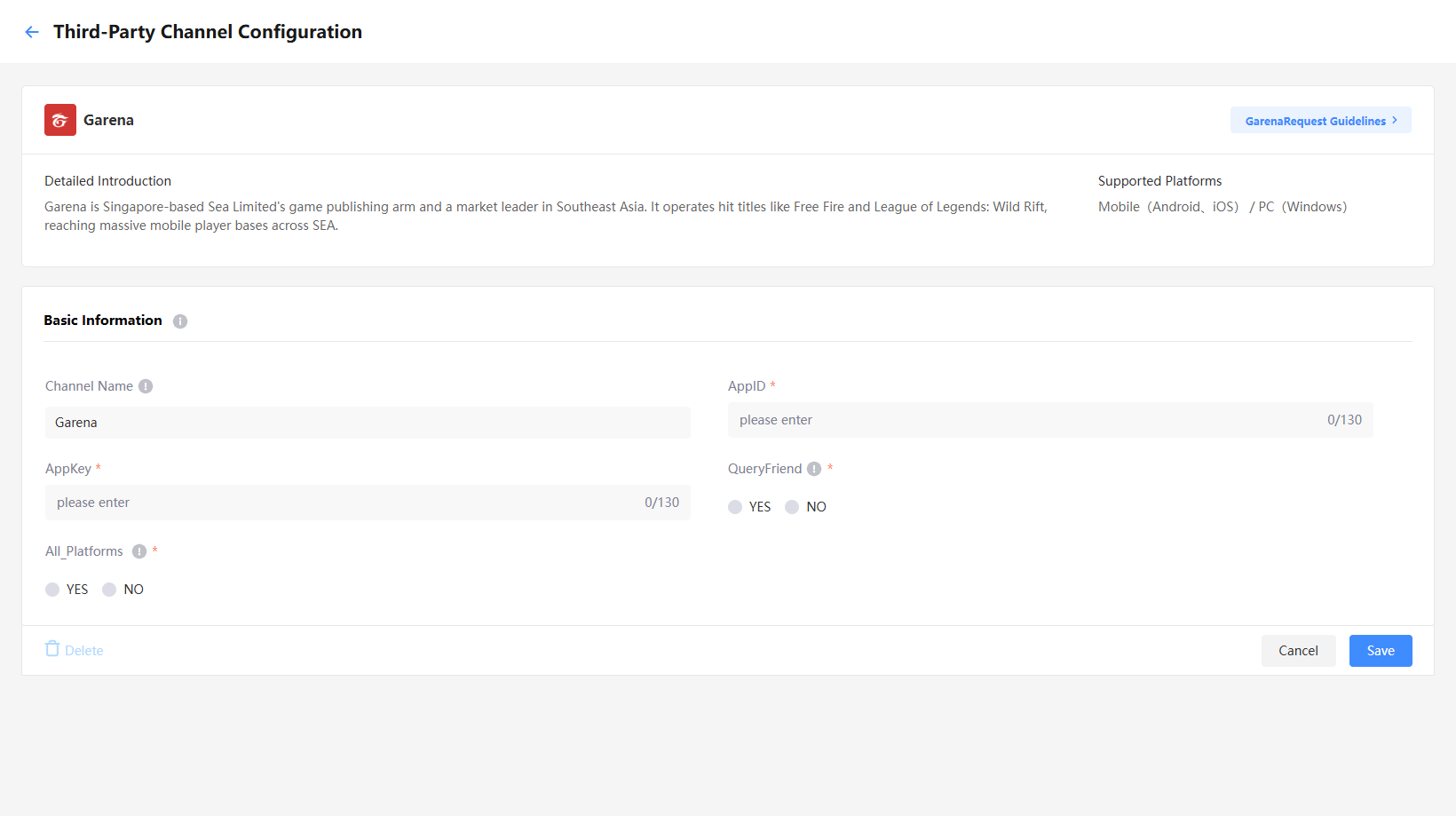
Basic Information:
- AppID:
AppIDfrom Garena - AppKey:
AppKeyfrom Garena - QueryFriend: Whether to obtain the player's PS5 friend list
- All_Platforms: Controls whether to enable the all-platform feature. It is recommended to select YES.
GameCenter
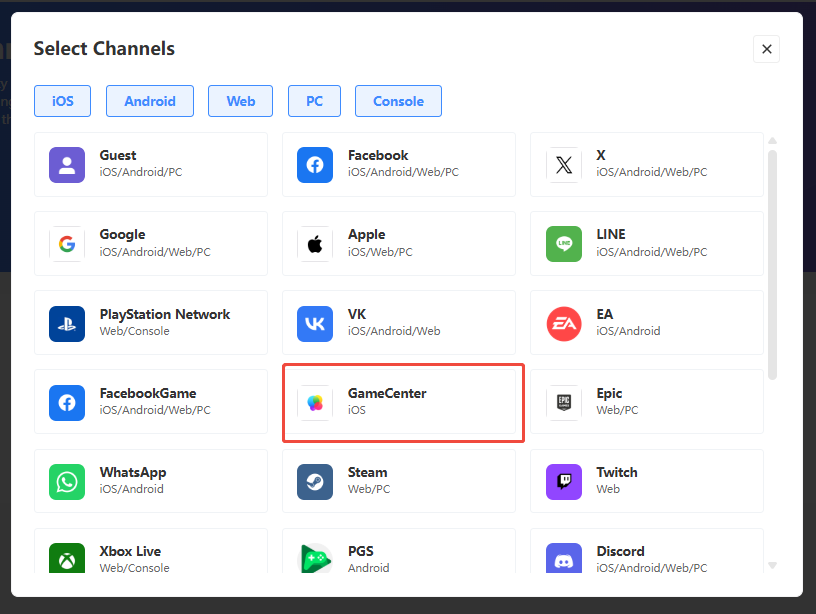
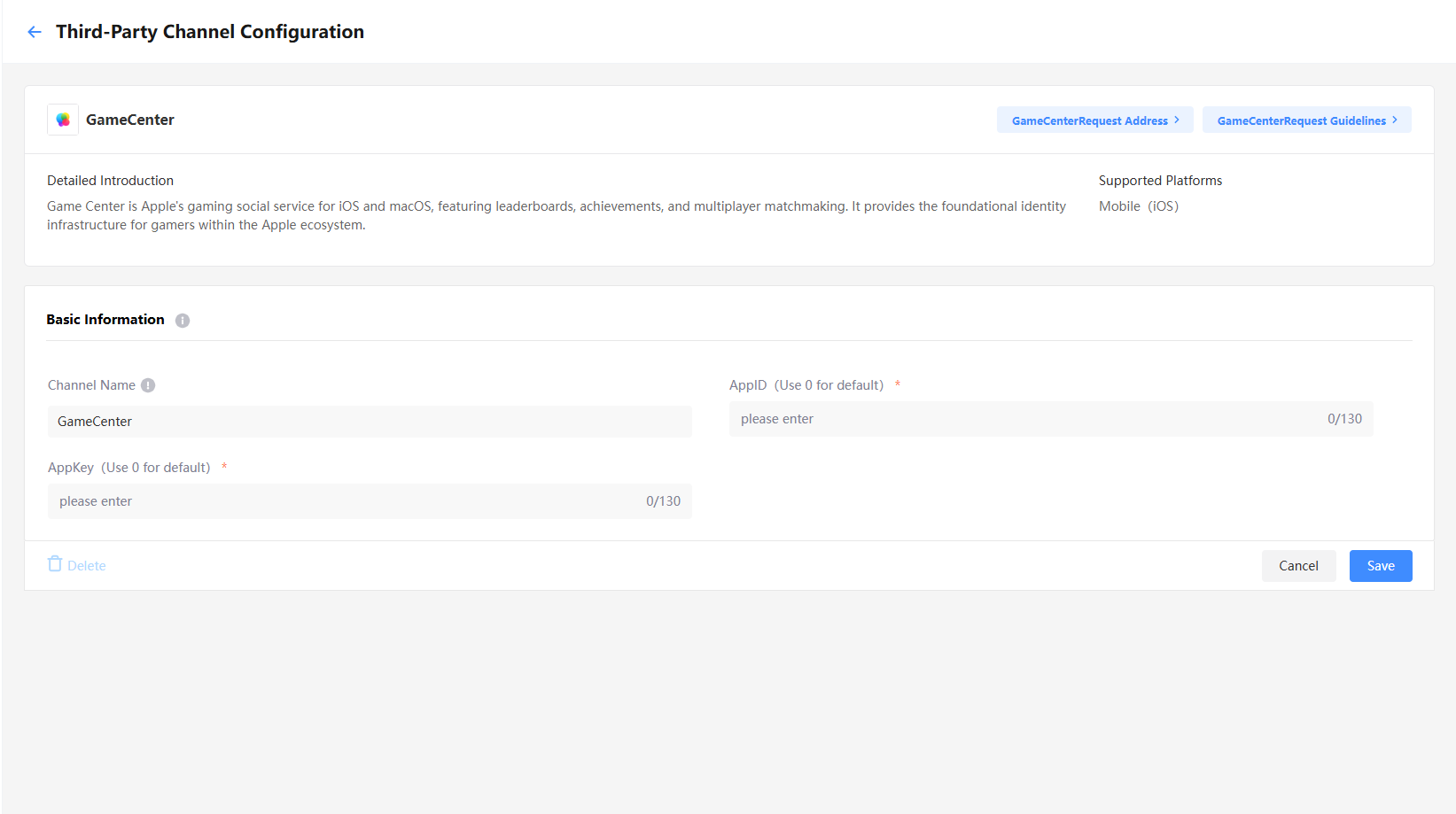
Basic Information:
- AppID: Enter 0
- AppKey: Enter 0
Google
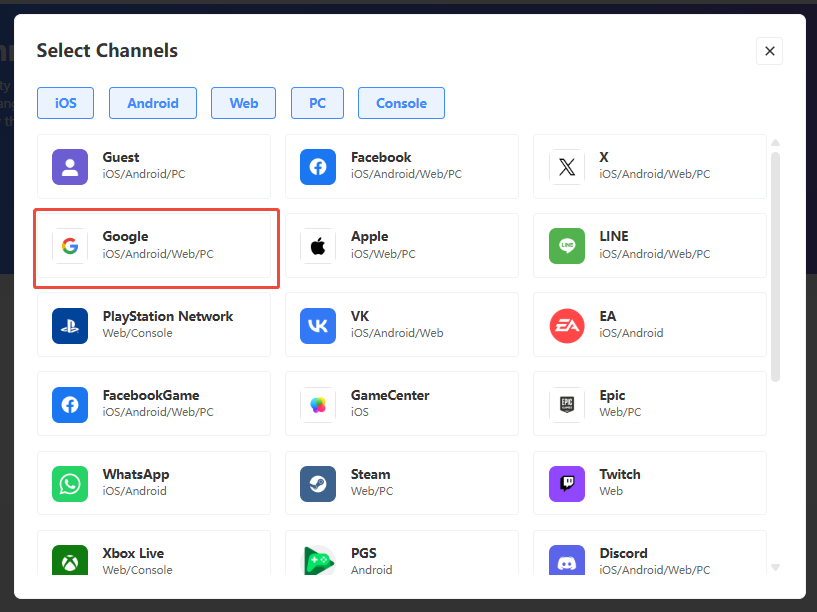
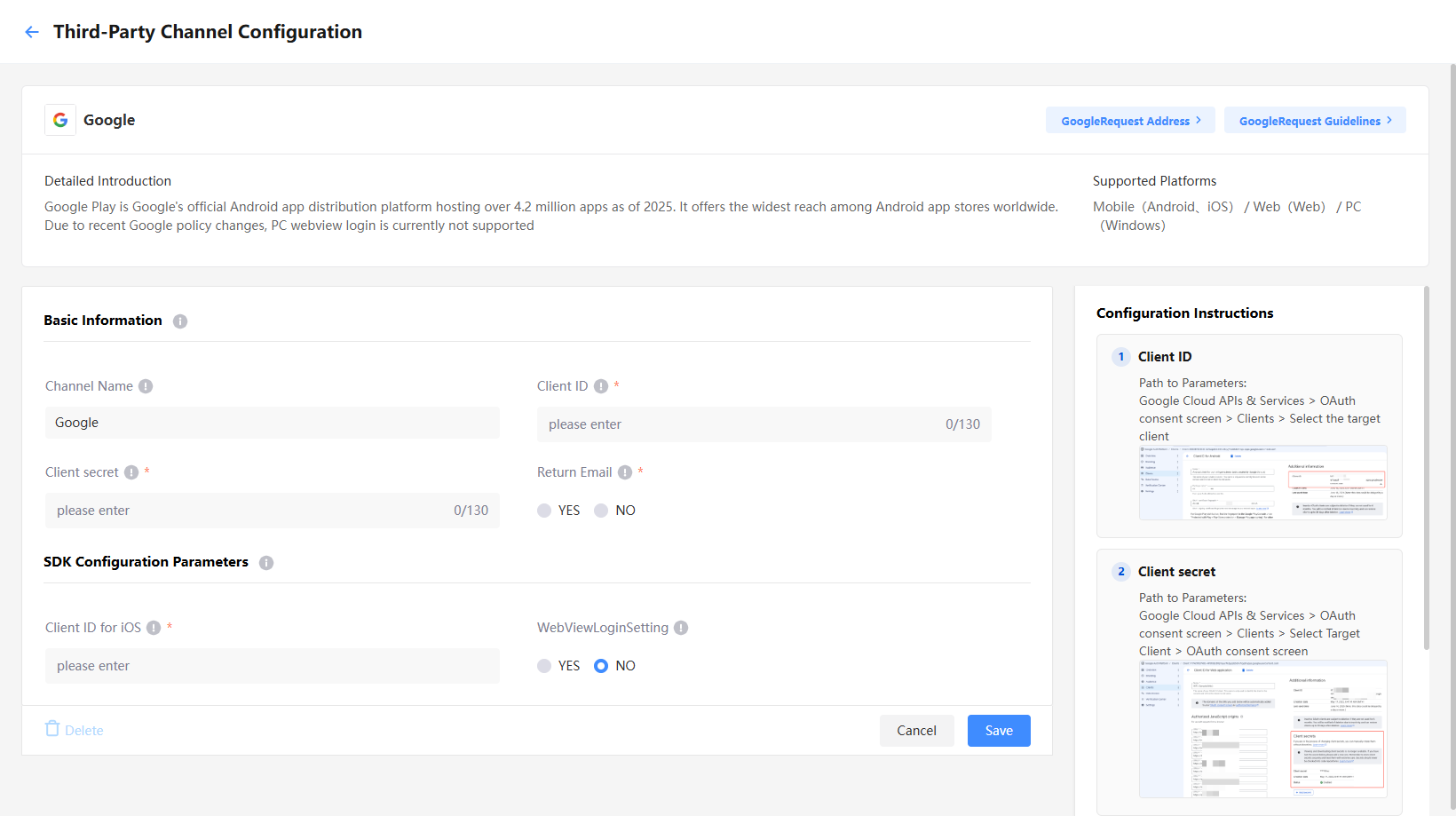
Basic Information:
- Client ID:
Client IDfrom Google - Client secret:
Client secretfrom Google - Return Email: Whether to return the player's login email
SDK Configuration Parameters:
- Client ID for iOS:
iOS Web Client keyfrom Google - WebViewLoginSetting: Whether Windows uses WebView login, only available on PC
For more details, see Configuring Google Login.
Kakao
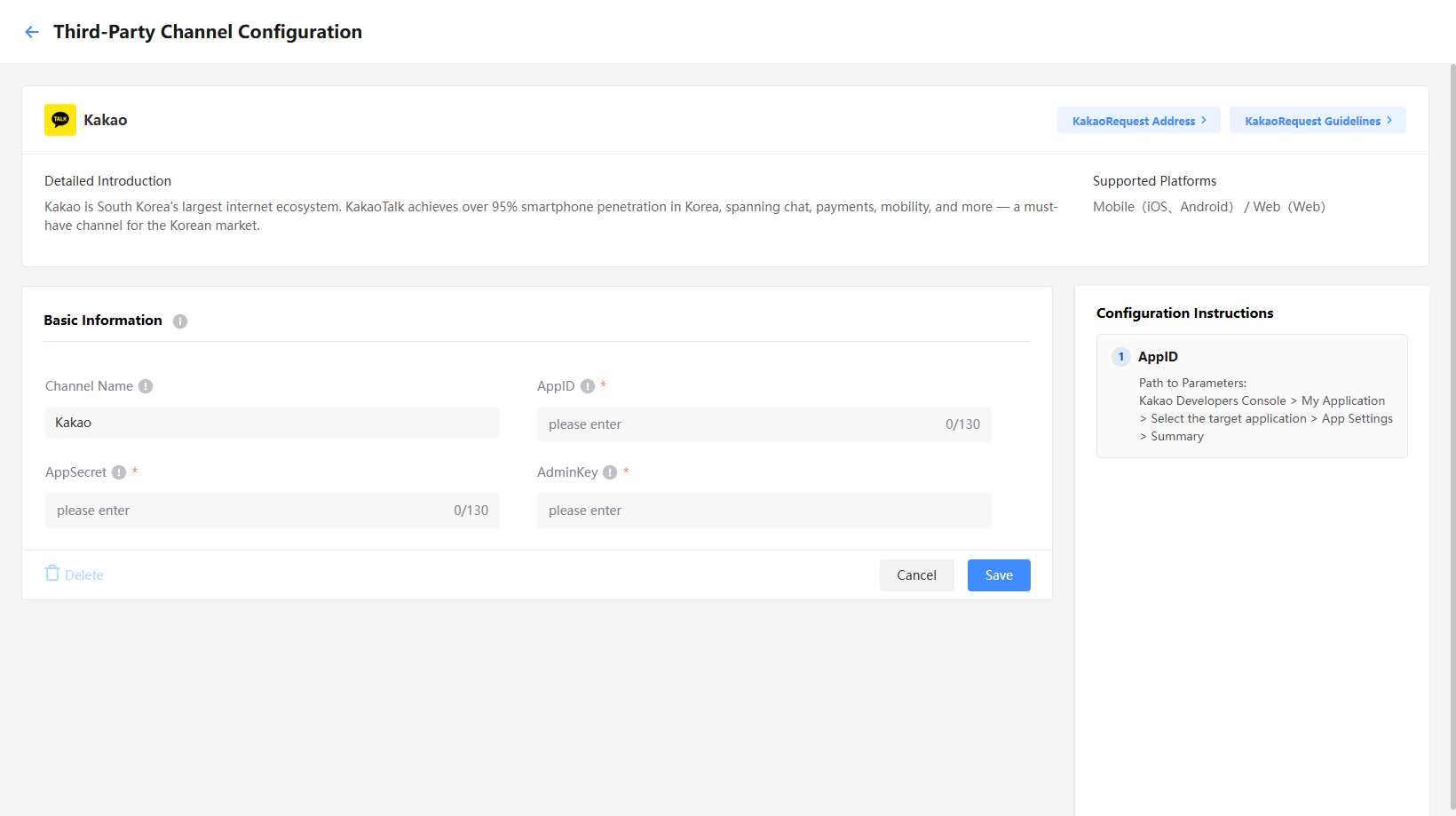
Basic Information:
- AppID:
App IDfrom Kakao - AppSecret:
Native app keyfrom Kakao - AdminKey:
Admin keyfrom Kakao
LINE
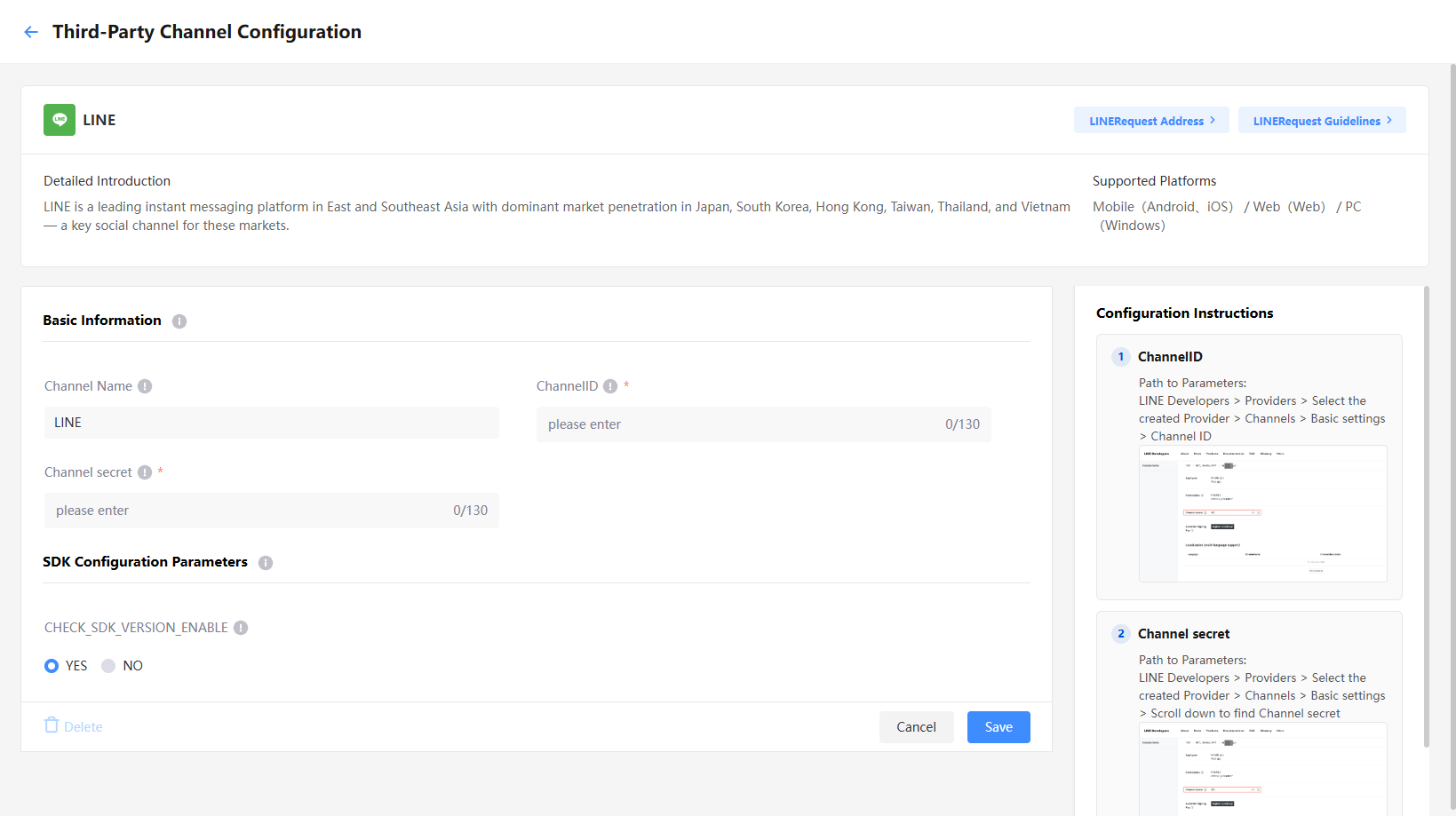
Basic Information:
- ChannelID:
Channel IDfrom LINE - Channel secret:
Channel secretfrom LINE
SDK Configuration Parameters:
- CHECK_SDK_VERSION_ENABLE: Controls whether to verify the Android system version of the running device
For more details, see Configuring LINE Login.
Nintendo
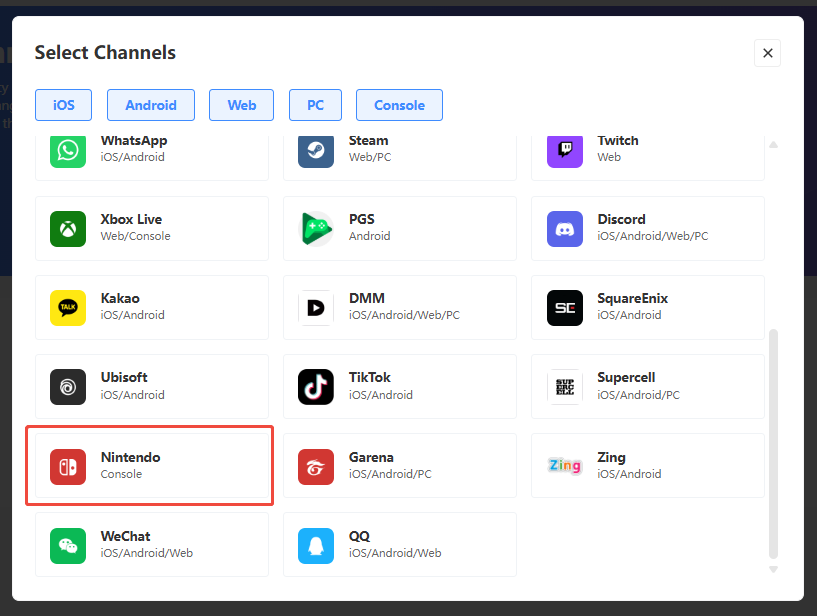
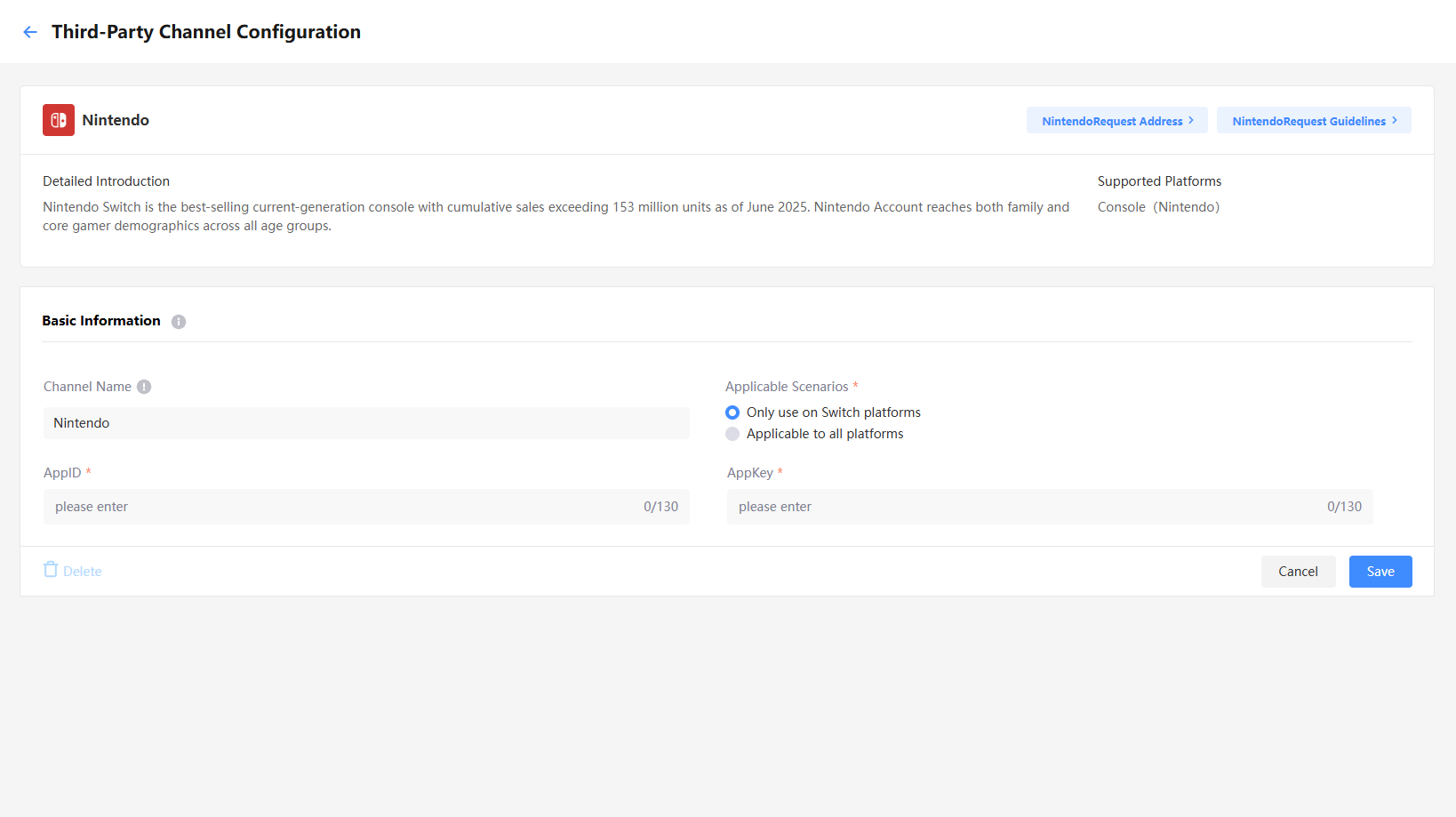
Basic Information:
- Application Scenarios: Select how the channel will take effect
- AppID:
app_idfrom Nintendo - AppKey:
app_keyfrom Nintendo
PGS
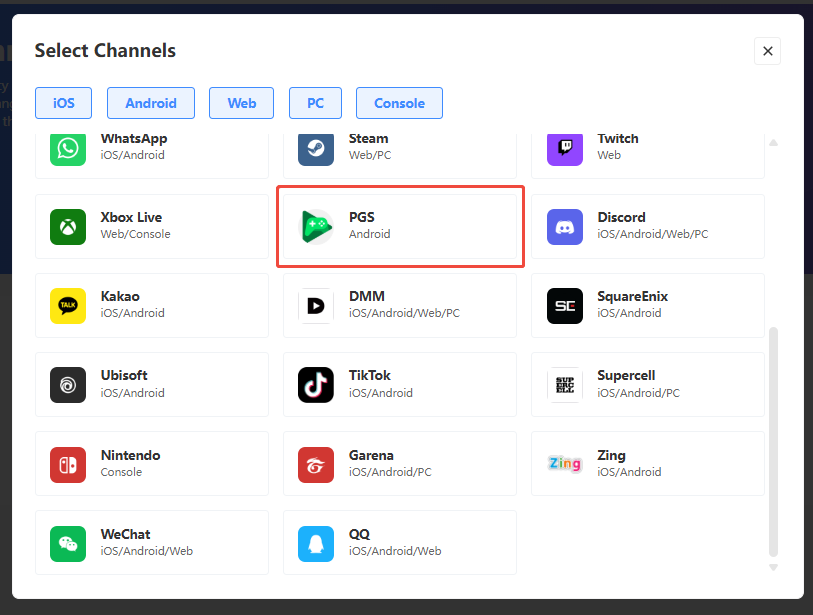
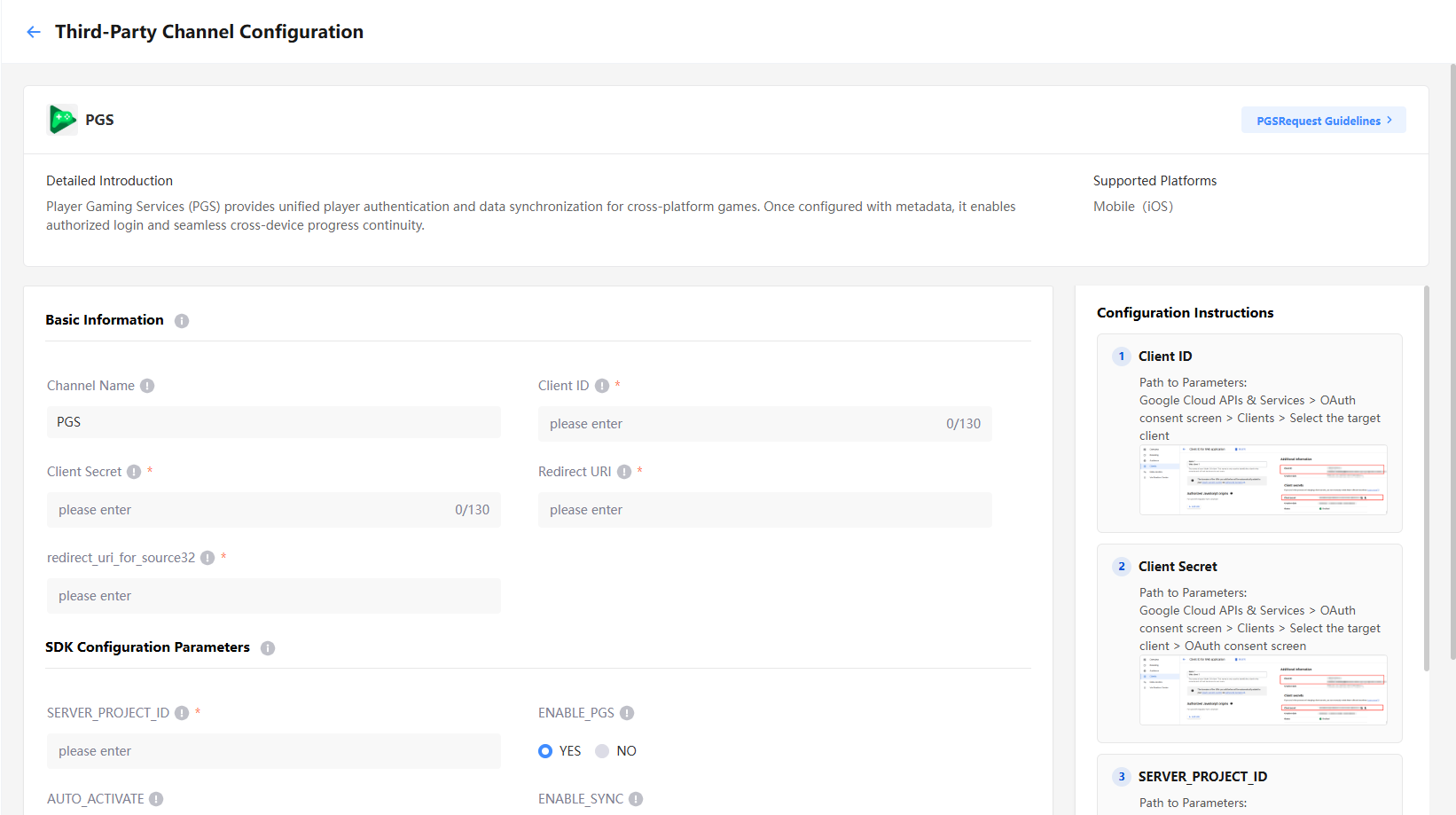
Basic Information:
- Client ID:
app_idfrom PGS - Client Secret:
app_keyfrom PGS - Redirect URI:
sExt.redirect_urifrom PGS - redirect_uri_for_source32:
sExt2.redirect_uri_for_source32from PGS
SDK Configuration Parameters:
- SERVER_PROJECT_ID:
Web Client Keyfrom the Google PGS channel - ENABLE_PGS: Controls whether to enable the PGS plugin
- AUTO_ACTIVATE: Controls whether to automatically initialize the PGS process after account login
- ENABLE_SYNC: Controls whether to allow PGS to sync data
- LOGIN_WITH_PGS_ON_MOBILE: Controls whether to allow PGS login on mobile
For more details, see Configuring PGS Login.
PlayStation Network
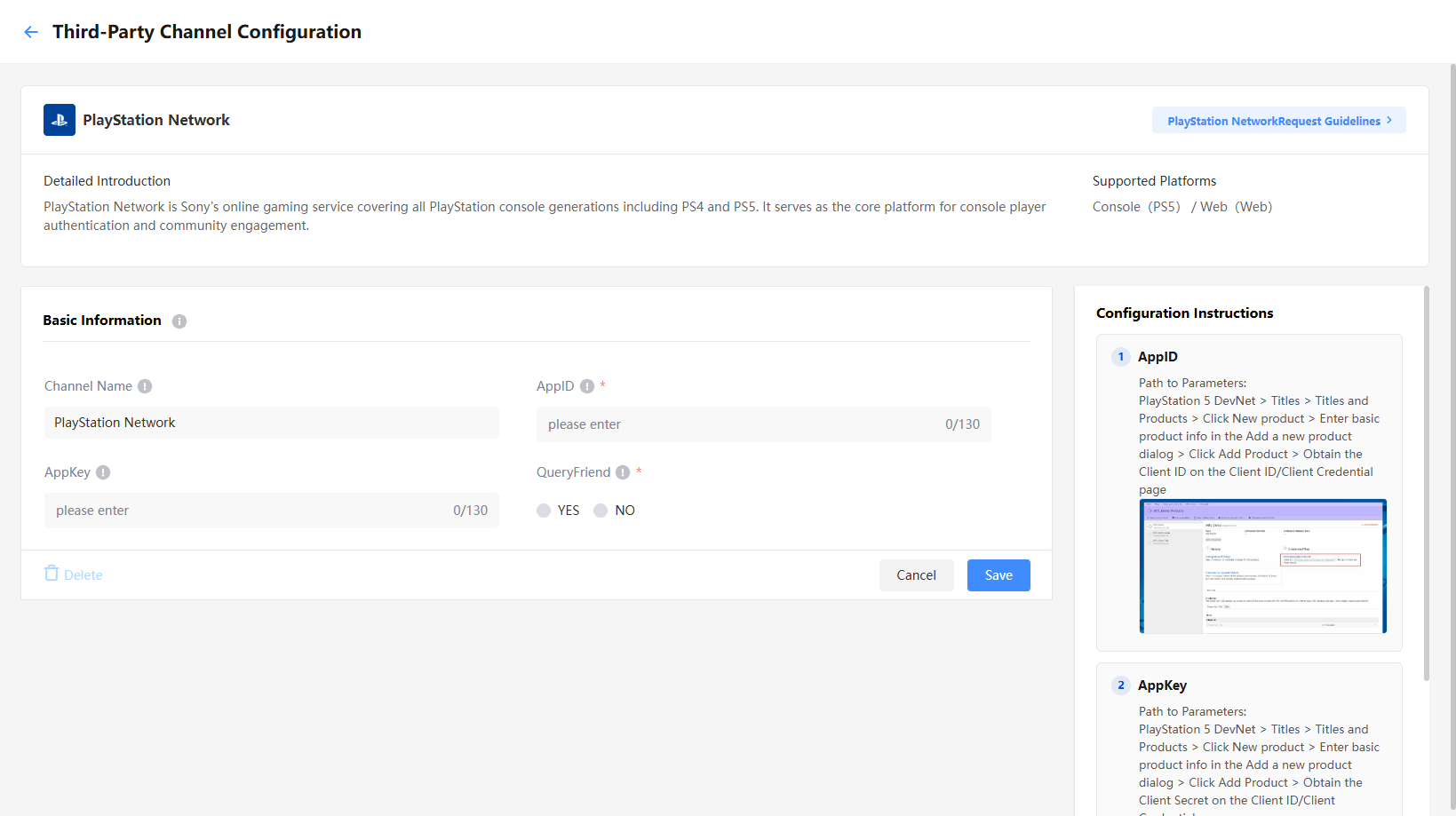
Basic Information:
- AppID:
Client IDfrom PlayStation - AppKey:
Client Secretfrom PlayStation - QueryFriend: Whether to fetch the player's PlayStation friends list
For more details, see Configure PlayStation 5 Login.
QQ
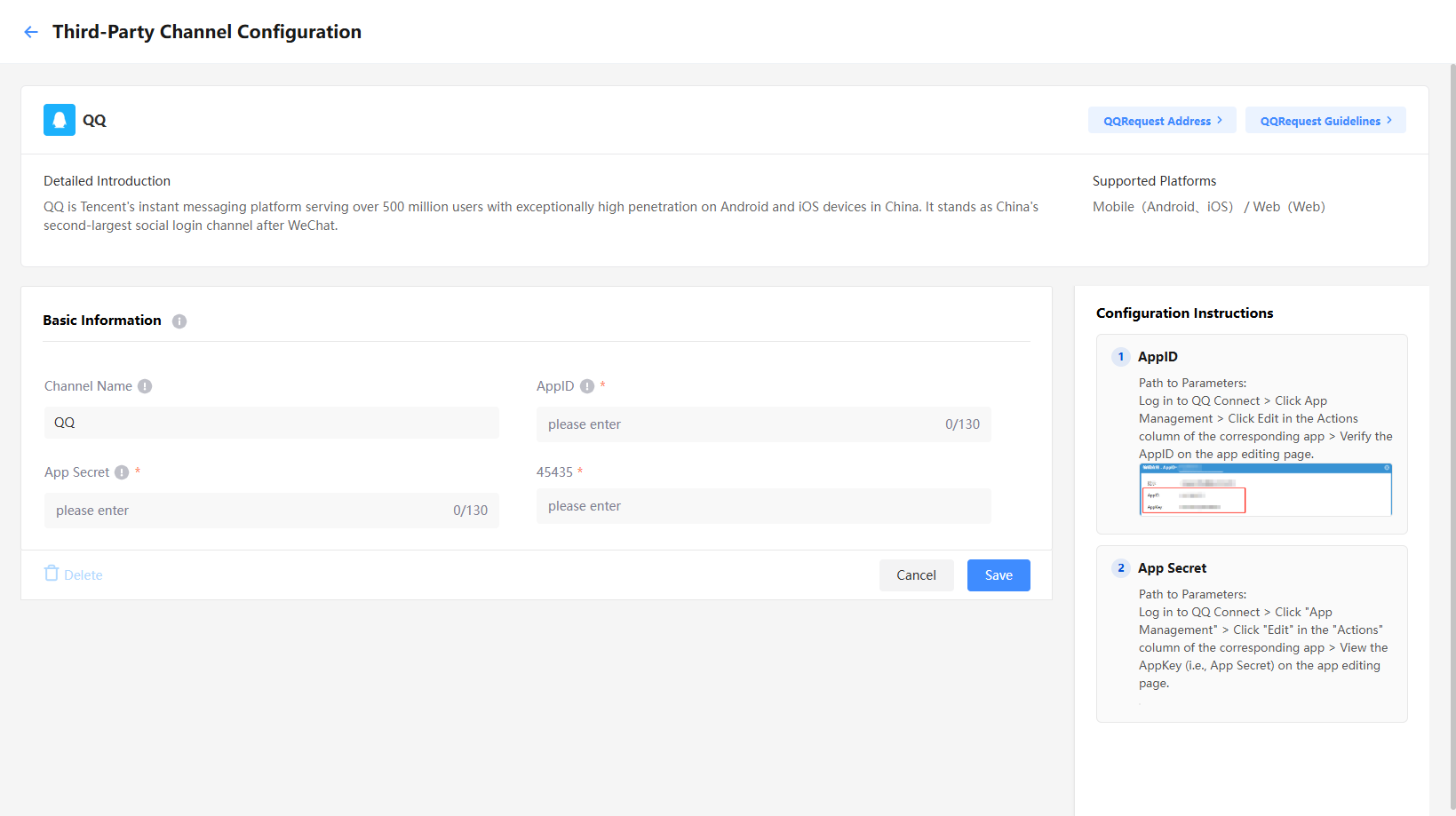
Basic Information:
- AppID:
AppIDfrom QQ - App Secret:
AppKeyfrom QQ
For more details, see Configure QQ Login.
SquareEnix
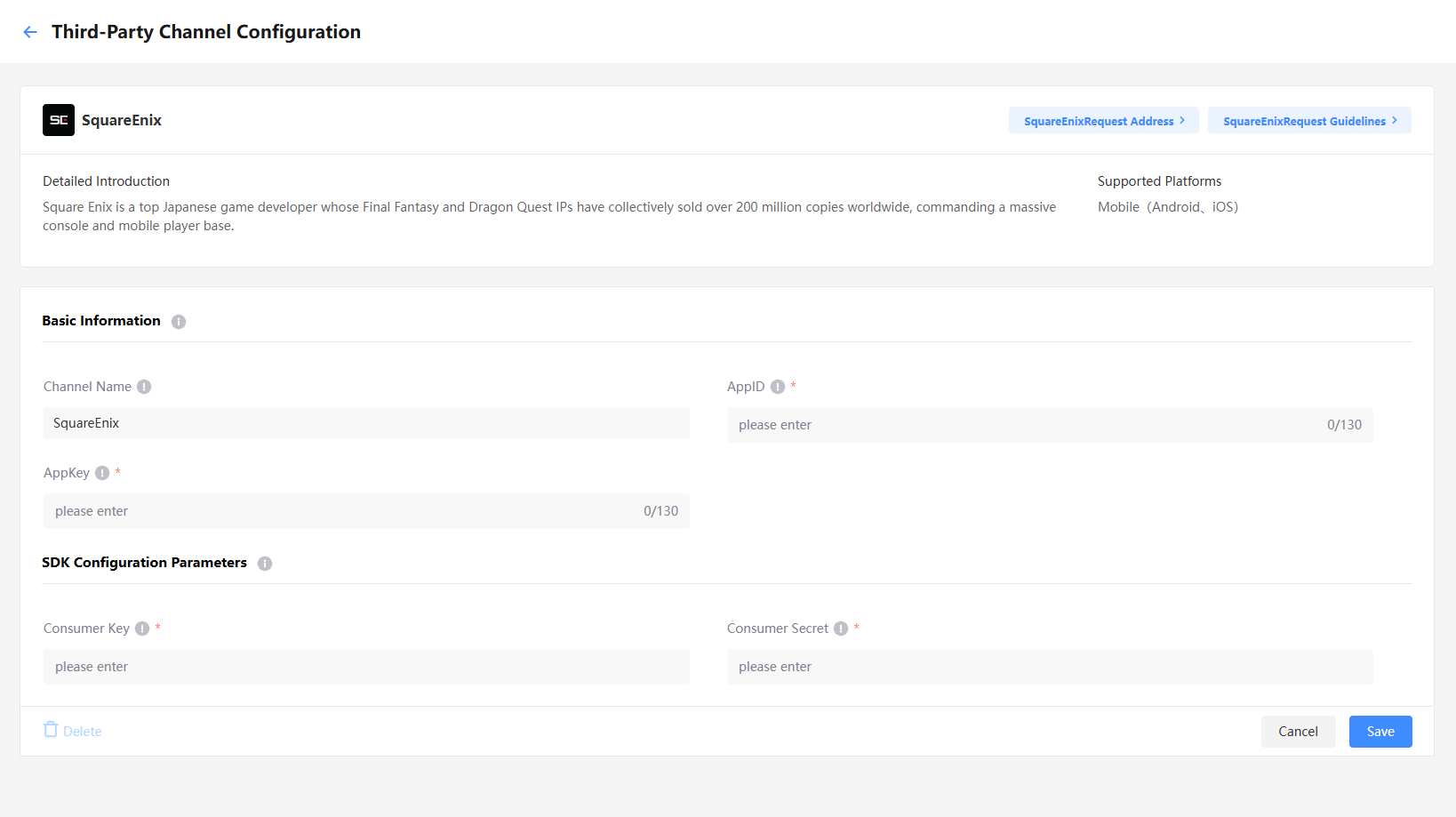
Basic Information:
- AppID:
SE Game IDfrom SquareEnix - AppKey:
Consumer Secretfrom SquareEnix
SDK Configuration Parameters:
- Consumer Key:
Consumer Keyconfigured in the SquareEnix admin console - Consumer Secret:
Consumer Secretconfigured in the SquareEnix admin console
Steam
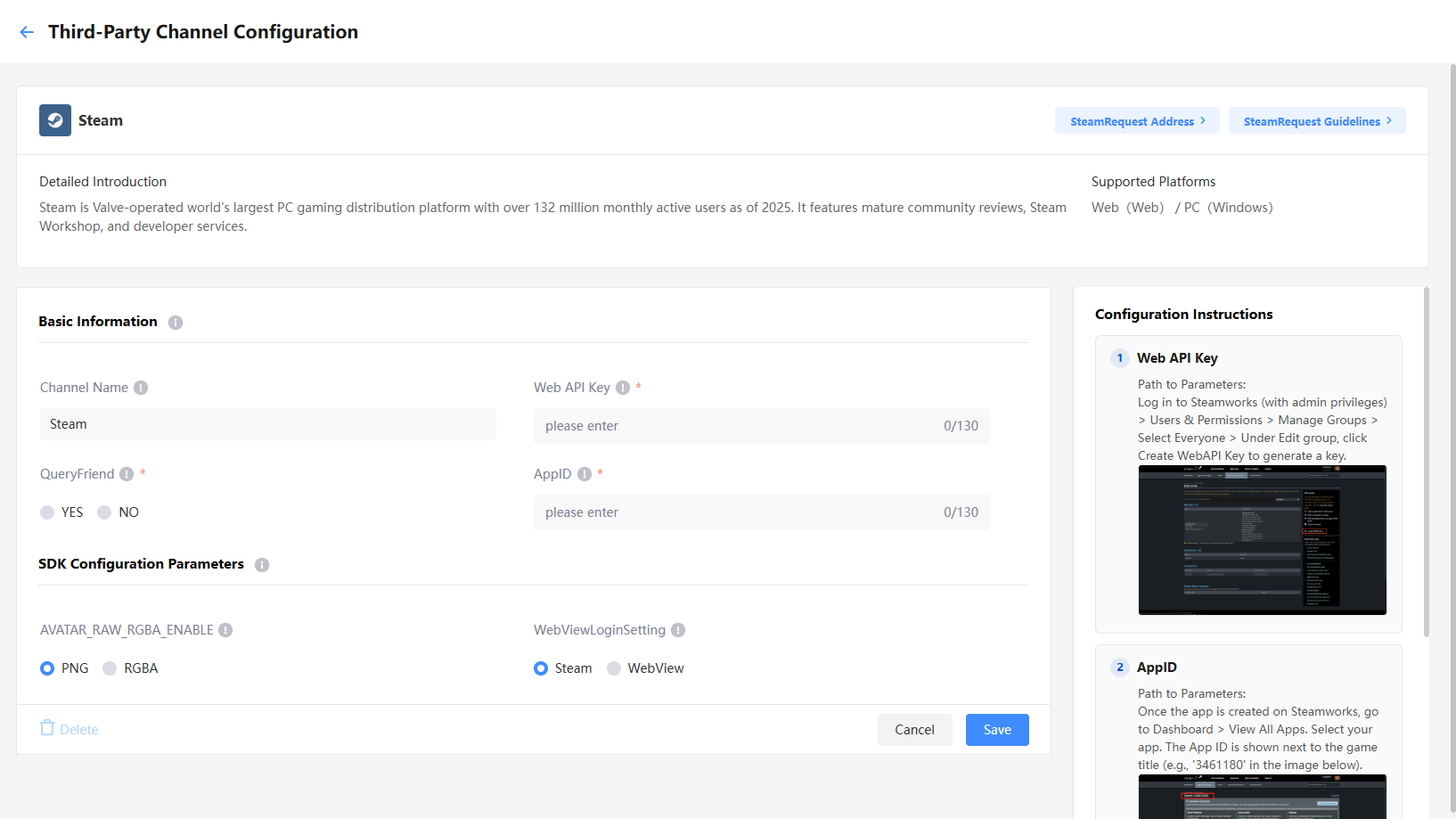
Basic Information:
- AppID:
- When the game is in the development phase, set as
480, the dedicated Steam test App ID. - When the game is in the release phase, set as the
App IDfrom Steam.
- When the game is in the development phase, set as
- Web API key:
Web API keyfrom Steam - QueryFriend: Whether to obtain the player's Steam friend list
SDK Configuration Parameters:
- AVATAR_RAW_RGBA_ENABLE: Controls the return encoding format of Steam player avatars
- WebViewLoginSetting: Controls the Steam login method on PC
For more details, see Configure Steam Login.
Twitch
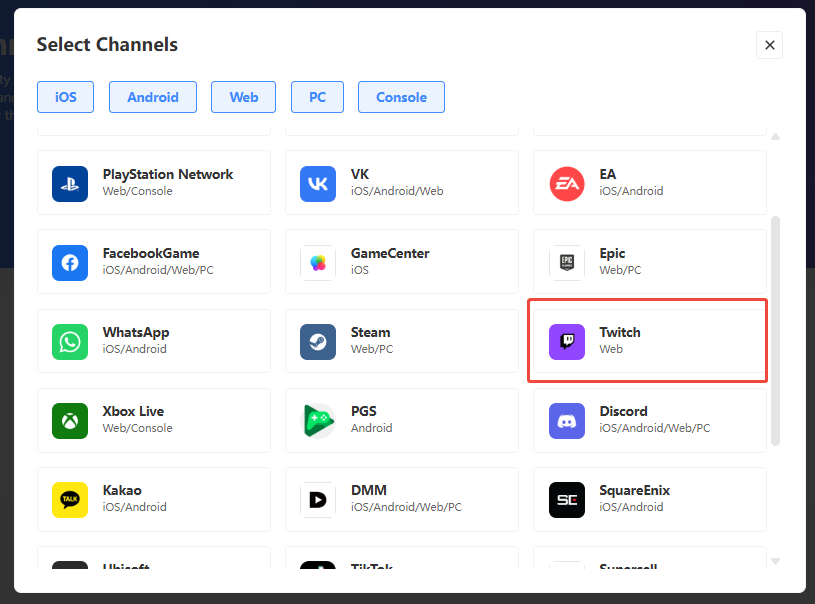
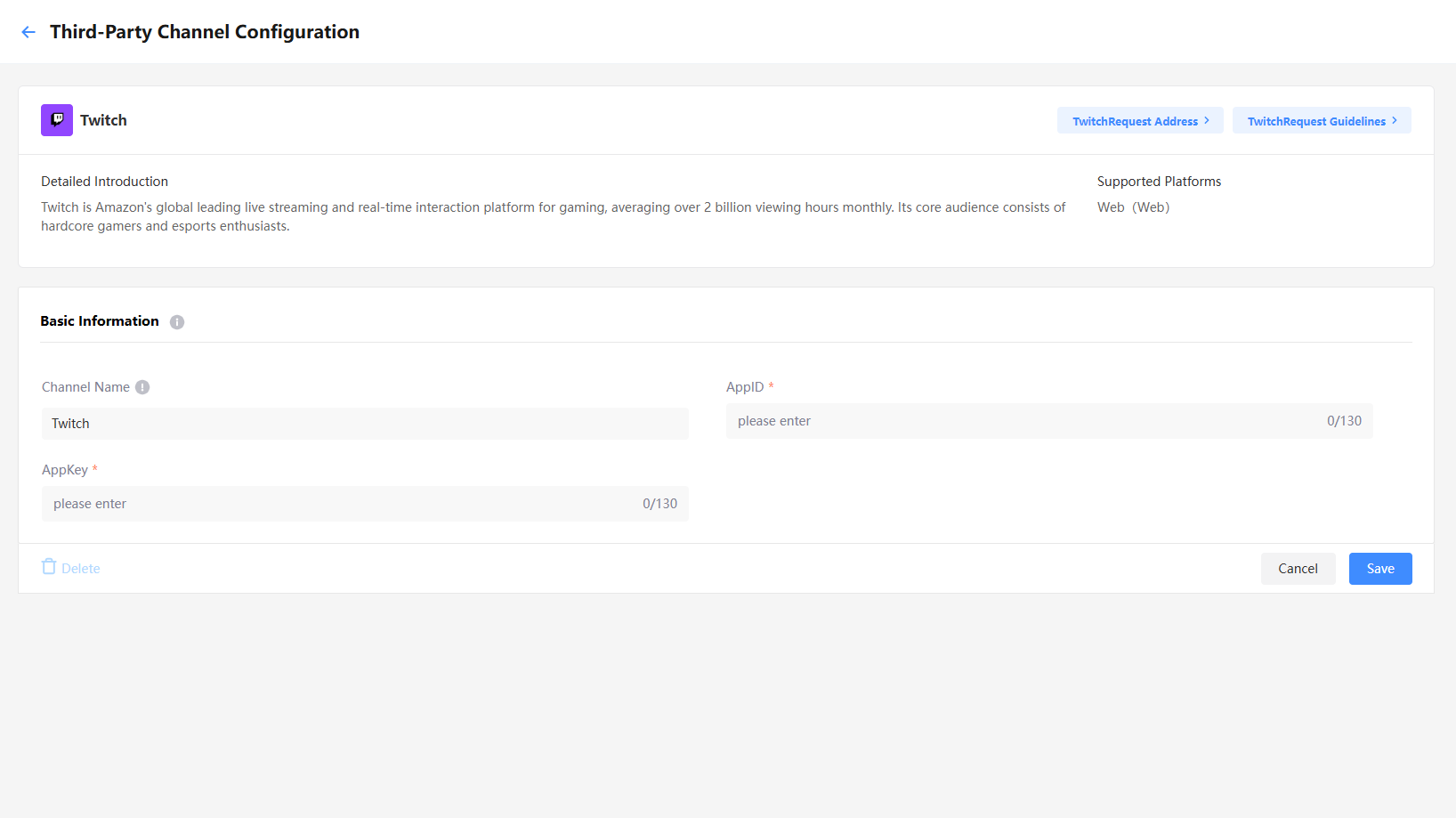
Basic Information:
- AppID:
AppIDfrom Twitch - AppKey:
AppKeyfrom Twitch
Ubisoft
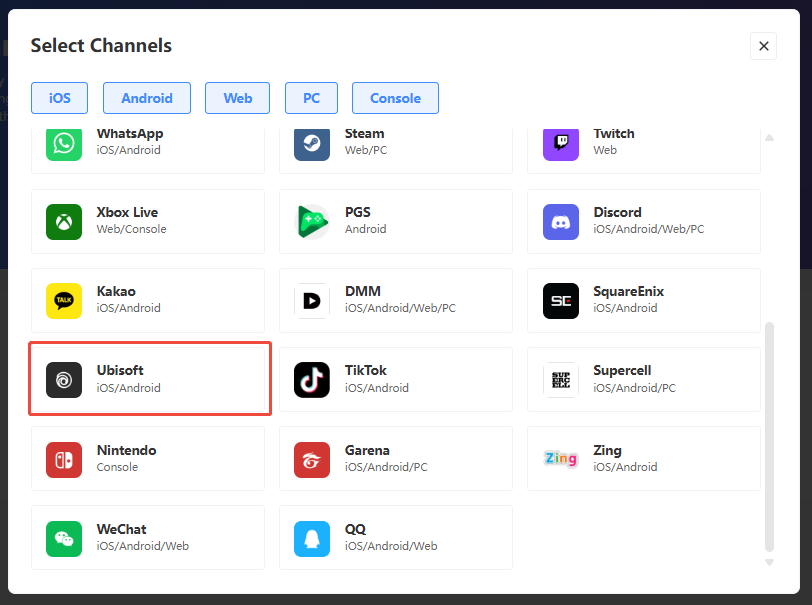
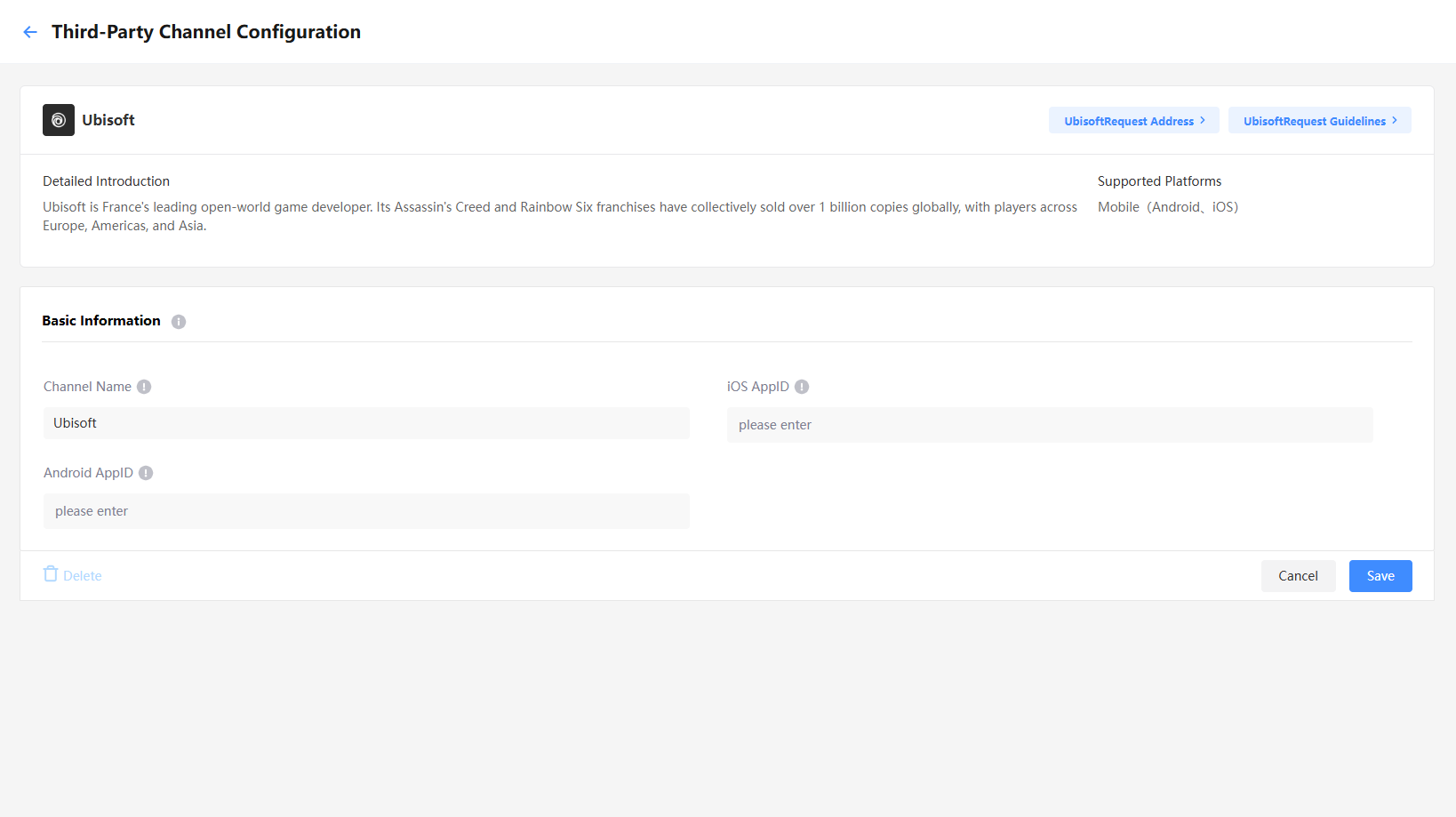
Basic Information:
- iOS AppID:
sExt2.ios_appidfrom Ubisoft - Android AppID:
sExt2.android_appidfrom Ubisoft
VK
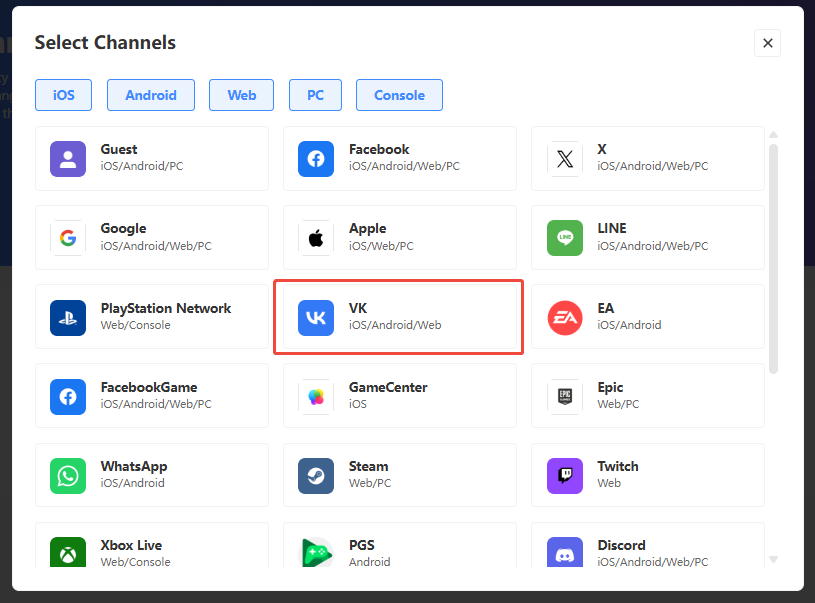
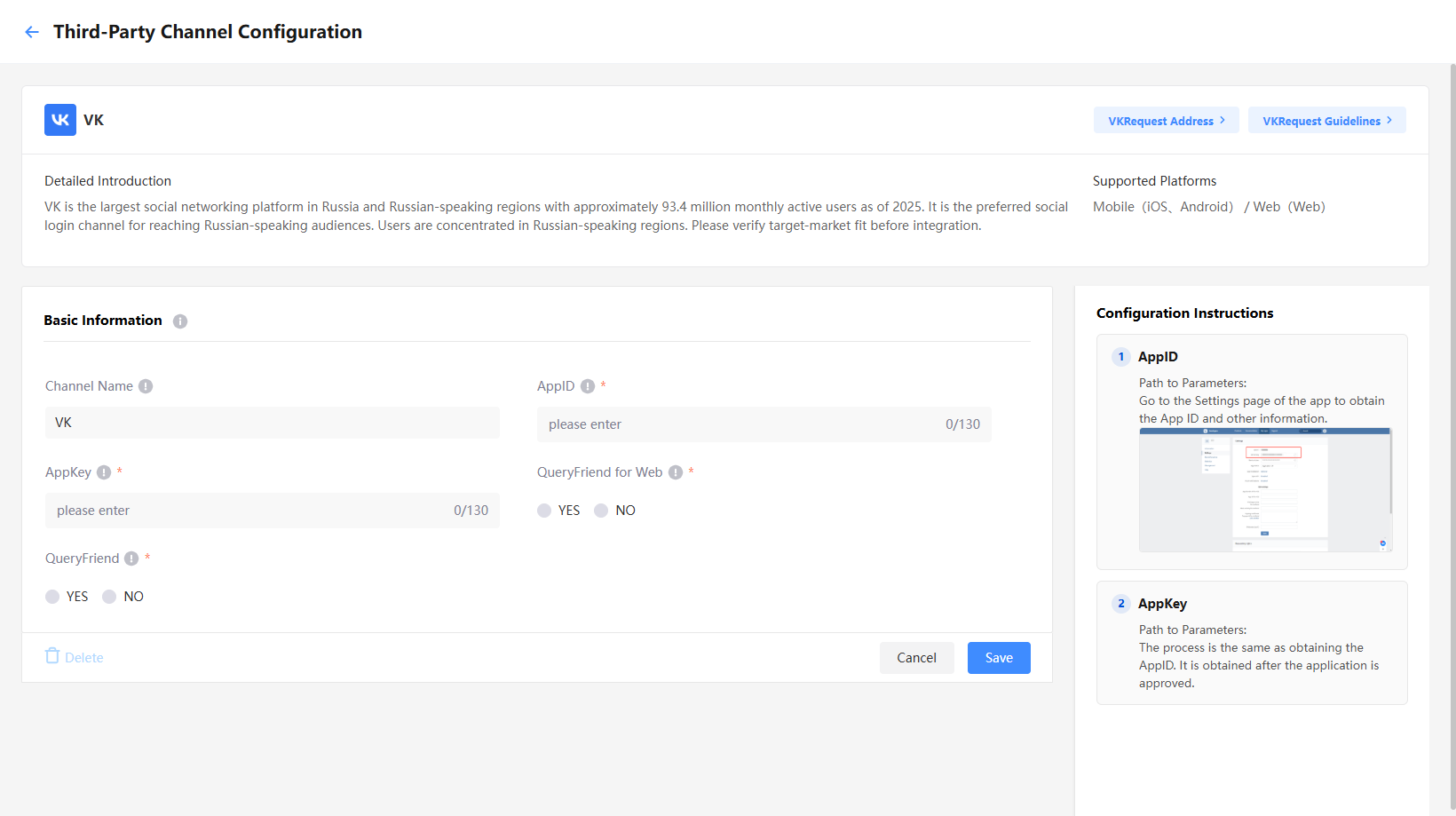
Basic Information:
- AppID:
App IDfrom VK - AppKey:
Secure keyfrom VK - QueryFriend for Web: For Web, whether to obtain the player's VK friend list.
- QueryFriend: Whether to obtain the player's VK friend list
For more details, see Configure VK Login.
WeChat
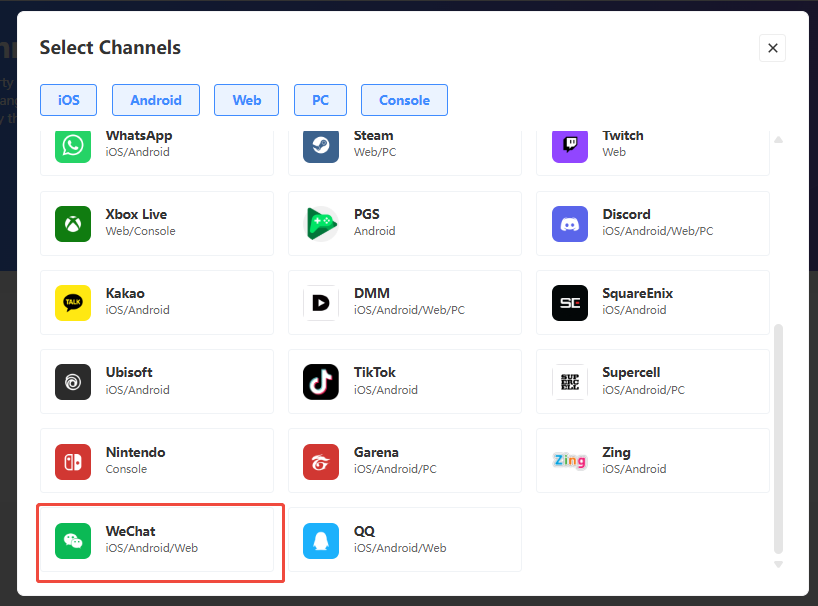
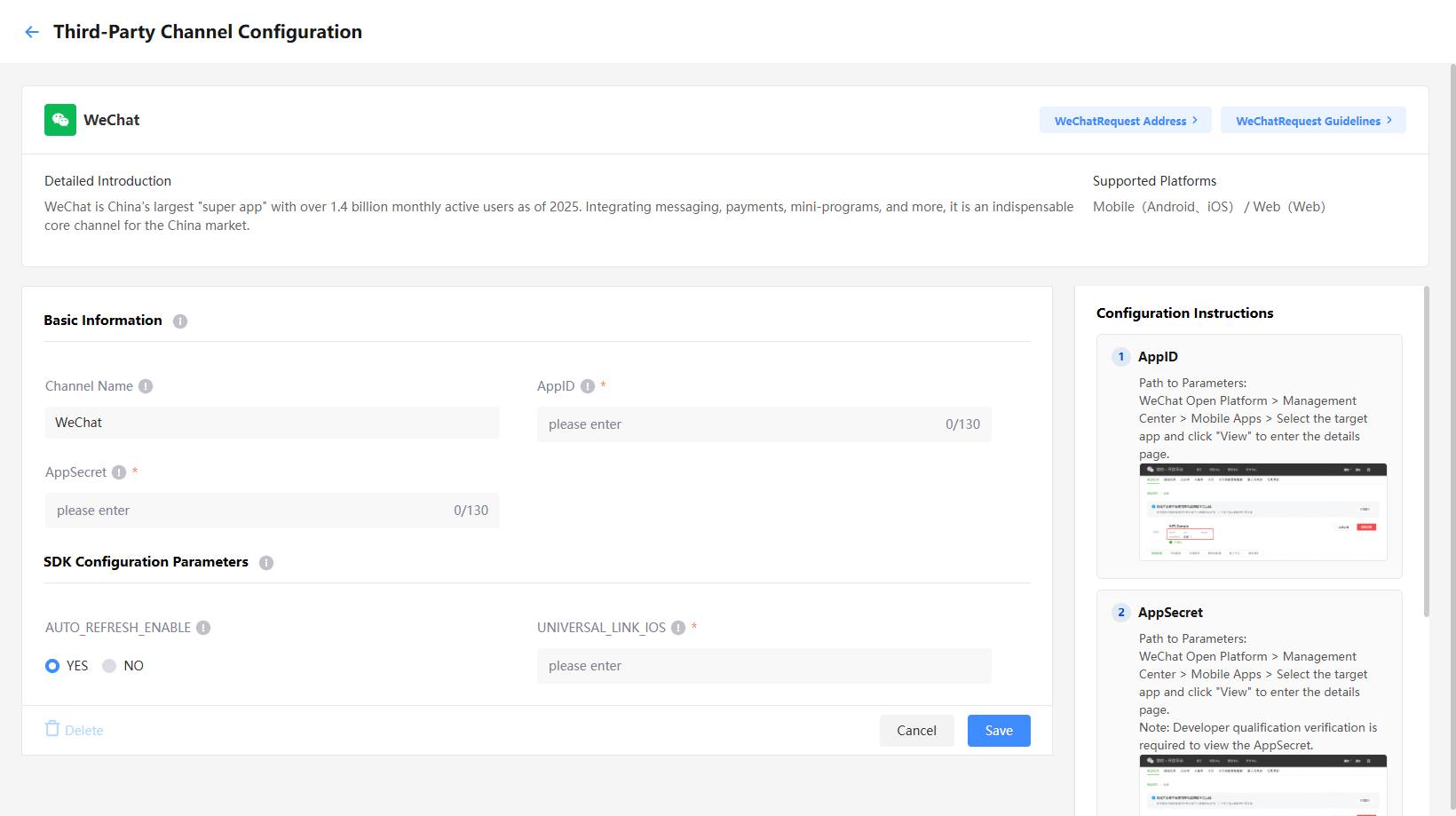
Basic Information:
- AppID:
AppIdfrom WeChat - AppSecret:
AppSecretfrom WeChat
SDK Configuration Parameters:
- AUTO_REFRESH_ENABLE: Whether to automatically refresh the token obtained from the configuration
- UNIVERSAL_LINK_IOS: The
UNIVERSAL_LINKset on the WeChat developer platform, used for iOS
Xbox Live
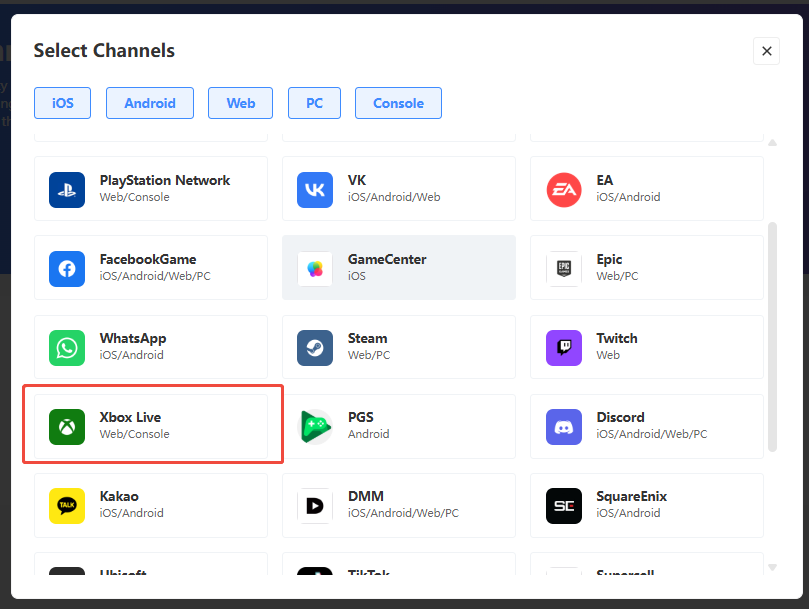
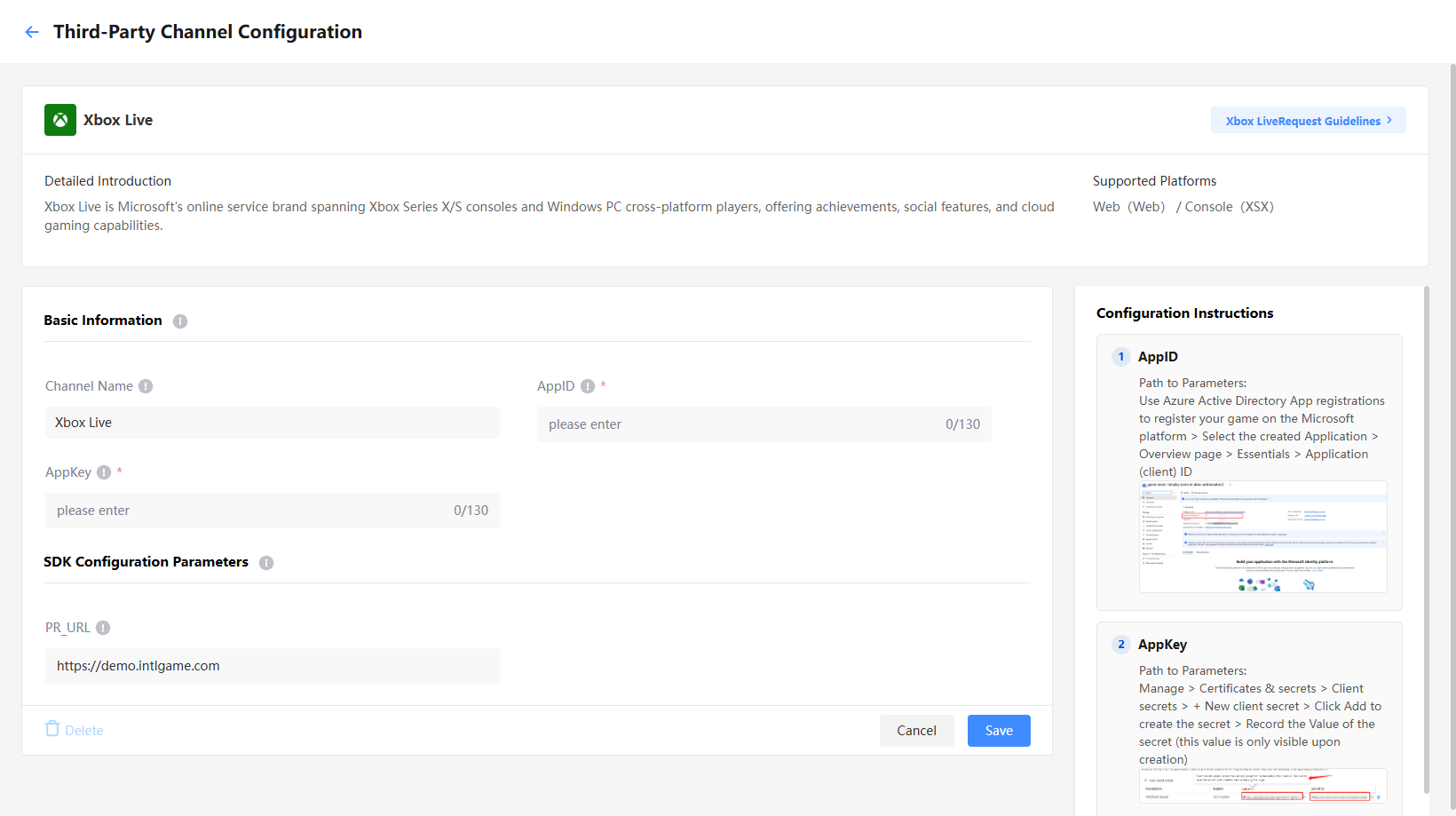
Basic Information:
- AppID: Enter 0 for console, or
Application (client) IDfrom Microsoft for web - AppKey: Enter 0 for console, or
client secret valuefrom Microsoft for web
SDK Configuration Parameters:
- PR_URL: The callback URL for the Xbox Live channel, used under the pxuid account system
For more details, see Configure Xbox Series X|S and WinGDK login.
X
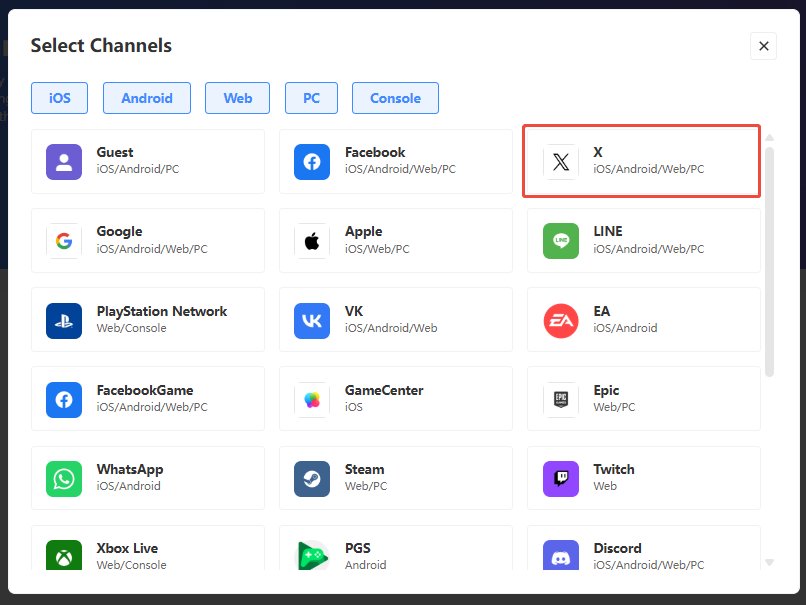
Basic Information:
- API Key:
API Keyfrom X - API Secret Key:
API Secret Keyfrom X - Return Email: Whether to return the player's login email
For more details, see Configure X Login.
Zing
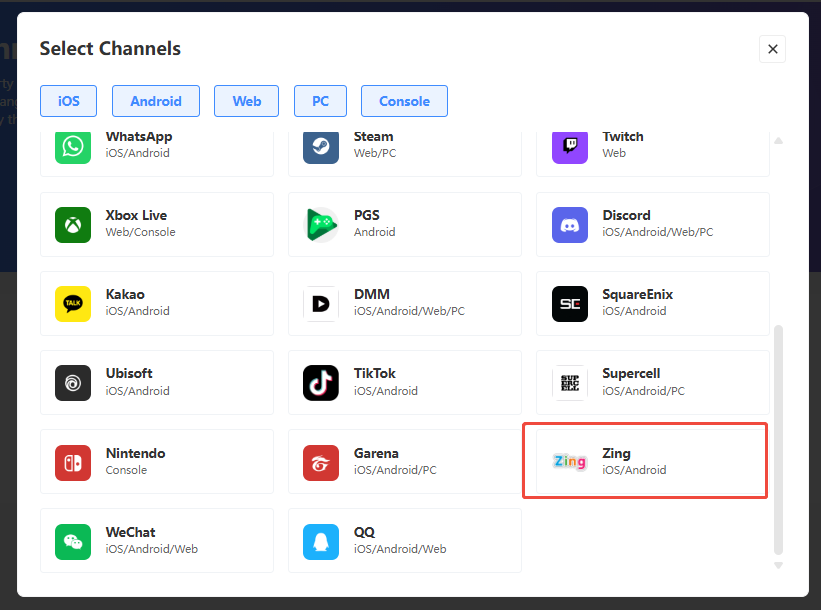
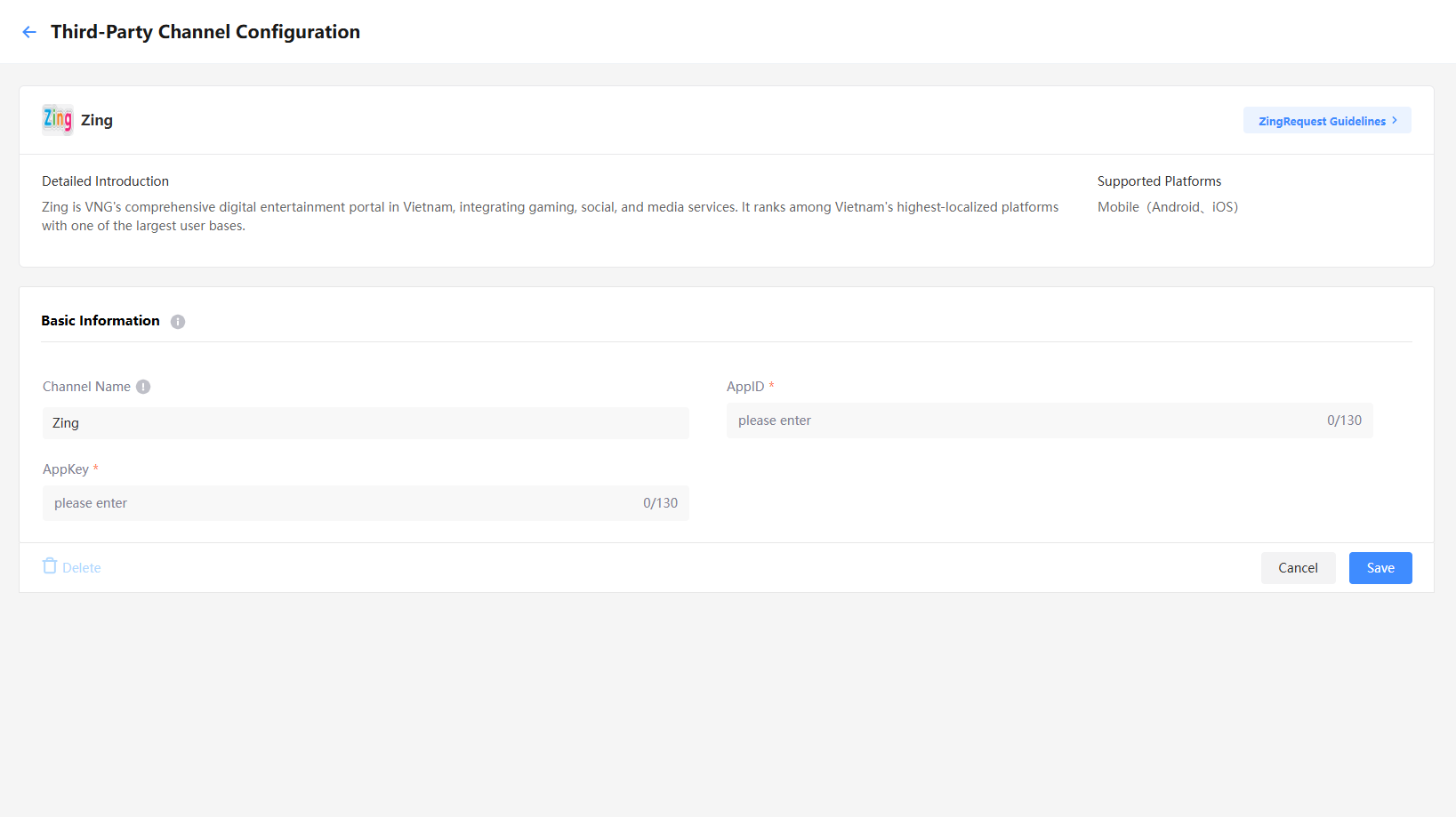
Basic Information:
- AppID:
AppIDfrom Zing - AppKey:
AppKeyfrom Zing
Guest
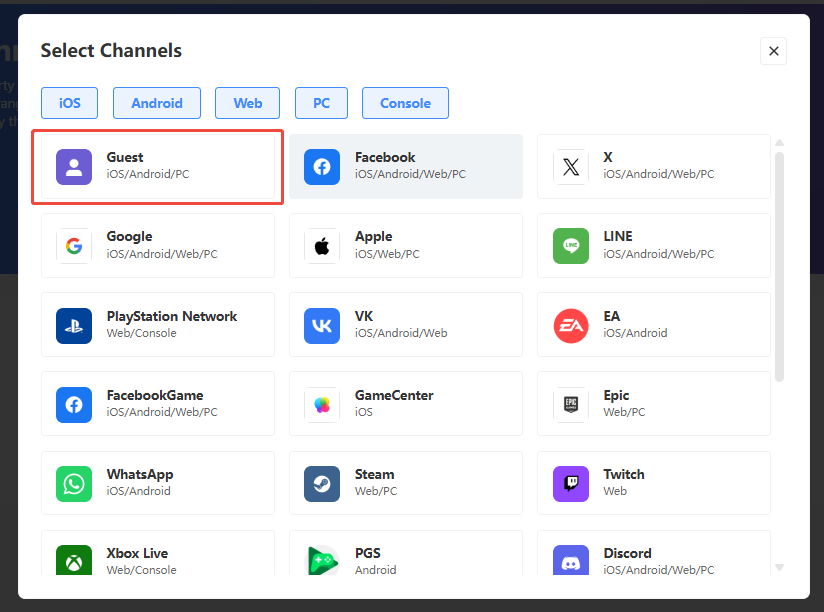
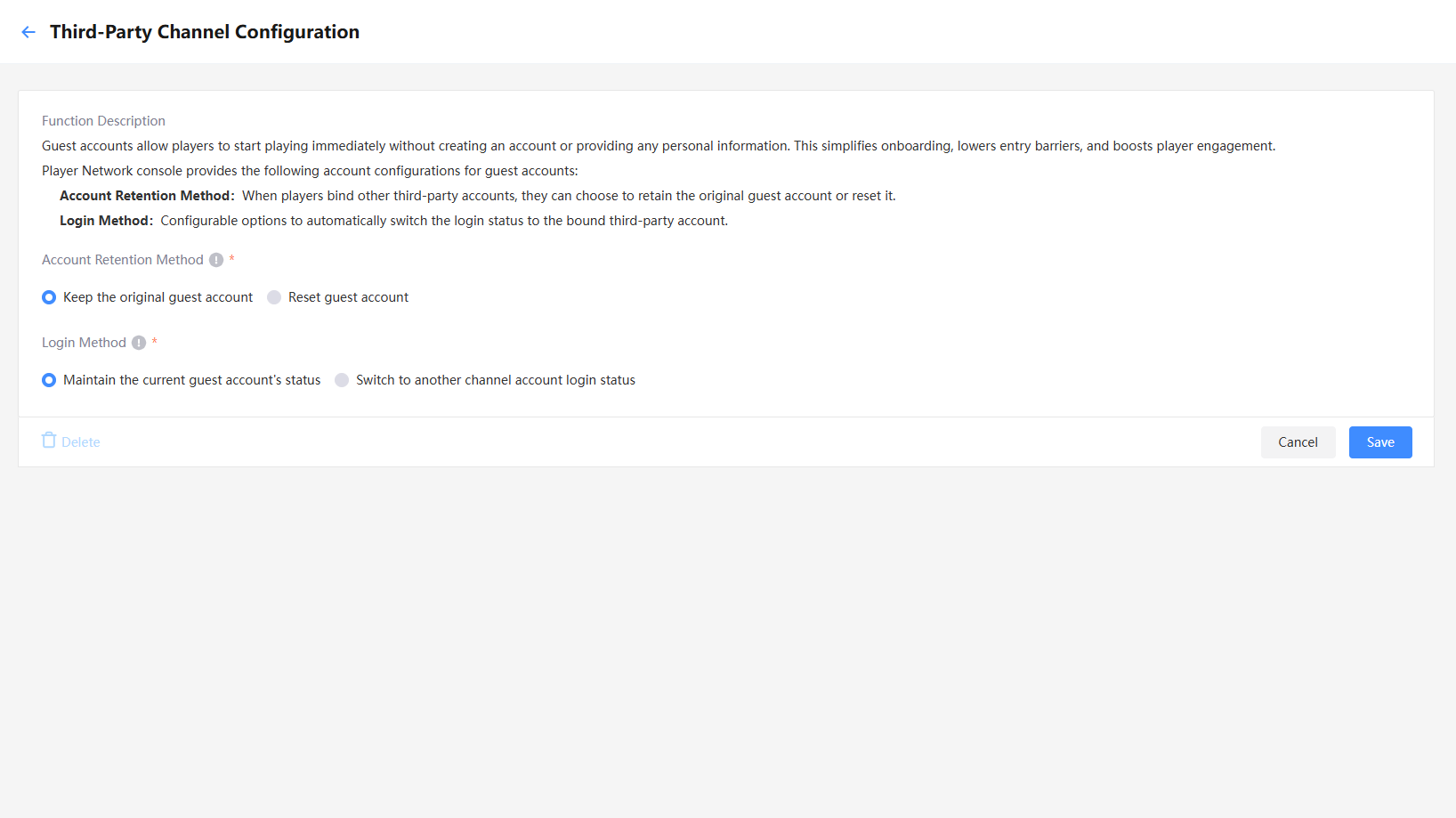
- Account status: Whether to retain or reset the guest account when linking to a third-party channel
- Login status: Whether to keep the login status of the guest account, or to switch to the linked channel when linking to a third-party channel

